The RenderGod Blender Add-on Explained
The Send to RenderGod Blender add-on saves your scene and adds it to the render queue in one click. See what it does, where it appears and what it needs.
The RenderGod Blender add-on puts a Send to RenderGod button inside Blender. One click saves the open .blend file and adds it to the RenderGod render queue, so you never have to switch apps and import the file by hand.
What the add-on does
When you click Send to RenderGod, the add-on:
- Saves the .blend file, the same as Ctrl + S.
- Reads the scene details RenderGod needs: scenes, cameras, view layers, frame range, resolution, render settings, compositor, File Output nodes, worlds and missing external files. RenderGod then does not have to open the file in Blender again to read them, so the job is ready faster.
- Brings RenderGod to the front, or starts it if it is closed, and adds the file to the queue as a new job.
Step by step: Send the current scene to RenderGod.
Where to find the button
| Location | How to get there |
|---|---|
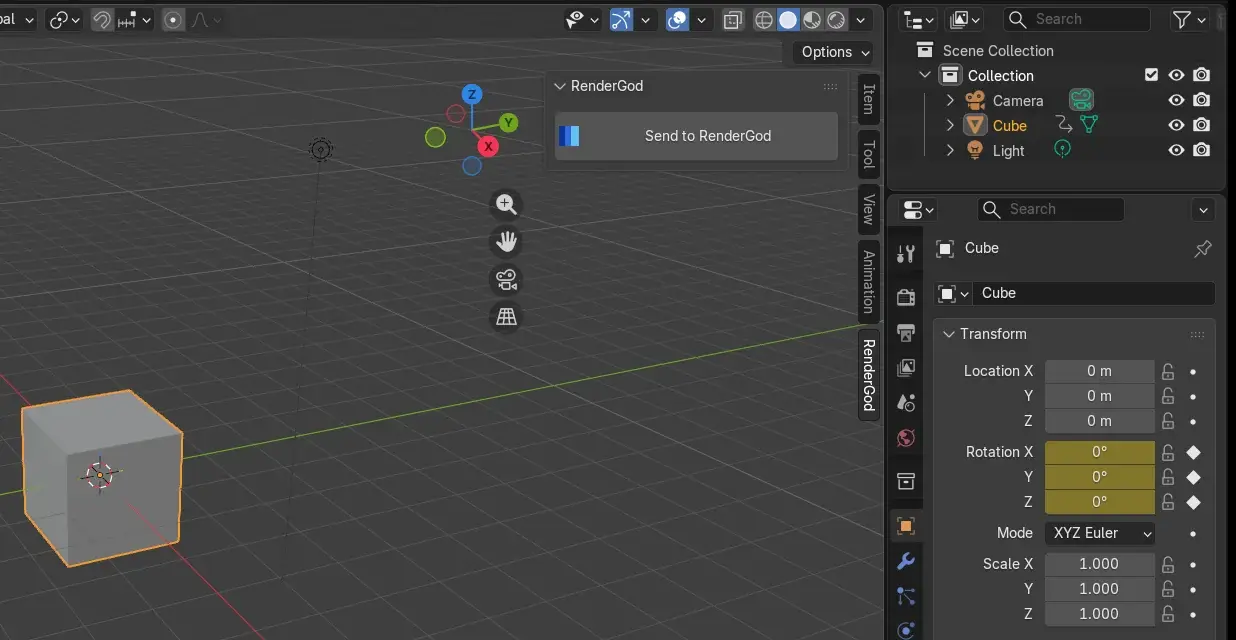
| 3D Viewport sidebar | Press N in the 3D Viewport and click the RenderGod tab |
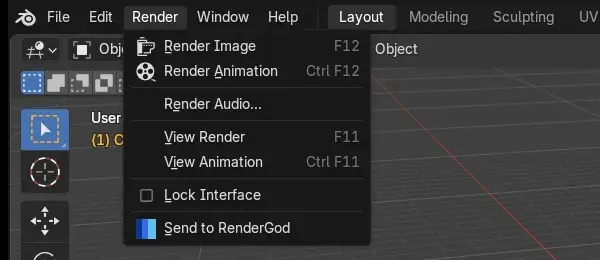
| Render menu | Render > Send to RenderGod, at the bottom of the menu |
Requirements
- Blender 4.2 or newer.
- RenderGod installed and opened at least once on the same computer. The add-on finds RenderGod through the location recorded the first time RenderGod runs.
- The .blend file must have been saved once, so it exists on disk.
The add-on works the same way on Windows and macOS.
Something to know: worlds get a fake user
While the add-on is enabled, every save marks all worlds in the file with a fake user (the shield icon). This stops Blender from deleting worlds that no scene uses when the file is saved, so they stay available for RenderGod's World Override.