Render Settings
Override the World for a Blender Render
Swap the world, HDRI or background of a Blender scene per RenderGod job with World Override, and render lighting variations without editing the file.
World Override replaces the scene's world (its environment lighting and background) with another World from the same .blend file, for this job only. Use it to render lighting variations, such as a studio HDRI, a sunset and a night version, from one file.
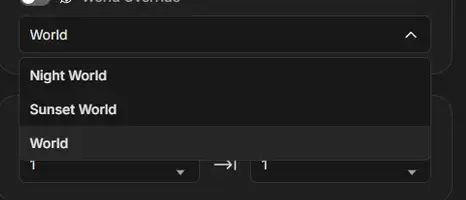
Render with a different world
- Select the job.
- Open the dropdown under World Override and choose a world. The list shows every World data-block in the file.
- The World Override switch turns on automatically.
To go back to the scene's own world, turn the switch off.
| Switch | Dropdown shows | What renders |
|---|---|---|
| Off | The scene's own world | The world saved with the scene |
| On | The world you chose | The chosen world replaces the scene's world for the render |
Hover the dropdown to see which world is in use, for example "Overriding with world: Sunset World".
Render several lighting variations
- Set up the job with the first world.
- Duplicate the job once per variation.
- Choose a different world on each copy.
- Use an output template with a Version or Date + time folder, or a custom template, so the variations do not overwrite each other.
Make sure your worlds are saved in the file
Blender deletes data-blocks that nothing uses when it saves. A World that is not assigned to any scene disappears from the file unless it has a Fake User.
- In Blender, open the World in the World properties or the Blender File view of the Outliner and enable Fake User (the shield icon) before saving.
- When you send a scene from Blender with the RenderGod add-on, Fake User is set on worlds automatically.
Things to know
- If the file has no World at all, turning the switch on shows "This .blend has no World, so there is nothing to override".
- Changing Scene turns World Override off.
- The override is applied only while rendering. The
.blendfile keeps its saved world.