Create Your Own Render Preset in RenderGod
Save the current engine, samples, denoiser, resolution and format of a job as a custom RenderGod render preset and reuse it on any render with one click.
A custom render preset saves the render settings of the selected job under a name, so you can apply the same quality setup to other jobs later. Typical examples are "Client dailies" for quick low-sample previews and "Final 4K" for delivery.
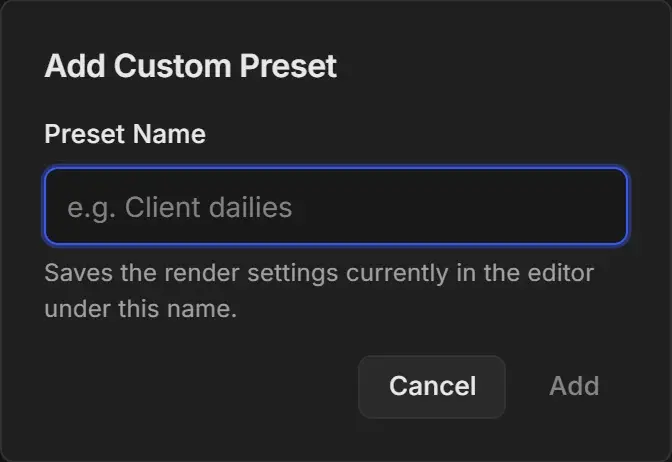
Save the current settings as a preset
Select a job and set up the render settings you want to keep: engine, samples, denoiser, resolution, format and so on.
Open the Preset dropdown and choose ADD.
Type a Preset Name. It cannot be empty or only spaces, and must not already be used.
Click Add, or press Enter.
A notification confirms the preset was added, and the new preset is selected on the job. It now appears in the Preset dropdown of every job.
What a preset saves
| Saved in the preset | Not saved |
|---|---|
| Engine and Samples | Frame range |
| Denoiser | Scene, Camera, view layer, world |
| Noise Threshold on or off, and its value | Output template |
| Resolution width, height and % | Force Tile Size value |
| Frame rate | Fast GI Approximation bounce count |
| Format | Simplify Texture Limit size |
| Film Transparent, Shadows, Ray-Tracing | Cycles Texture Cache |
| Optimization Overrides switches (GPU, persistent data, tile size, Fast GI, texture limit) and Disable add-ons during render | Auto Create Video, Auto Bake Physics, Blender Version |
For the unsaved optimization values, set the defaults you want in Optimization Overrides settings.
Tips for useful presets
- Name presets by purpose, not by numbers: "Lookdev EEVEE", "Client dailies", "Final 4K EXR".
- Make one preset per engine. A preset stores engine-specific settings, such as the denoiser for Cycles or Shadows for EEVEE.
- To change a preset, apply it, adjust the settings, save a new preset with ADD, then delete the old one.
- Before a large batch, apply the preset to one job and check the panel values before you start the queue.
If the preset cannot be saved
The dialog shows the problem and keeps what you typed, for example "The preset could not be saved. Choose an unused name and check that the settings folder is writable." Choose another name or check that RenderGod can write to its data folder. See Where RenderGod stores its data.
If you close the dialog with a name typed in, RenderGod asks whether to discard it.