Manage Output Templates in the Output Templates Manager
Edit, delete and restore RenderGod output templates in the Output Templates Manager so every render job can pick the folder layout and file naming you want.
The Output Templates Manager is the library of output templates that every job can pick from on its Output card. Use it to edit the built-in folder layouts, add your own, remove ones you no longer use, or bring the built-ins back.
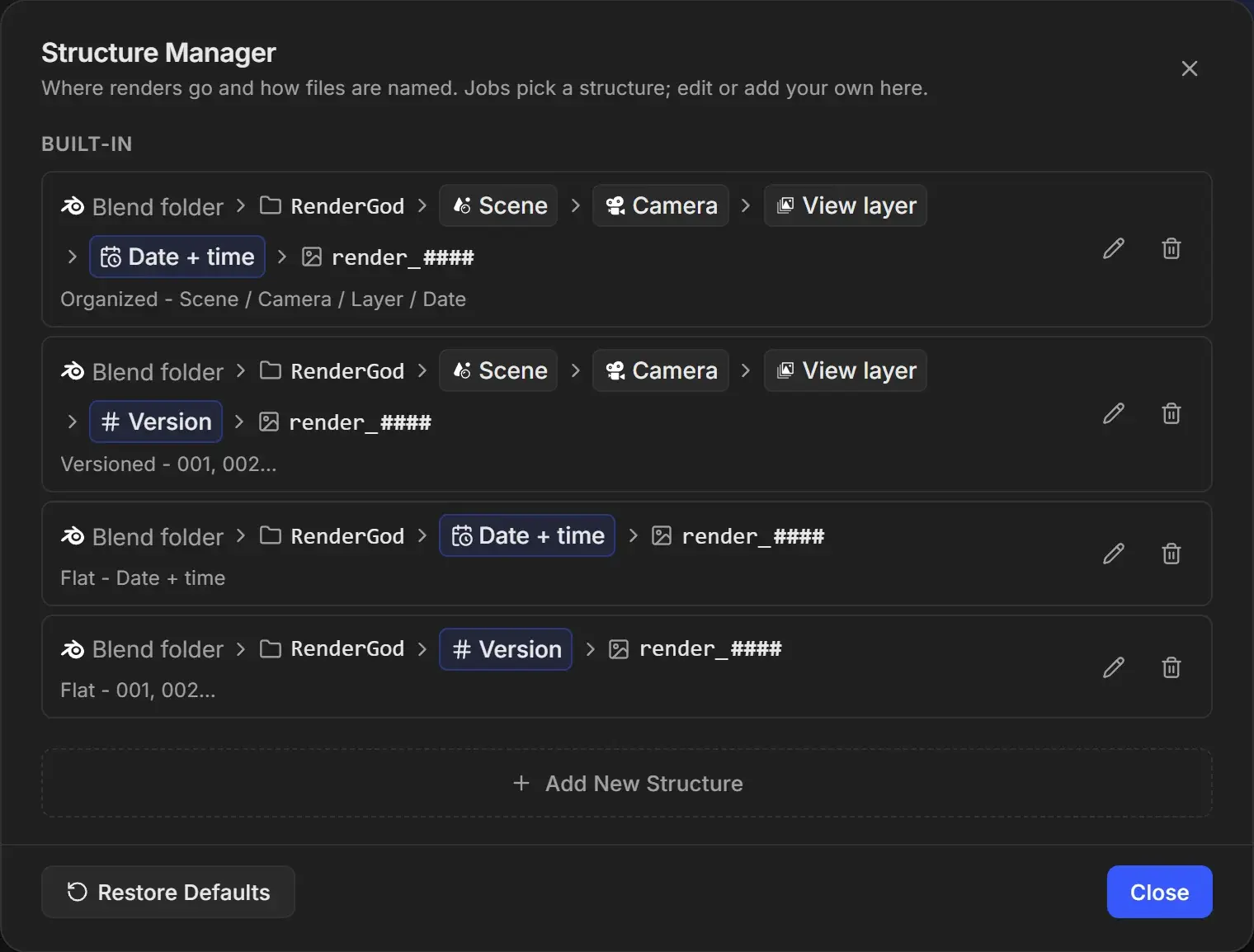
Open the Output Templates Manager
Select a job, open the dropdown on the Output card and choose Output Templates Manager. The pencil icon next to any template in that dropdown opens the Output Templates Manager directly in the editor for that template.
What the list shows
Templates are grouped into Built-in and My templates. Each row shows the full chip layout, including the file name, with the template's name underneath.
| Built-in name | Layout |
|---|---|
| Organized - Scene / Camera / Layer / Date | Blend folder > RenderGod > Scene > Camera > View layer > Date + time > render_#### |
| Versioned - 001, 002... | Blend folder > RenderGod > Scene > Camera > View layer > Version > render_#### |
| Flat - Date + time | Blend folder > RenderGod > Date + time > render_#### |
| Flat - 001, 002... | Blend folder > RenderGod > Version > render_#### |
Same as the original .blend file is not a template, so it is not listed here. It is always available in the job's Output dropdown.
Manage templates
| Action | How | Notes |
|---|---|---|
| Add a template | Click Add New Template | Opens the template builder |
| Edit a template | Click the pencil icon | Built-ins can be edited too |
| Delete a template | Click the trash icon | Deletes immediately, with no confirmation. You cannot delete the last remaining template. |
| Restore the built-ins | Click Restore Defaults | Brings back the four built-in templates as shipped. Your own templates are kept. |
| Close | Click Close or the X | Changes are already saved |
A notification confirms each action, such as "Template deleted" or "Restored 2 built-in templates". If every built-in is already present, you see "Every built-in template is already there".
What happens to jobs that used a template
Each job keeps its own copy of the template it was given. Editing or deleting a template in the library does not change the folders of jobs that already have it. If a job's template no longer matches any library entry, its Output dropdown shows Custom (this job) with a small "custom" tag.
To update a job with an edited template, open its Output dropdown and pick the template again.
If the list does not load
If you see "Couldn't load templates", click Try Again. If the list is empty, click Restore Defaults to add the built-ins back.