Use Render Presets in RenderGod
Apply a RenderGod render preset to a job, go back to the scene's own settings with Follow Scene, and delete presets you no longer need.
A render preset is a saved set of render settings, such as engine, samples, denoiser, resolution and format, that you can apply to any job in one click. The Preset dropdown sits at the top of the render settings card.
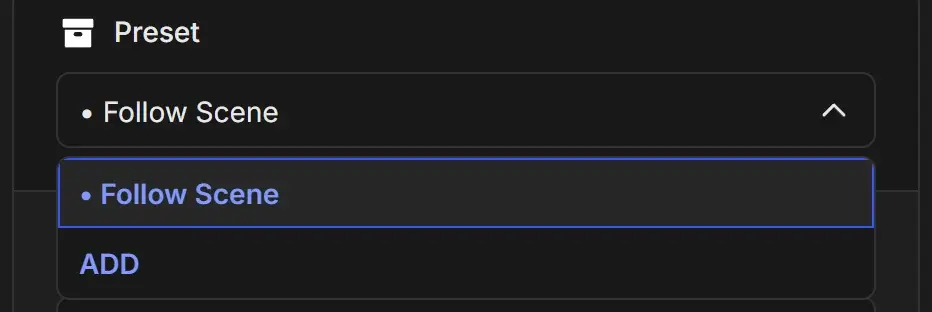
Apply a preset to a job
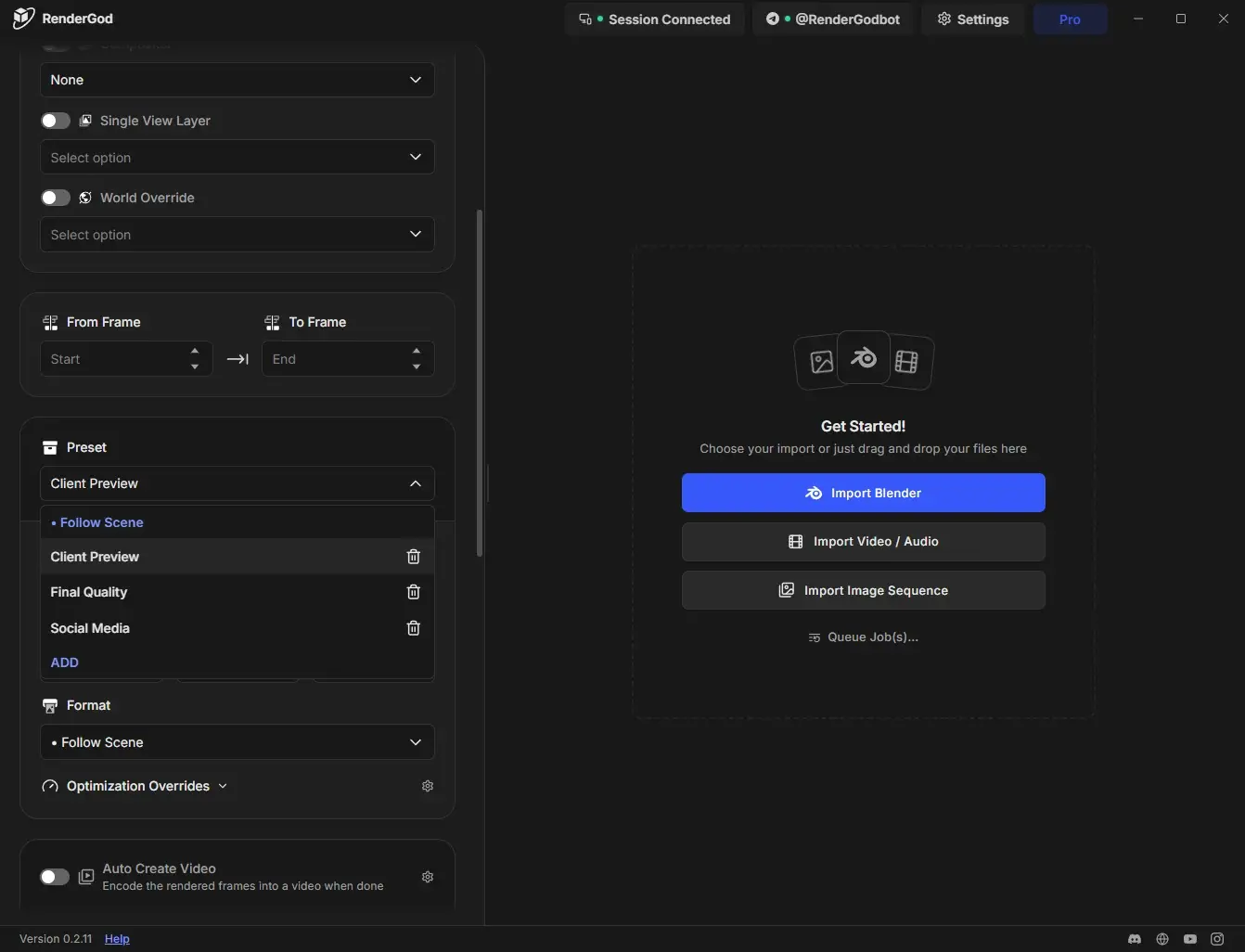
- Select the job.
- Open the Preset dropdown.
- Choose a preset. Its settings replace the job's current values right away.
| Option | What it does |
|---|---|
| Follow Scene | Uses the render settings saved in the .blend scene. This is where new jobs start. |
| Your presets | Apply the settings you saved under that name |
| ADD | Saves the job's current settings as a new preset. See Create your own render preset. |
Presets are shared across all jobs and stay available after you restart RenderGod.
Return to the scene's settings with Follow Scene
Choose Follow Scene to undo your changes and go back to the .blend file's values. It resets:
| Setting | Reset to |
|---|---|
| Engine, Samples, Denoiser | The scene's values |
| Resolution (width, height and %) and frame rate | The scene's values |
| Noise threshold (adaptive sampling) | The scene's value |
| Film Transparent | The scene's value |
| Format | Follow Scene |
| Optimization Overrides | The defaults from Optimization Overrides settings |
| Shadows and Ray-Tracing (EEVEE) | Off |
Follow Scene does not touch the frame range, scene, camera or output folder.
What a preset does not change
Presets only hold render quality settings. Applying one never changes the Scene, Camera, frame range, Output template, Auto Create Video or Blender Version. Some optimization details are not stored either; see Create your own render preset for the full list.
Delete a preset
- Open the Preset dropdown.
- Click the trash icon next to the preset.
The preset is deleted at once, with no confirmation, and a notification confirms it. Jobs keep the settings they already have. Follow Scene cannot be deleted.
When the Preset field is empty
The Preset dropdown can show Choose / Add a Preset instead of a name, for example after you edit a setting by hand. This does not change anything on the job. The values shown in the panel are the ones that render.