The Render Settings Panel in RenderGod
Learn how the RenderGod render settings panel is laid out, where each card lives and how changes save to a job without touching your .blend file.
The render settings panel is where you adjust how one job in the queue renders: where frames are saved, which scene and camera to use, the frame range, engine, samples, format and more. Every change applies to the selected job only and is saved as you type.
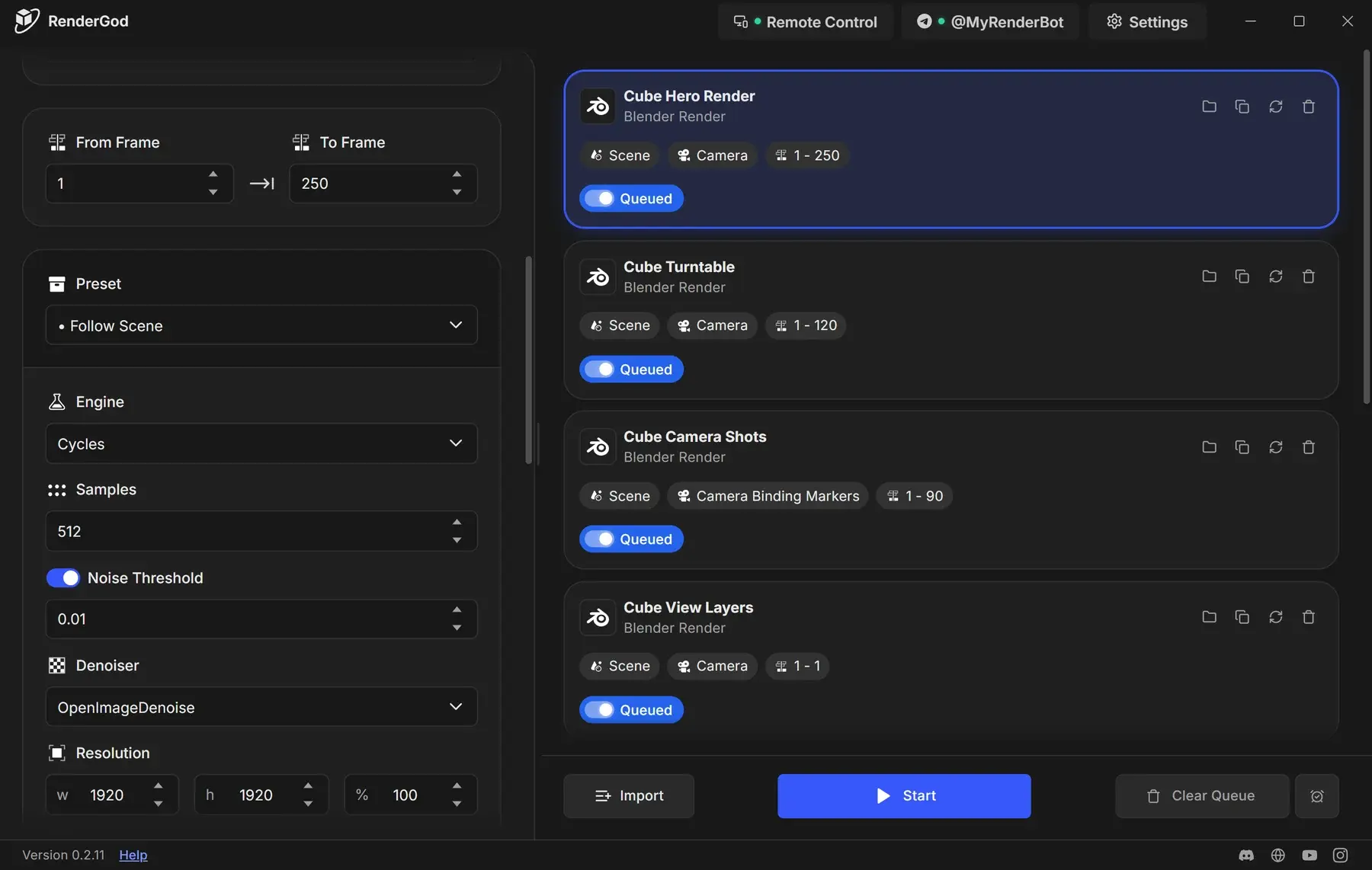
Open the render settings panel
The panel appears once the queue has at least one job and you select it.
Import a .blend file with Import at the bottom of the queue, or drag the file onto the window. See Import .blend files.
Wait until the job finishes loading. While it loads, every field in the panel shows a grey placeholder bar.
Click the job card in the queue. The render settings panel opens on the left.
In a wide window the panel sits on the left and the queue on the right. Drag the divider between them to resize. Double-click the divider, or focus it and press Enter, to restore the default split. In a narrow window the queue shows first; tap a job to open its settings full width, then use Back to queue or swipe back to return.
What each card does
The panel is a column of cards, top to bottom.
| Card | What it controls | Learn more |
|---|---|---|
| Preview | Live and finished frames of this job (only once frames exist or the job is rendering) | Watch frames live |
| Output | Output folder template, the resolved file path, File Output node folders | Choose where renders are saved |
| Scene | Scene, Camera, Compositor, Single View Layer, World Override | Render a specific scene |
| Frame range | From Frame and To Frame | Set the frame range |
| Render settings | Preset, Engine, Samples, Noise Threshold, Denoiser, Resolution, Format, Advanced, Optimization Overrides | Render presets |
| Auto Create Video | Encode the frames into a video when the render ends | Create a video automatically |
| Auto Bake Physics | Bake simulations before rendering | Bake physics before rendering |
| Blender Version | Which installed Blender renders this job | Pick the Blender version |
| Python Hooks / Application Handlers | Scripts, drivers and handlers that run during the render | Python hooks |
| UnCrash Render Recovery | Shortcut to crash recovery settings with Configure | UnCrash overview |
How changes are saved
- There is no Save button. Each edit is stored on the job a moment after you make it.
- The values start from what RenderGod read out of the
.blendfile at import. - Settings are passed to Blender when the job renders. Your
.blendfile on disk is not modified. The one exception is Auto Bake Physics, which saves the baked caches into the file. - Settings apply per job. To reuse a combination on other jobs, save it as a custom render preset. To change the values new jobs start with, use Settings.
.blend in Blender after importing it, RenderGod does not pick up the change automatically. See Reload settings after changing the .blend file.When settings cannot be changed
While a job is rendering or baking, and after it has finished, its settings are read-only and a lock banner appears at the top of the panel. Auto Create Video stays editable the whole time. See Why settings are locked.