Render Settings
Pick the Blender Version for a Render Job
Choose which installed Blender version renders each RenderGod job, see the version your .blend file was saved with, and fix version mismatch warnings.
The Blender Version dropdown chooses which of your installed Blender versions renders a job. RenderGod reads the version each .blend file was saved with and picks the matching installation for you, so files from different projects render with the Blender they were made in.
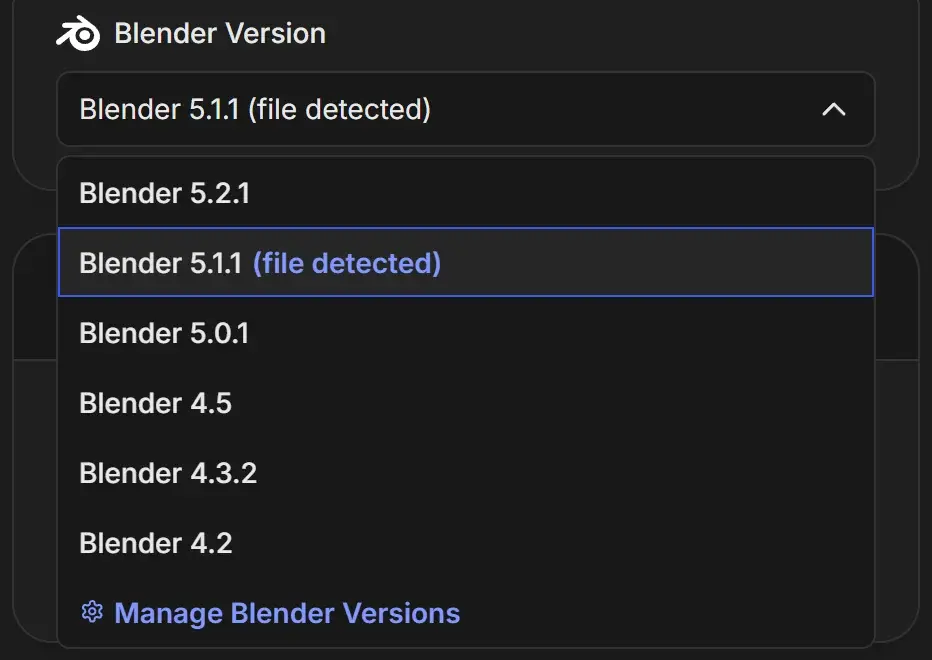
Choose the Blender version
- Select the job.
- Open the Blender Version dropdown near the bottom of the panel.
- Choose an installation. The newest version is listed first.
| Label | Meaning |
|---|---|
| (file detected) | This installation matches the version the .blend file was saved with |
| Manage Blender Versions | Opens the Blender Version Manager in Settings, where you add or remove installations |
The card only appears when at least one Blender installation is registered. See Find your Blender installations.
How RenderGod picks the version for a new job
- An installation with exactly the same version as the file.
- Otherwise, one from the same release line (for example 4.3.2 for a file saved in 4.3).
- Otherwise, the newest installed version.
When the file's version is not registered
If the .blend was saved with a version RenderGod does not know yet, it tries to find and register that version:
| Message | Meaning |
|---|---|
| "Registering Blender 4.3..." | RenderGod is looking for that installation |
| "Blender 4.3 registered" | Found and added. The job now uses it. |
| "Blender 4.3 is not registered - this job will use the closest installed version. Add it in Settings to render with the exact one." | Not found. Click Dismiss, or install that version and add it in the Blender Version Manager. |
Warnings under the dropdown
| Warning | What to do |
|---|---|
| Saved with Blender A.B, will render with C.D (A.B is not installed) - the picture can differ | Install the original version, or check the first frames carefully. EEVEE ray tracing, Fast GI and subsurface scattering changed in Blender 5.2. |
| 1 linked file is missing | A texture, library or other linked file cannot be found at its path. Fix the path in Blender, or the render will miss that asset. |
| N linked files are missing (first: path) | Several linked files are missing. The first one is shown. |
When to use a different version
- Older files: render with the version they were made in, to avoid look changes.
- New features: some options, such as Cycles Texture Cache, need Blender 5.2 or later.
- Comparisons: duplicate a job and render it with two versions to compare the result. See Work with several Blender versions.
Denoiser availability in the Denoiser dropdown is checked against the Blender version selected here.