Python Hooks and Application Handlers in Renders
Control which Blender Python scripts, drivers and application handlers run during a RenderGod render, reroute them to other events or add custom scripts.
The Python Hooks / Application Handlers card controls the Python that runs while a job renders: drivers, scripts stored in the .blend file, application handlers registered by the file or your add-ons, and custom scripts you add in RenderGod. You can turn each one off, move it to a different event, or add a script that runs at a chosen moment, such as after every frame.
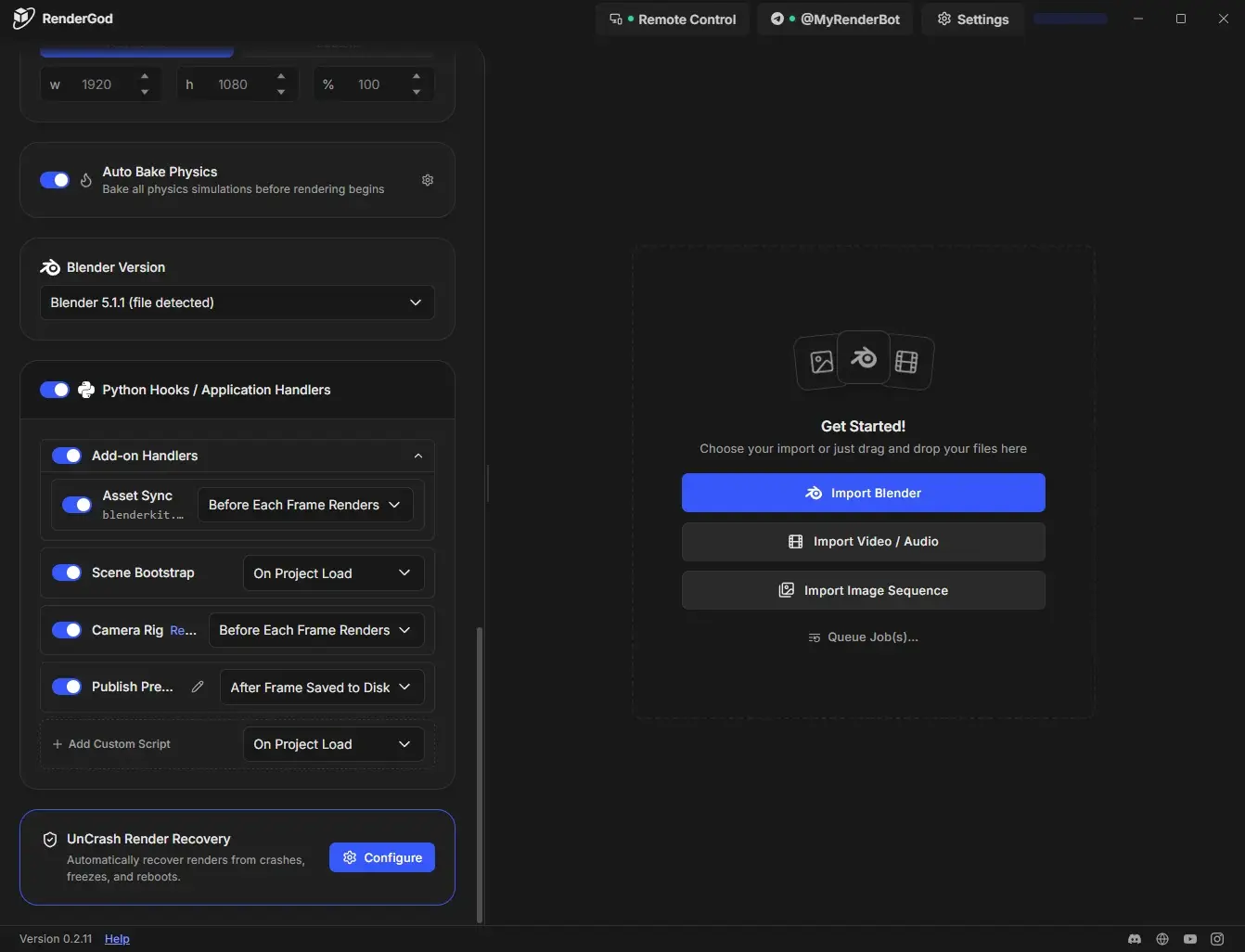
Turn all Python on or off
The switch in the card header is the master switch.
| Master switch | What happens |
|---|---|
| On | Blender runs the project's Python: drivers, in-file scripts and the handlers that are enabled below |
| Off | Every detected handler and custom script is disabled, and Blender does not auto-run scripts. Drivers and in-file scripts do not run. |
The switch shows on when at least one handler or custom script below is enabled. Turning it on enables all of them.
If the file has no handlers, no scripted drivers and no custom scripts, turning it on shows "No Python to run in this project" and suggests adding a custom script.
Handlers found in the .blend file
Each application handler the file registers gets its own row with a switch, its name and a Trigger dropdown.
- Turn a row off to stop that function from running during the render.
- Change Trigger to run it at a different moment. The row then shows Rerouted. The original event is marked (project) in the list; pick it to undo.
These changes apply to the render only. The .blend file is not modified.
Add-on handlers
The Add-on Handlers row groups handlers registered by your installed add-ons. Click the row to expand it and control each handler individually, including its trigger.
- Add-on handlers only run when add-ons load for the render. If Disable add-ons during render is on in Optimization overrides, this row shows off.
- Switching an add-on handler on while add-ons are disabled shows a warning with Enable add-ons for render, which turns that override off. Render startup may take a few seconds longer.
- If the list is empty, click Scan for add-on handlers to read the file again with add-ons loaded.
Add a custom script
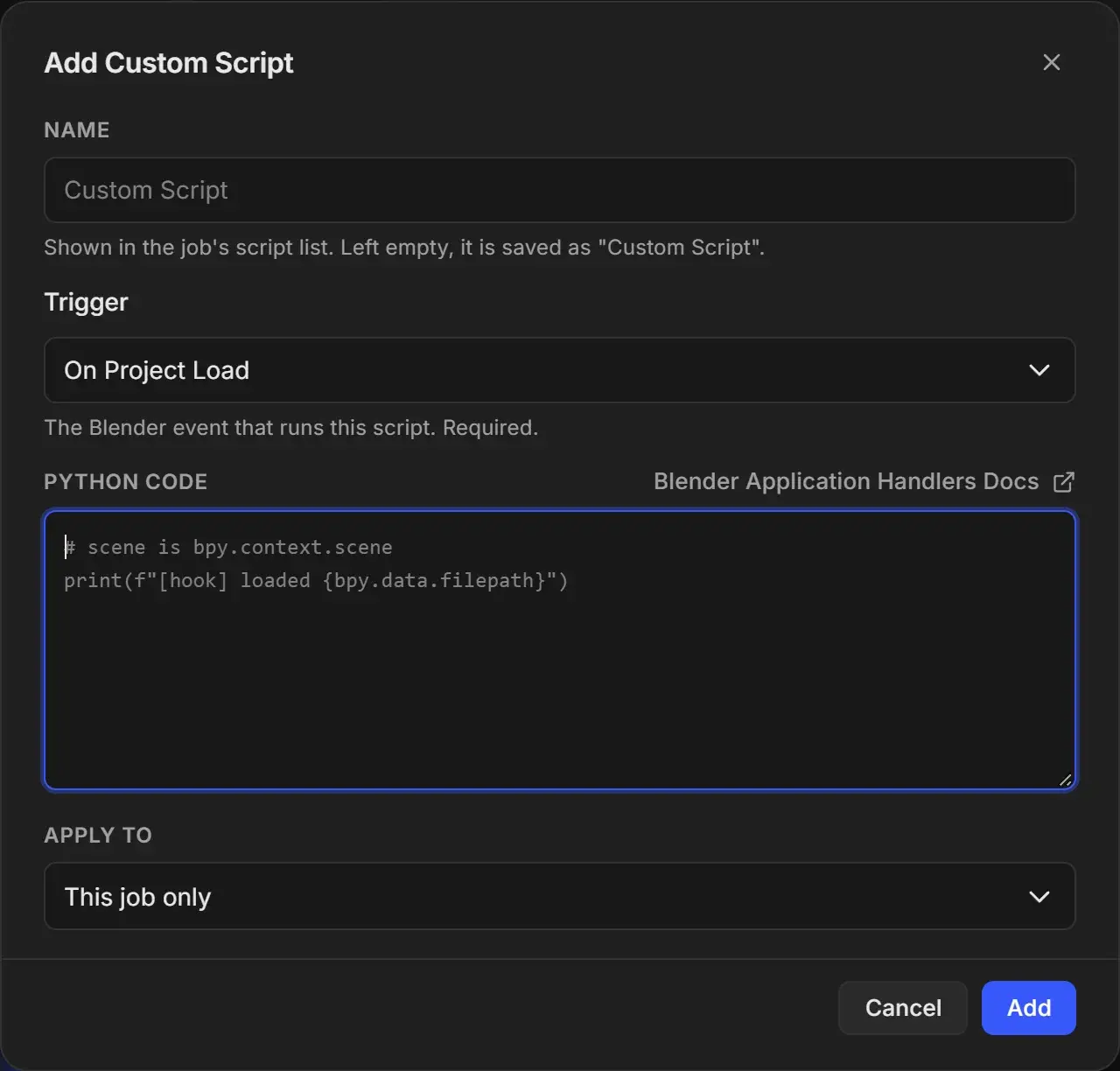
In the Add Custom Script row, pick a trigger from the dropdown, then click + Add Custom Script.
Enter a Name. It is shown in the job's script list. Left empty, it is saved as "Custom Script".
Check Trigger, the Blender event that runs the script. It is required and starts on the trigger you picked in the row.
Type your code into Python Code. The variable scene is available (the placeholder reads # scene is bpy.context.scene). The Blender Application Handlers Docs link opens Blender's reference.
Choose Apply To (it starts on This job only), then click Add.
| Apply to | Result |
|---|---|
| This job only | The script belongs to this job |
| All new jobs · Default On | Also saved for future jobs, switched on |
| All new jobs · Default Off | Also saved for future jobs, switched off |
Example for After Each Frame Renders:
To change a script later, click its pencil icon. The edit dialog also has Delete.
Trigger events
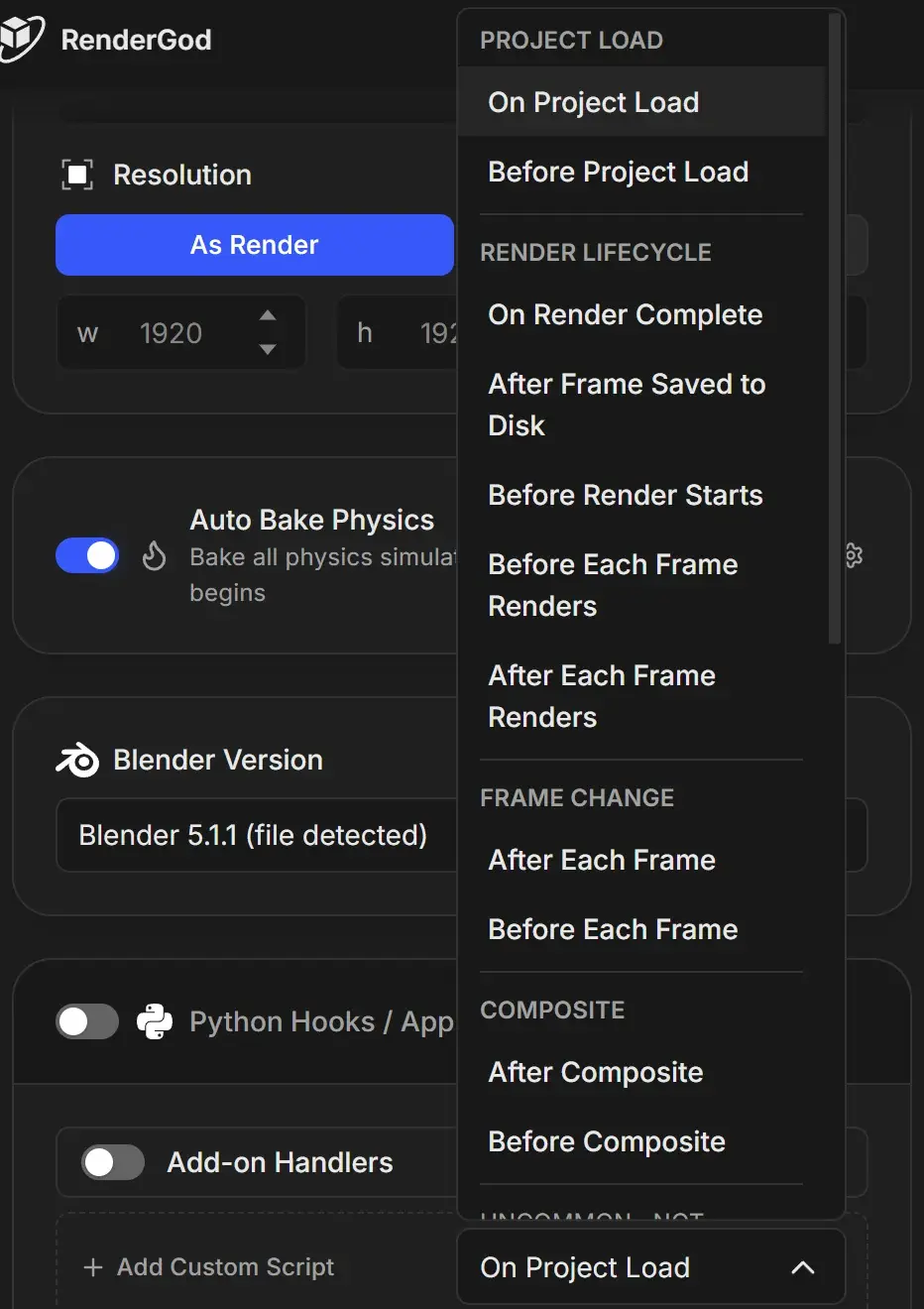
| Group | Triggers | Typical use |
|---|---|---|
| Project Load | On Project Load, Before Project Load | Set up the scene when the file opens |
| Render Lifecycle | Before Render Starts, Before Each Frame Renders, After Each Frame Renders, After Frame Saved to Disk, On Render Complete | Logging, copying frames, notifications at the end |
| Frame Change | Before Each Frame, After Each Frame | Per-frame scene changes |
| Composite | Before Composite, After Composite | Work around compositing |
| Uncommon · not recommended | On Render Cancel / Error, On Render Stats, On Composite Cancel, Before Scene Update, After Scene Update, Before Save, After Save, Before Append / Link, After Append / Link, Before Object Bake, After Object Bake, On Object Bake Cancel, On Version Update, On Translation Update | Special cases only |