Troubleshooting
Render Error Messages and How to Fix Them
Every render failure message RenderGod shows on a job card, in notifications and in toasts, what each one means and how to fix it so the job renders.
This page lists the render error messages RenderGod can show, what they mean and how to fix them. Find the exact text you see on the job card or in the message at the bottom right of the window.
Where render errors appear
- Job card: the status pill reads Failed: followed by a short reason, such as Failed: No camera in the scene. When the reason is not one of the short ones below, the pill reads Failed and a red box under it shows the full message.
- Desktop notification: "Render failed" with the job name and reason, when the RenderGod window is not in front.
- Toasts: short messages at the bottom right, for problems with the queue itself.
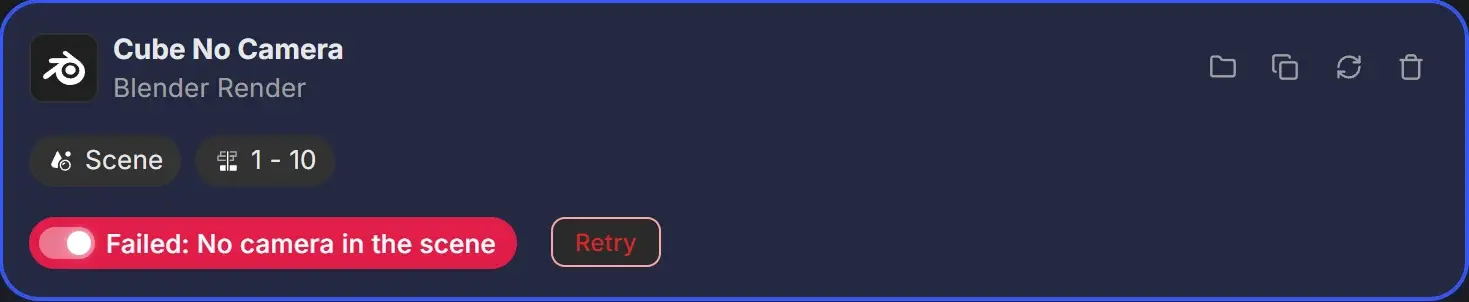
A failed job does not stop the queue. RenderGod moves on to the next job. After fixing the cause, click Retry on the card. Retry renders the full frame range again. See Retry a failed job.
Short reasons on the job card
| Pill text | What it means | How to fix it |
|---|---|---|
| Failed: No camera in the scene | The scene has no camera, or Blender reported "Cannot render, no camera" | Add a camera in Blender and save, or pick a scene that has one. Then click Reload and Retry |
| Failed: Scene not found in the file | The job's scene no longer exists in the .blend | Click Reload, choose a scene in Scene, then Retry |
| Failed: No render layer enabled | The view layer chosen in Single View Layer is missing, or no view layer is set to render | Pick an existing view layer, or turn Use for Rendering back on for a layer in Blender |
| Failed: Blend file is missing | The .blend is not at the path the job points to | Move the file back, or remove the job and import the file from its new place |
| Failed: Can't open the .blend file | The file is empty, damaged, not a .blend, or saved by a Blender version too new for the one rendering it | Open the file in Blender to check it. Pick a newer Blender Version for the job, or re-save the file |
| Failed: Invalid frame range | The start frame is below 1, the end frame is before the start, or the range is longer than 999999 frames | Fix From Frame and To Frame |
| Failed: Render resolution too small | Width, height or resolution percentage is outside Blender's range (1 to 1000 percent) | Fix Resolution. This text also appears when a value is too large |
| Failed: Render engine not installed | The scene uses a render engine from an add-on that is not enabled in the Blender version rendering the job | Enable that add-on in Blender, or choose Cycles or EEVEE |
| Failed: Can't write to the output folder | Blender was denied permission to write the frames | Choose an output folder you can write to. On macOS, allow Blender and RenderGod access to that folder |
| Failed: Too many frames failed | Frames kept failing one after another, so the job was stopped | See "Job failed after skipping" below |
Full messages in the red box
| Message | What it means | How to fix it |
|---|---|---|
Pre-flight: output drive 'E:\' is not available - reconnect it or pick another output folder (current: '...') | The drive letter of the output folder is not connected (Windows) | Reconnect the drive, or choose another output folder |
Output path error: ... | The output template contains something that cannot become a folder, such as an unknown token | Pick another output template, or fix it in the Output Templates Manager |
{camera_name}: the job has no camera (under the Output card) | The output path uses the camera name, but the job has no camera | Choose a camera, or add one in Blender |
Output path not resolved (template '...') - reset the job and try again | The output path could not be worked out for this job | Reset the job, or apply the output template again |
Cannot render: ... | The .blend could not be read right before launching Blender | Check that the file exists and opens in Blender |
Blender could not load the .blend file (corrupt or incompatible) | Blender started but could not open the file | Open it in the same Blender version. Try a newer version or an autosave |
Blender could not start OptiX/CUDA: the NVIDIA driver is too old. Blender 5.2 needs driver 575 or newer. Update the driver, or switch the job to CUDA/CPU. | The graphics driver is older than this Blender needs | Update the NVIDIA driver, or render on the CPU |
Invalid samples: 0 must be >= 1 or Invalid samples: ... exceeds maximum of 65535 | The sample count is outside Blender's range | Set Samples between 1 and 65535 |
Physics baking failed for job ... | Auto Bake Physics could not bake the simulations | Bake in Blender to see the error, or turn off Auto Bake Physics for the job |
The bake stopped unexpectedly. | Blender closed during the physics bake | Retry. If it repeats, bake in Blender and save the file |
Baking stopped by user | The queue was paused during baking | Click Retry or Start again |
Job failed after skipping 5 consecutive frames. (or ... due to crashes.) | Frames failed several times in a row, so UnCrash stopped the job | Render one of the listed frames in Blender to find the cause (memory, a broken simulation, a missing texture). Raise the limit in UnCrash settings if the frames are only slow |
Job failed. | The job stopped without a more specific reason | Open the file in Blender and render one frame to see Blender's own error |
For the Pre-flight: messages about the .blend, scene, camera and view layer, see Checks before a render starts.
Messages on a job that keeps rendering
These appear in a red box but the job continues.
| Message | Meaning |
|---|---|
Skipped stuck frames: 12, 13 | These frames failed twice and were skipped so the rest of the job could render |
Skipped 12 (Crashed ...) | Blender crashed on this frame too many times, so it was skipped |
| Skipped Frames (2) box with frame numbers | The frames missing from the output. See Skipped frames and how to re-render them |
Blender file changed - reload settings (in the status line) | The .blend was saved after import. Settings may be out of date. Use Reload Data after the render |
Toasts about starting and running the queue
| Toast | What to do |
|---|---|
| "Nothing to render" with "The queue is empty. Import a job first." | Import a file |
| "Nothing to render" with "Every job is already finished. Reset one to render it again." | Duplicate a finished job, or Retry or Reset one |
| "Nothing to render" with "Every job is skipped. Unskip at least one to render it." | Turn a job's switch back on |
| "Nothing to render" with "Every job has failed. Retry one, or add a new job." | Fix and Retry a job |
| "Nothing to render" with "No job is waiting to be rendered. Only queued jobs are processed." | Only Queued jobs render. Retry or reset the others |
| "Failed to start queue. Please try again." | Try again. If it repeats, restart RenderGod |
| "Queue is being rendered by background recovery - RenderGod will take over after the current frame." | Wait a moment, or click Take over now in the banner. See The background recovery service |
| "Another RenderGod process is already using this queue. Quit it, then try again." | Close the other RenderGod window, or end it in Task Manager |
| "Recovered render ..." with "Continuing from frame ..." | Information only. UnCrash restarted Blender and the job continues |
| "Blender File Error" | The imported .blend could not be read. Open it in Blender to check it |
| "Couldn't save the queue" or "The queue was not saved: both folders are blocked" | RenderGod cannot write its data folder. Free disk space and check that security software is not blocking RenderGod |
| "Failed to execute system action" | Shutdown or sleep after the queue did not run. On macOS, allow Automation access. See Shut down or sleep when the queue finishes |