Skipped Frames and How to Re-render Them
Find out why RenderGod skipped frames during a crash or freeze, where the skipped frame numbers are shown, and how to render only those frames again.
When a frame keeps crashing Blender or keeps freezing, RenderGod skips it so the rest of the render can finish. This page explains where skipped frames are shown and how to re-render them.
Why a frame is skipped
| Cause | When the frame is skipped |
|---|---|
| Blender crashes on the frame | After Blender restarts per frame before skipping it restarts (default 5) |
| The frame freezes past the timeout | After it fails twice |
Both limits are in UnCrash Render Recovery Settings. A skipped frame is missing from the output folder; the frames around it are rendered normally.
Where skipped frames are listed
Open the job card in the queue:
- A red Skipped Frames (N) box lists every skipped frame number as a chip.
- A note such as "Skipped stuck frames: 12, 13" can also appear, even while the job is still rendering.
When skipping stops the job
If Skipped frames in a row before stopping the job frames (default 5) are skipped back to back, RenderGod stops the job instead of skipping through the rest of a broken scene. The job becomes Failed with "Job failed after skipping N consecutive frames." and the render error suggestion "Check scene optimization or blend file integrity".
Re-render skipped frames
First fix what made the frames fail: memory, a simulation, a driver or an add-on. See Recover from Blender crashes and Detect and recover frozen frames. If a slow frame was only stopped by the timeout, raise the timeout.
Then pick the method that matches the job's status.
The job finished (Done)
- Note the numbers in the Skipped Frames box.
- Duplicate the job.
- In the copy, set the frame range to the skipped frames. For a single frame, use the same number in From Frame and To Frame. For frames far apart, make one copy per frame or per group of neighbouring frames.
- Check the output folder of the copy, so the new frames land next to the original sequence. See Choose where renders are saved.
- Press Start.
The job failed after too many skips
Click Retry on the job card. The job returns to Queued and renders its whole frame range again from the first frame. If most frames were already fine, duplicate the job and render only the missing range instead, as above. See Retry a failed job.
The job is paused
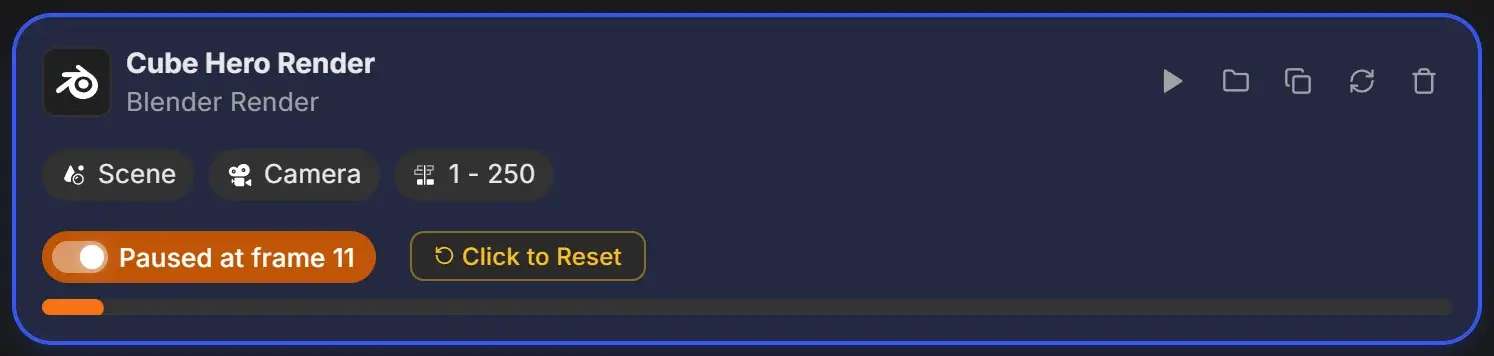
Click Click to Reset. When the job has skipped frames, the reset can rewind to the first frame of the skipped run instead of the start of the range, so those frames are rendered when you press Start.