Recover From Blender Crashes During a Render
When Blender crashes mid-render, RenderGod restarts it and continues the job automatically. Learn what you see, how retries work and what to do next.
If Blender crashes or closes in the middle of a render, RenderGod can recover from the Blender crash on its own: it starts Blender again and continues the same job, with no click from you. This works on Windows and macOS.
Turn on Blender crash recovery
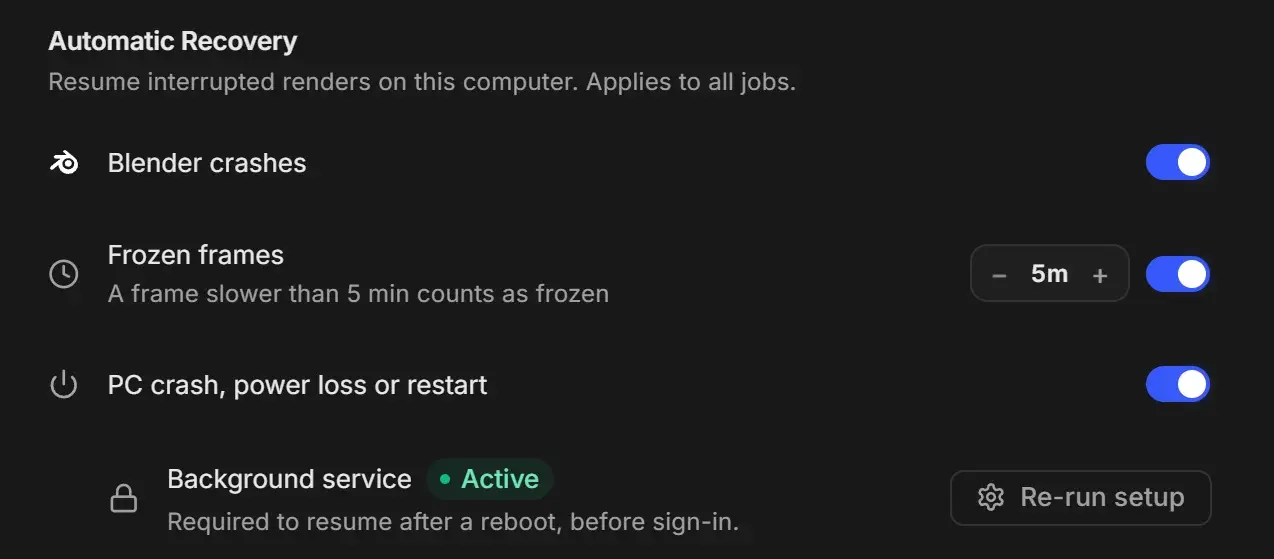
Open Settings > UnCrash Render Recovery.
Turn on Blender crashes.
Optional: under Retry Limits, set Blender restarts per frame before skipping it and Skipped frames in a row before stopping the job. The defaults are 5 and 5.
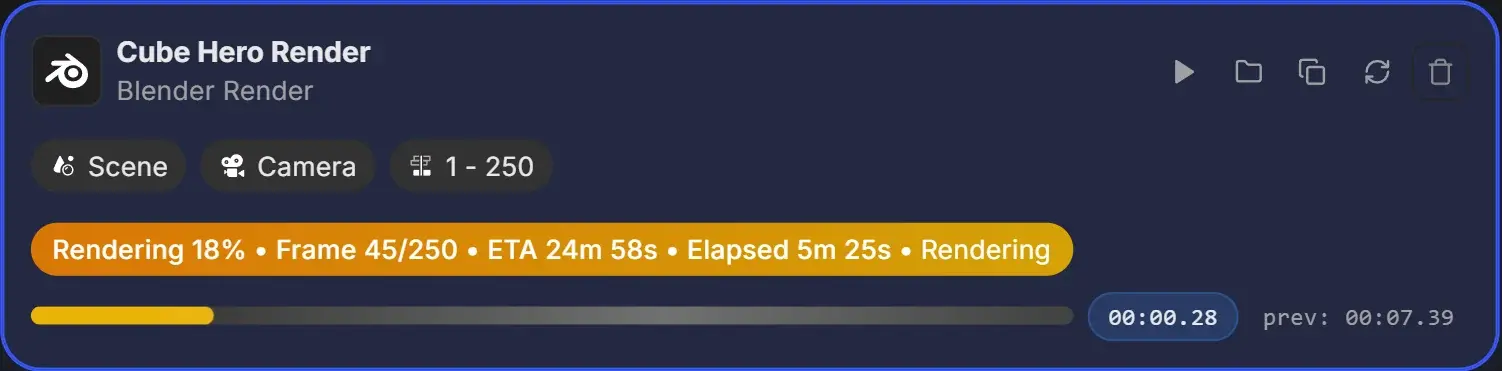
What happens when Blender crashes
Here Blender was force-closed while rendering frame 45 of 250.
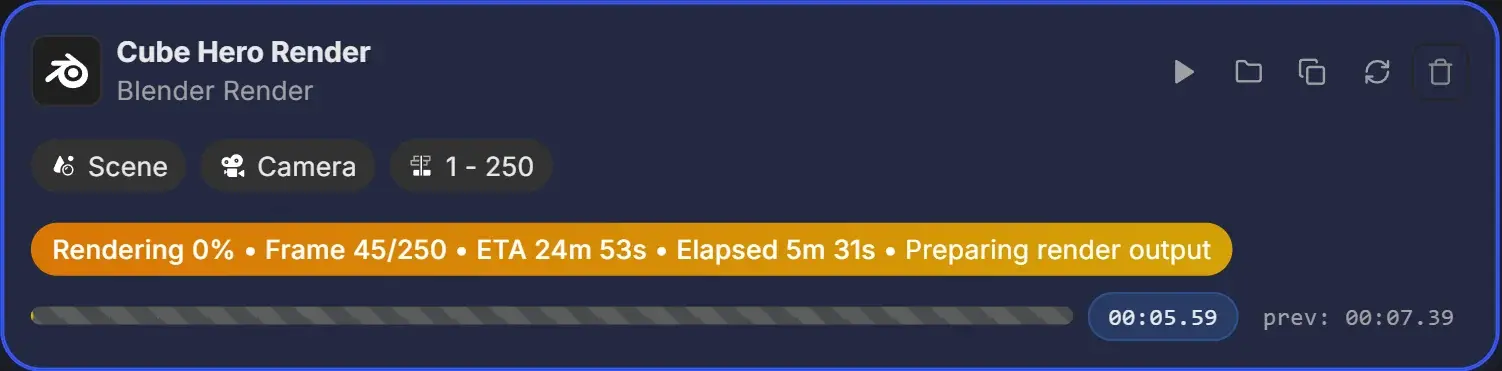
Within a few seconds RenderGod starts Blender again. The job stays in the Rendering state and the status reads "Preparing render output" with a striped progress bar while Blender loads the scene.
Then the render continues and the rest of the queue carries on as normal. You also get:
- A toast, "Recovered render" with "Continuing from frame N".
- A desktop notification, "Render recovered", if the RenderGod window is not in front.
- A "Render Recovered!" message on Telegram, if you use the Telegram bot with Crash recovered on.
When the same frame keeps crashing
Some frames crash Blender every time, for example because of a simulation or a memory spike on that frame.
- RenderGod restarts Blender on that frame up to Blender restarts per frame before skipping it times.
- After that, the frame is skipped and the render moves on. Skipped frames are listed on the job card.
- If Skipped frames in a row before stopping the job frames are skipped back to back, the job stops with the status Failed and "Job failed after skipping N consecutive frames."
To render skipped frames later, see Skipped frames and how to re-render them.
If a job fails after too many crashes
The scene most likely has a real problem. Things to check in Blender:
- Memory: lower texture sizes, use Optimization Overrides, or render with fewer samples.
- GPU drivers: update them, or try a different device in the render settings.
- Physics and simulations: bake them first with Auto Bake Physics.
- Add-ons or handlers that run during the render: see Python hooks.
Fix the file, reload the job settings and click Retry. See Retry a failed job.