Resume Renders After a PC Crash or Power Loss
Set RenderGod to resume a render by itself after a Windows crash, power cut or restart, and learn what you see when you open the app while it renders.
A blue screen, a Windows update restart or a power cut in the middle of the night normally ends a render until you come back. On Windows, RenderGod can resume renders after a PC crash, power loss or restart without anyone signing in.
What you need
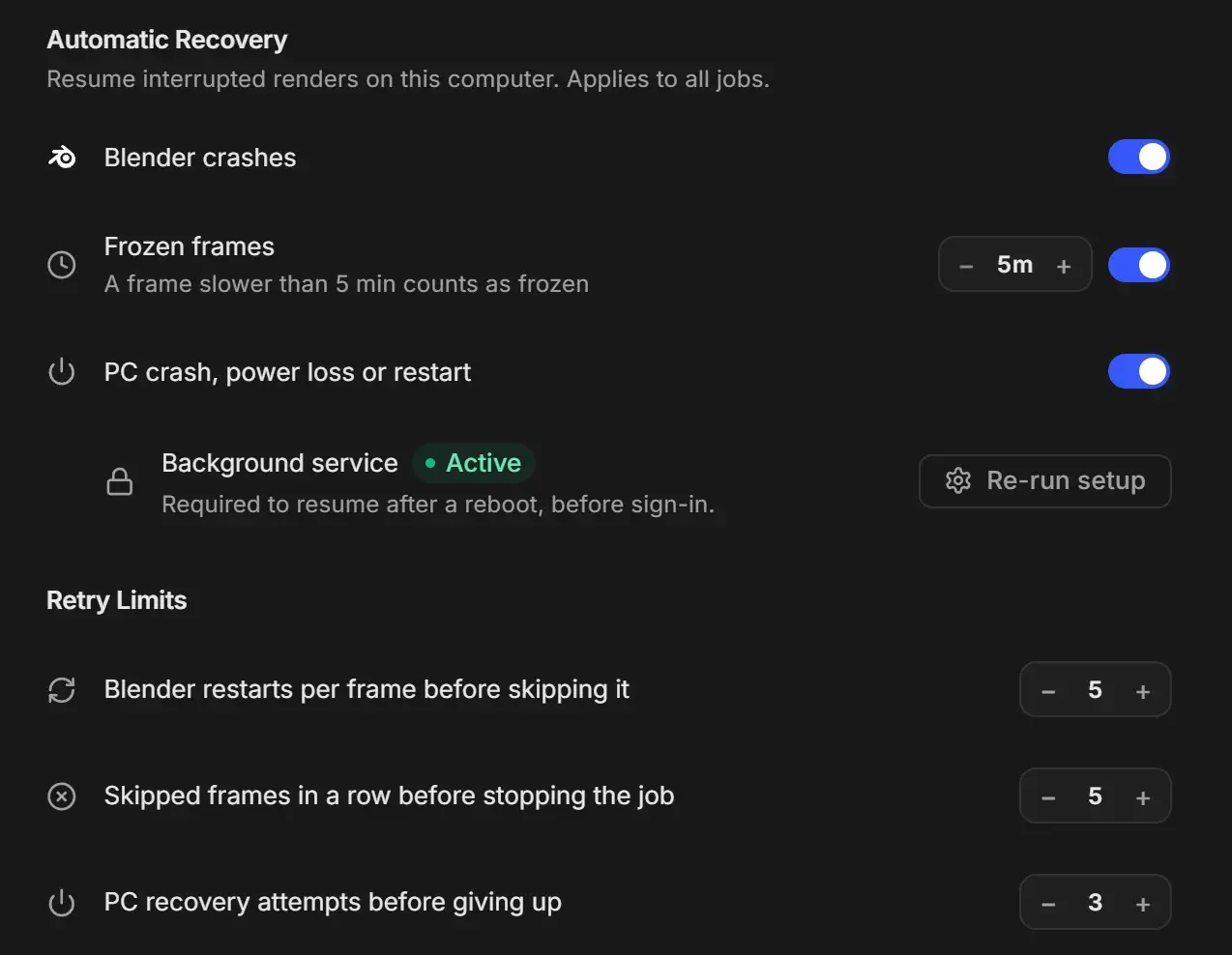
- PC crash, power loss or restart turned on in UnCrash settings.
- The background recovery service installed. It starts with Windows, before sign-in.
- For power cuts: the PC must switch itself back on when power returns. That is a BIOS setting, covered by the in-app guide.
- The project and output folders on a local drive. Jobs on network drives do not resume in the background.
Set it up
Open Settings > UnCrash Render Recovery and turn on PC crash, power loss or restart.
Click Set up on the Background service row and follow the wizard. Accept the one Windows administrator prompt.
At One Last Check: Power Loss, answer whether your PC turns itself back on after a power cut. If you choose No / not sure - show me how, follow the BIOS guide for your PC maker.
Click Finish. The Background service row shows Active.
The full wizard, the BIOS guide and how to remove the service are in The background recovery service.
Setting it up also turns on Start at Login, which stays locked on while PC crash recovery is on. See System Settings.
What happens after a crash, restart or power cut
- Windows starts. If power was cut, the PC powers on by itself when the BIOS setting is on.
- Before anyone signs in, the background service sees that a render was interrupted and starts RenderGod invisibly, with no window and no tray icon.
- The render continues from the frame that was in progress.
- Telegram notifications keep arriving. Desktop notifications do not appear while the render runs in the background.
Closing RenderGod mid-render (for example with Alt + F4) is handled the same way: the background service resumes the render within about 10 seconds.
If the PC keeps crashing on the same render, the service stops trying after PC recovery attempts before giving up (default 3).
Open RenderGod while it renders in the background
When you sign in and open RenderGod, a banner under the header shows that the background render is still going, for example "Background recovery is rendering Cube Hero Render - frame 46/250. RenderGod will take over after the current frame."
| Choice | What happens |
|---|---|
| Wait | RenderGod takes over when the current frame finishes. Nothing is lost. The banner changes to "RenderGod took over the render." |
| Take over now | RenderGod takes over at once. The frame in progress is dropped and rendered again by the app. |
Until the hand-off, changes to the queue are refused with "Queue is being rendered by background recovery - RenderGod will take over after the current frame."
Jobs on network drives
A job whose .blend file or output folder is on a network drive gets a No background resume badge. Those jobs render only while RenderGod is open. After a crash they wait for you to open RenderGod. See Job badges.
If PC crash recovery is off
After the crash, open RenderGod. The interrupted job shows Paused at frame N and the queue stays stopped. Press Start to continue from that frame, or click Click to Reset to start over. See Retry a failed job or reset a paused job.
On macOS
There is no background service on macOS, and the PC crash rows are hidden in settings. Closing the RenderGod window only hides it, so the render keeps going. After a Mac crash or restart, open RenderGod: the job is paused at the frame that was interrupted. Press Start to continue. Blender crash and frozen frame recovery work as on Windows.