Job Card Badges and What They Show
Learn what each badge on a RenderGod job card means, from scene, camera and frame range to engine, samples and format, and how to show more or fewer badges.
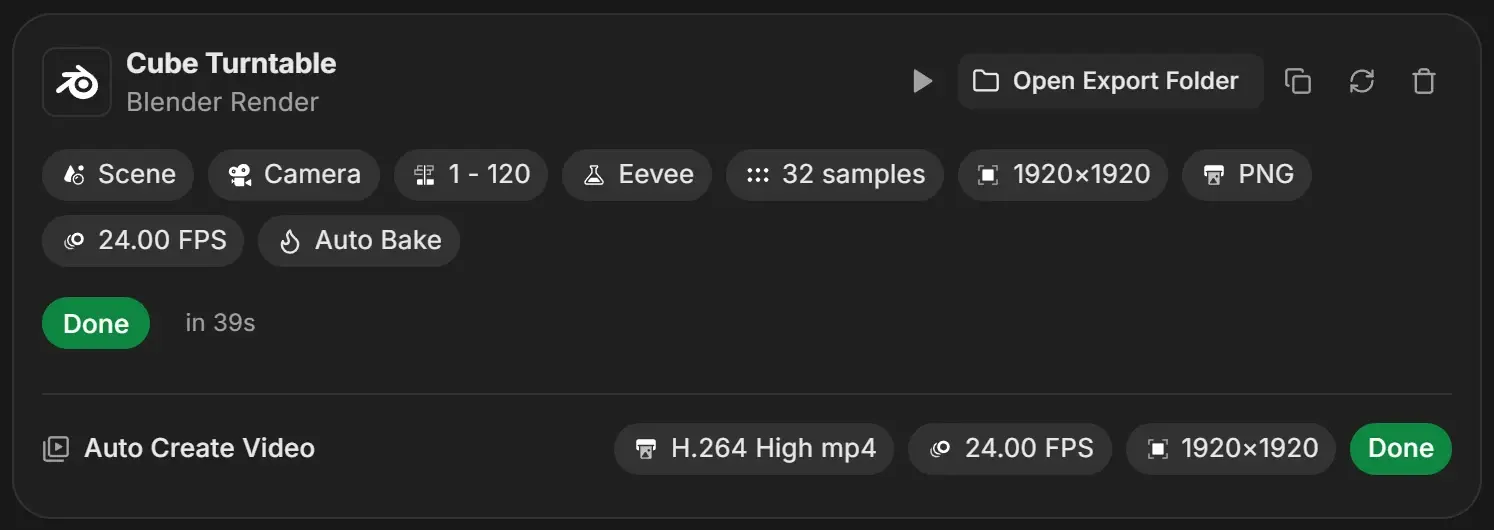
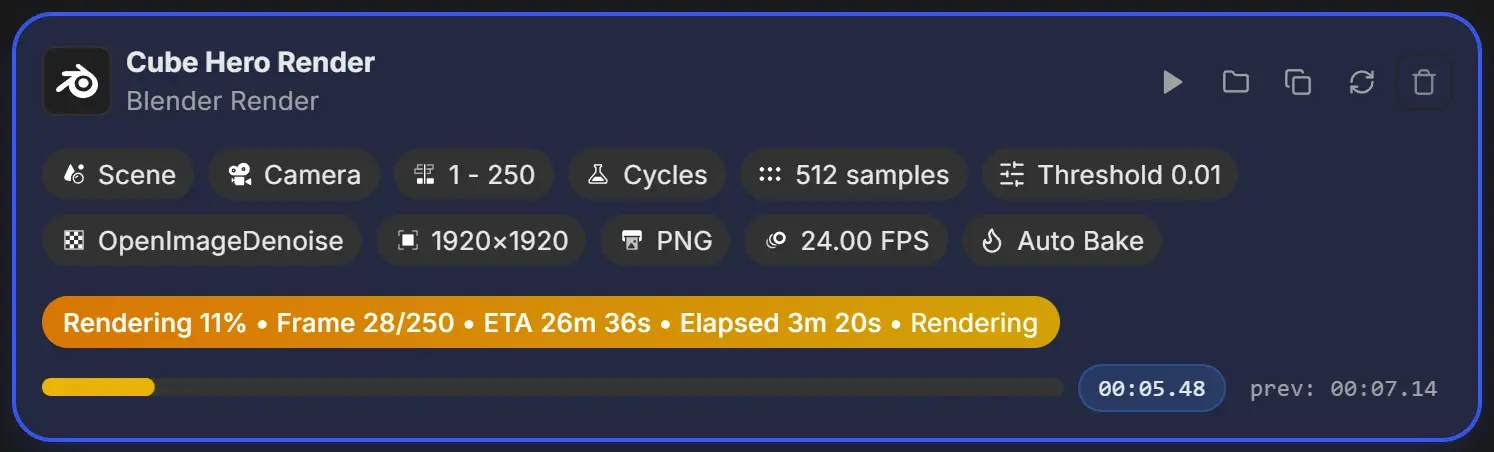
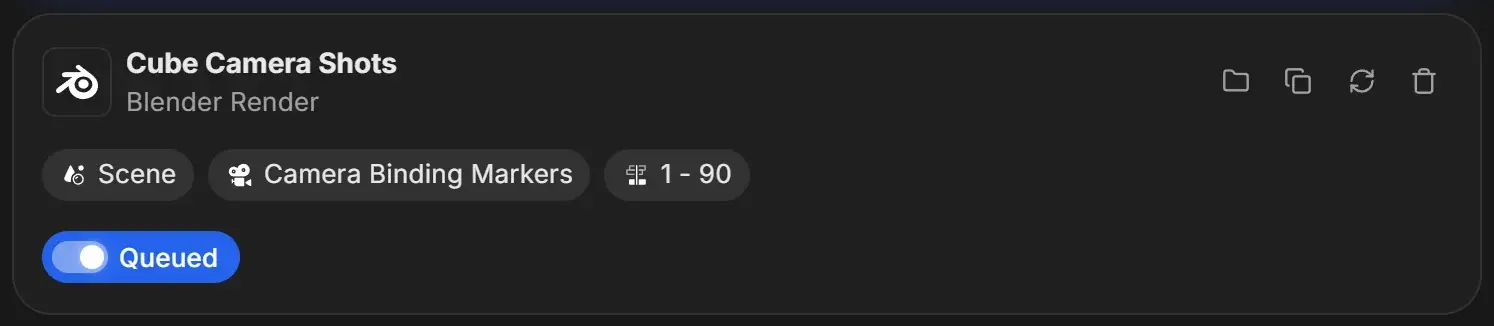
Job badges are the small rounded labels under a job's name. They summarise the job's key settings so you can check the whole queue at a glance without opening each job.
Choose which badges to show
Most badges can be turned on or off in Settings > Badge Display. Changing them affects only what the cards show, never the render. See Badge display settings.
Blender render badges
In the order they appear:
| Badge | Shows | Shown by default |
|---|---|---|
| Scene | The scene name | Yes |
| Camera | The camera name, or Camera Binding Markers when timeline markers choose the camera | Yes |
| View Layer | The view layer name, when Single View Layer is on | Yes |
| Compositor | The compositor name, when a compositor is used | No |
| World | The world used by World Override | No |
| Frames | The frame range, for example 1 - 250 | Yes |
| Engine | Cycles, EEVEE or Workbench | No |
| Samples | For example 512 samples | No |
| Noise Threshold | For example Threshold 0.01, when noise threshold is on | No |
| Denoiser | For example OptiX or OpenImageDenoise (not shown for EEVEE) | No |
| Resolution | The final size after the resolution percentage, for example 1920×1080 | No |
| Format | For example PNG, OpenEXR or Multi-Layer EXR | No |
| FPS | For example 24.00 FPS | No |
| Auto Bake | Shown when Auto Bake Physics is on | No |
| No background resume | The project or output is on a network drive (Windows only) | Always, cannot be turned off |
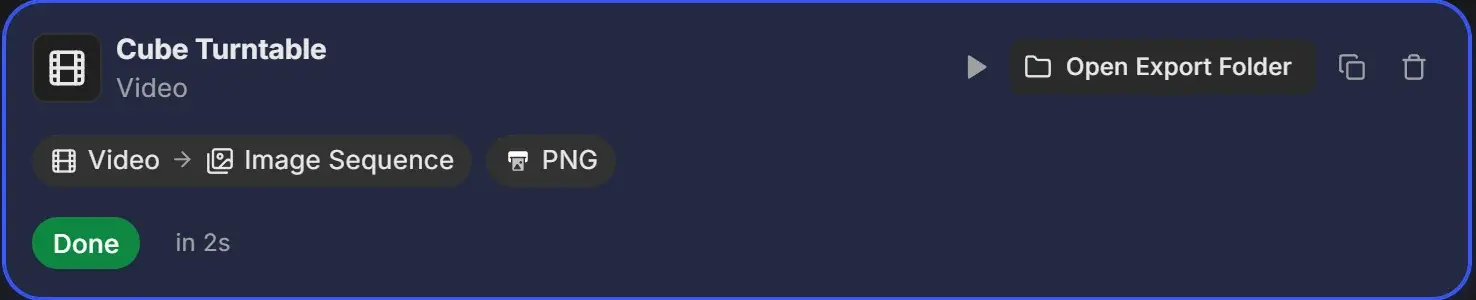
Conversion job badges
| Badge | Shows | Shown by default |
|---|---|---|
| Conversion | What is converted into what, for example Video → Image Sequence or Image Sequence → Video | Yes |
| Encoding | The output format, for example ProRes 422 HQ mov or WAV (PCM 16-bit) | Yes |
| FPS | The output frame rate (video jobs) | No |
| Resolution | The output size (not for audio) | No |
The FPS and Resolution toggles in Settings apply to both render and conversion jobs.
Auto Create Video row
When Auto Create Video is on, a row under a divider shows the video's format, frame rate and resolution. After the render finishes it adds its own status: Creating… with a progress bar, then Done or Failed.