Remove Jobs and Clear the Render Queue
Remove a single job from the RenderGod render queue or clear the whole queue at once, and learn what happens to settings, previews and rendered frames.
Remove a job when you no longer need it in the render queue, or clear the queue to start fresh. Removed jobs keep their settings in History, so you can bring them back.
Remove one job
With the Remove button
- Click the trash button on the job card. It turns red and reads Click to Confirm.
- Click it again within 3 seconds to remove the job. Press Esc or wait to cancel.
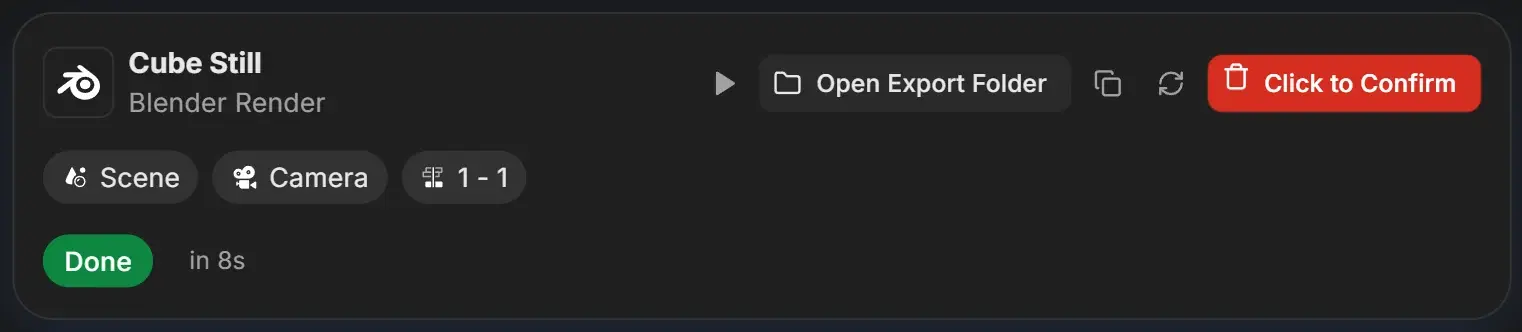
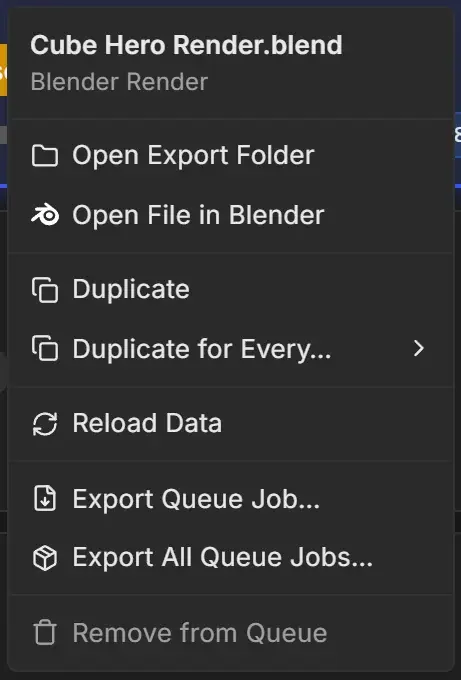
In a narrow queue the button is inside the More actions menu as Remove from Queue, with the same second click (Click again to remove).
From the right-click menu
Right-click the card and choose Remove from Queue. The job is removed at once, without a second click.
After removing, "Removed "Cube Still" - settings can be restored from History" appears, and the next job is selected.
You cannot remove a job that is rendering
While a job renders or bakes, its Remove button and Remove from Queue are greyed out. Hover to read "Stop the queue before removing the job that is rendering". Pause the queue first.
Clear the queue
- Click Clear Queue in the toolbar. It turns red and reads Click to Confirm.
- Click it again within 3 seconds. Press Esc to cancel.
A message such as "Cleared 8 job(s) from the queue" confirms it. If the queue is running, the job that is rendering stays and the message names it, for example "Cleared 7 job(s) - kept the running job "Cube Hero Render"".
What removing does and does not delete
| Item | After removing |
|---|---|
| Job settings | Kept in Settings > History. See Restore removed jobs. |
| Preview images RenderGod made for the job | Deleted, unless another job uses the same output folder |
| Rendered frames and videos in your output folder | Not touched |
The .blend or media file | Not touched |