Job History in RenderGod Settings
Find render and conversion jobs you removed from the queue, search them, restore their settings to the queue, or delete them permanently from History.
History keeps the jobs you remove from the queue, so you can bring a job's settings back later. It covers render jobs and conversion jobs.
Open it from Settings > History.
What History shows
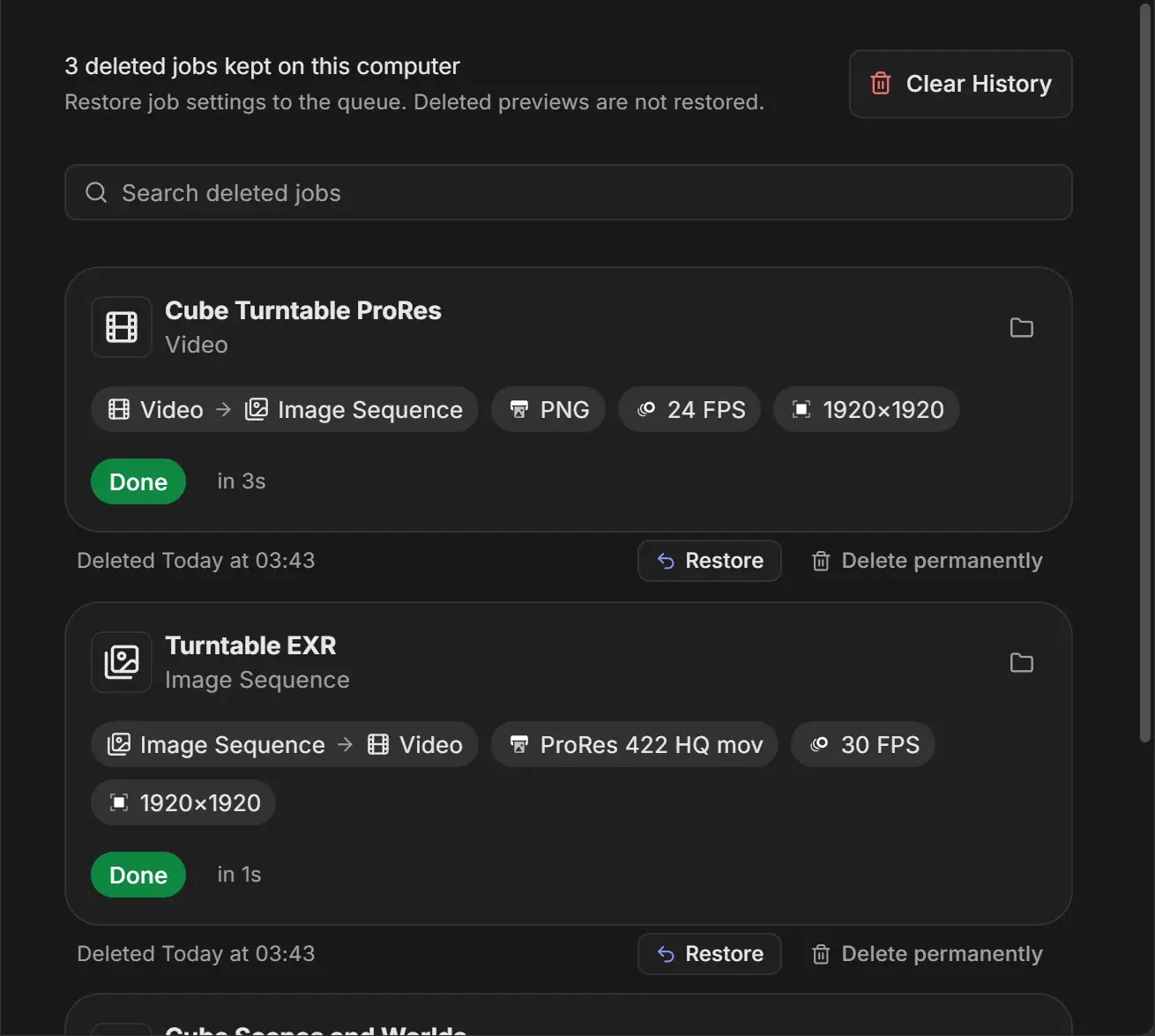
The header counts the entries, for example "12 deleted jobs kept on this computer", with the note "Restore job settings to the queue. Deleted previews are not restored."
Each entry is a full job card as it looked when you removed it, with when it was deleted ("Deleted Today at 14:05", "Yesterday at…", "3 days ago" or a date) and two buttons: Restore and Delete permanently. From the card you can still use Open Export Folder and, for Blender renders, Open in Blender. The list loads 30 cards at a time as you scroll.
If nothing has been removed yet you see "No deleted jobs yet".
Find a removed job
Type in Search deleted jobs. The search matches the job name, job type, scene, camera, view layer, file and folder paths, engine, format and state. Click the X in the field to clear it.
Job types: Blender Render, Image Sequence to Video, Video to Image Sequence, Video Format Conversion, Extract Audio, Audio Conversion.
States: Never started, Interrupted while rendering, Interrupted while baking, Paused, Finished, Failed, Skipped.
Restore a job
Click Restore under the card. The job goes back into the queue with its settings, and a message confirms it is back.
Delete history
| Action | How | Result |
|---|---|---|
| Delete one entry | Click Delete permanently, then Click to Confirm within 3 seconds | That entry is gone for good. |
| Clear all history | Click Clear History, then Click to Confirm within 3 seconds. Press Esc to cancel. | Every history entry is deleted. |
Neither action touches rendered files.