Telegram Bot Settings in RenderGod
Link or disconnect your Telegram bot, choose which render notifications and previews it sends, and send a test message from RenderGod Telegram Bot settings.
Telegram Bot settings connect RenderGod to your own Telegram bot and control which messages it sends you about your renders. Setting up the bot itself is covered in Create your Telegram bot.
Open it from Settings > Telegram Bot, or click the Telegram button in the header.
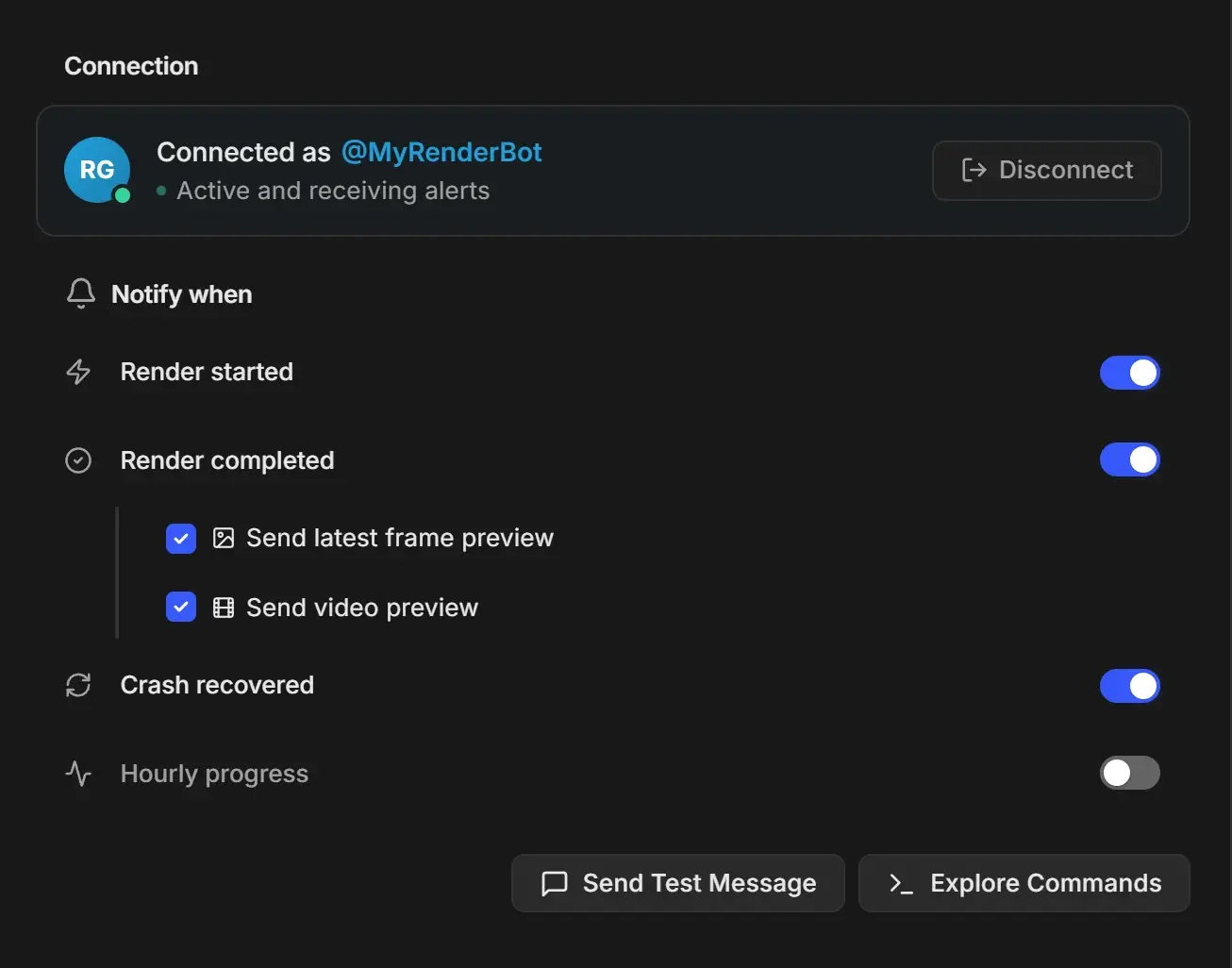
Connection
The Connection group shows one of four states.
| State | What you see | What to do |
|---|---|---|
| Not connected | "Not connected. Link your account to receive notifications and use commands." | Click Link Telegram Account and follow the steps in Connect the bot to RenderGod. |
| Checking | "Checking connection..." | Wait a moment. |
| Connected | "Connected as @MyRenderBot" with "Active and receiving alerts" or the linked Telegram user | Nothing. Click Disconnect to unlink. |
| Couldn't reach Telegram | "Your bot is still set up. This is a connection problem, not a missing link." | Check this computer is online, then click Check again. Link a different account starts linking again. |
Disconnect unlinks your Telegram chat but keeps the bot. To link again, send /start to your bot.
Notify when
| Setting | Control | Default | Message you get |
|---|---|---|---|
| Render started | Switch | On | When a job starts rendering |
| Render completed | Switch | On | When a job finishes |
| Send latest frame preview | Checkbox under Render completed | On | Attaches the last rendered frame |
| Send video preview | Checkbox under Render completed | On | Attaches a preview video |
| Crash recovered | Switch | On | After UnCrash recovers from a crash |
| Hourly progress | Switch | Off | A status update every hour while rendering |
The two preview checkboxes only appear while Render completed is on. Details and examples are in Choose which Telegram notifications you get.
Test the connection
- Send Test Message (shown when connected) sends a message to your linked chat. A panel confirms "Test message sent", or explains the problem with Retry and Dismiss. If the bot has no chat with you yet, send
/startto your bot in Telegram and test again. - Explore Commands opens the list of bot commands you can try. See Telegram bot commands.
On macOS
The section is the same. On macOS the bot token is kept in your login Keychain.