Connect Your Telegram Bot to RenderGod
Paste your bot token into RenderGod, send /start to link your Telegram chat, and send a test message to confirm render notifications reach your phone.
After you create your Telegram bot, connect the Telegram bot to RenderGod so it knows which bot to use and which chat to send to. The Link Telegram Account dialog walks you through it in three stages: Create bot, Connect chat and Done.
Before you start
- RenderGod is running on the rendering computer and you are signed in.
- The computer is online.
- You have your bot token from BotFather, for example
123456789:AAExampleTokenDoNotUse.
Connect the bot
Open the Link Telegram Account dialog
Open Settings > Telegram Bot (or click the Telegram button in the header) and click Link Telegram Account.
Paste the token
On Create your bot, the first two items repeat the BotFather steps. Under Paste the token it sends back, paste the token into Bot token, or click Paste to take it from the clipboard. Click Connect bot.
Send /start to your bot
On Connect your chat, click Open @MyRenderBot (your bot's name), or tap the t.me link in BotFather's reply. In the bot chat, press Start or send /start.
The dialog shows "Waiting for your /start" while it listens. As soon as the message arrives, it moves on by itself.
Check the reply
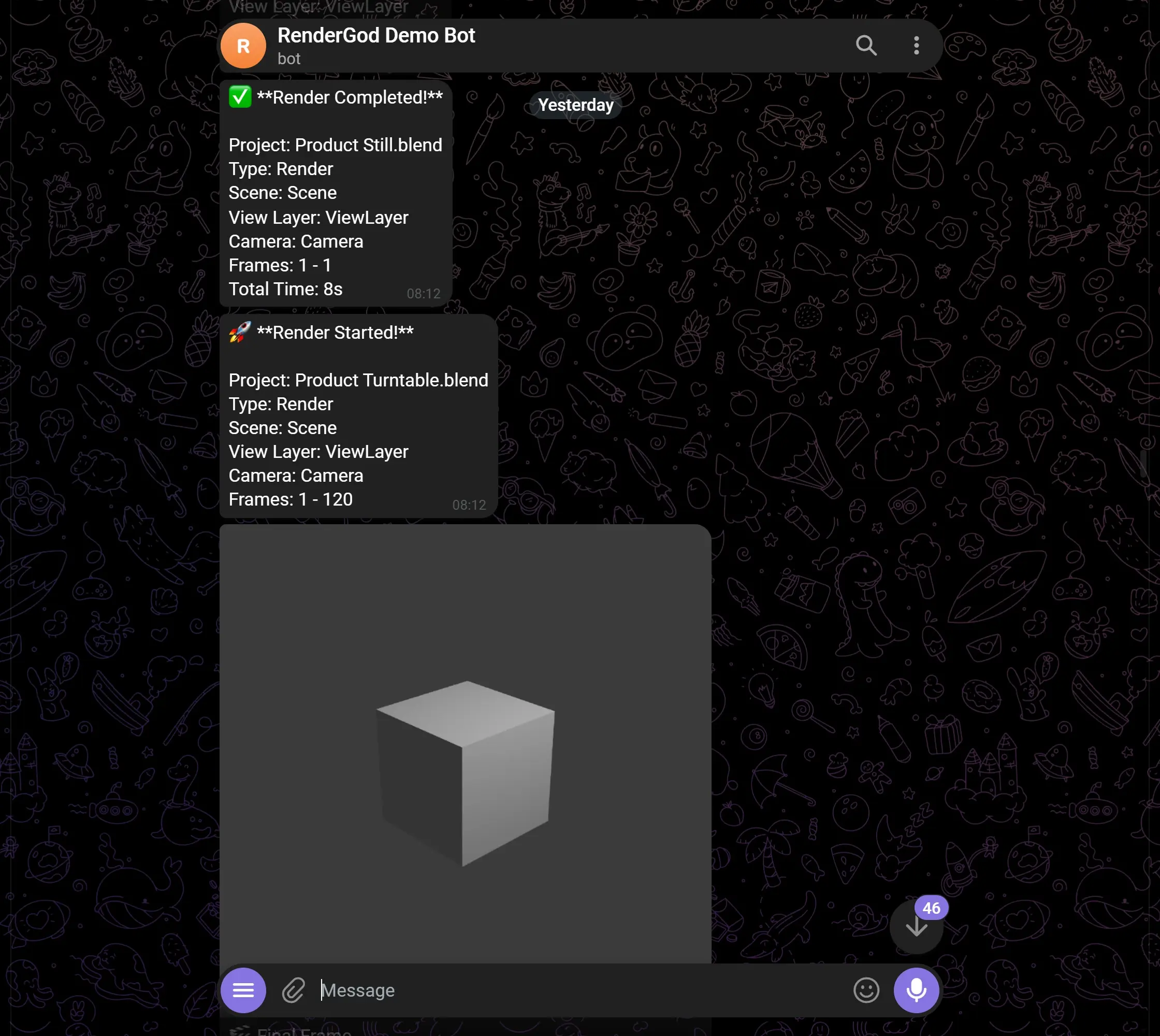
The bot answers in Telegram: "Connected to RenderGod. You are now the owner of this bot. Send /commands for the command list."
Try a command
On You're connected, click Send next to /status, /frame, /video or /queue. The real reply arrives in your chat. Click Done.
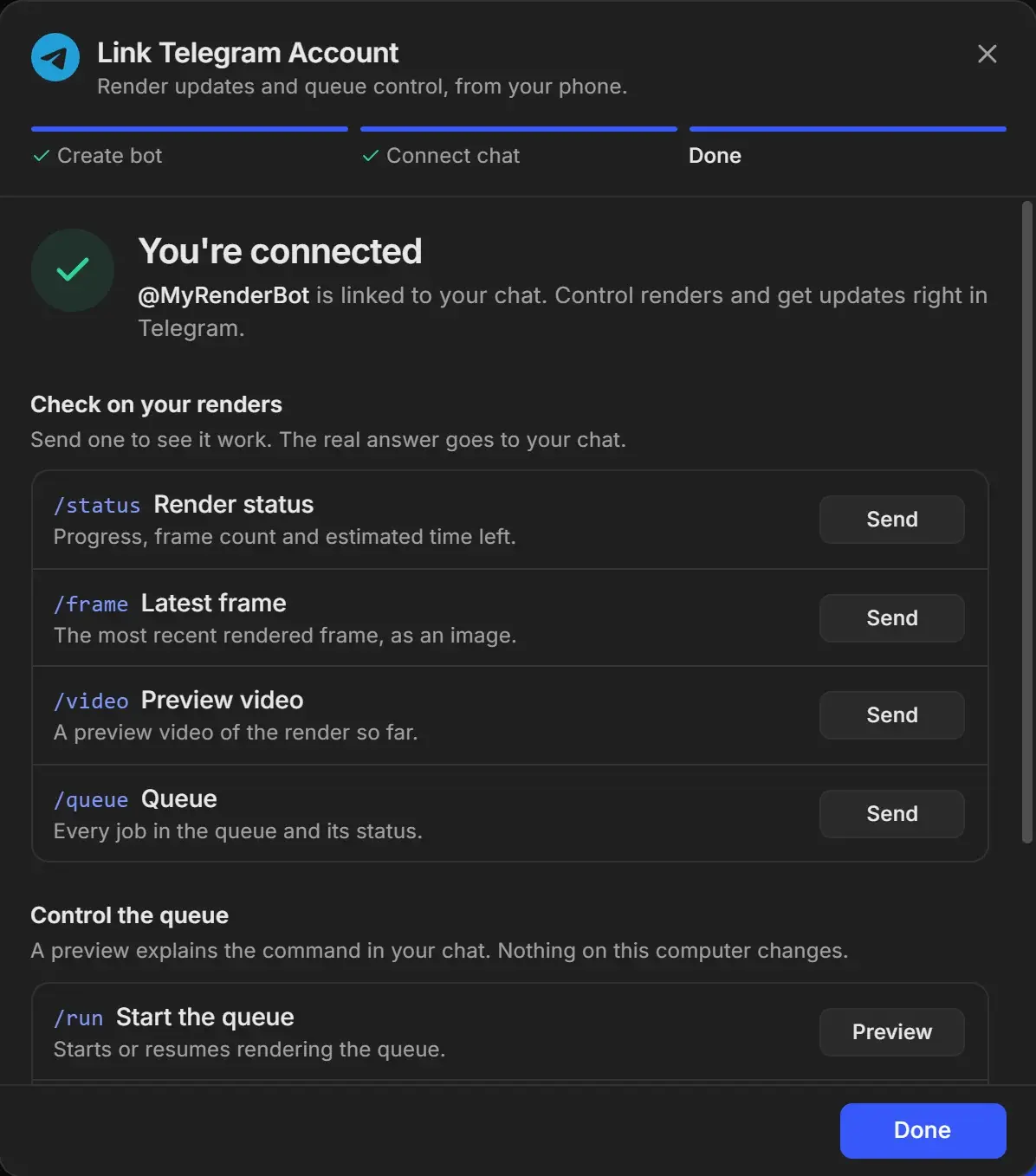
/start becomes the owner of the bot. After that, the bot answers only that chat and ignores everyone else.In Control the queue, Preview next to /run, /stop and /skip only sends an explanation of the command to your chat; nothing changes on the computer. The Preview for /power is different: it sends the real power buttons, and pressing Sleep or ShutDown there really starts the countdown on the computer.
Confirm the connection
Settings > Telegram Bot now shows "Connected as @MyRenderBot" and "Active and receiving alerts". Click Send Test Message. Telegram receives "Test Message from RenderGod" with "Bot Status: Connected".
Then pick your notifications: Choose which Telegram notifications you get.
Link with a chat ID instead of /start
Use this to send notifications to a group chat, or if /start does not link.
- On Connect your chat, expand Enter a chat ID instead.
- Type the chat ID in Chat ID. It is digits only, with a leading minus for a group chat.
- Click Send test message.
- On Did the test message arrive?, check Telegram and click Yes, it arrived, or No, nothing arrived to fix the ID and send again.
A group chat cannot claim the bot with /start; use the chat ID. If you see "Telegram can't find that chat. Open your bot, press Start, then try again.", open the bot or add it to the group first.
Disconnect or link a different chat
- Disconnect in Settings > Telegram Bot unlinks your chat but keeps the bot token. The next
/startsent to the bot links that chat. - Link a different account (shown when RenderGod cannot reach Telegram) starts the linking steps again.
Troubleshooting
| Message | What to do |
|---|---|
| "That is not a bot token." | Copy the whole token from BotFather's reply, with the digits before the colon. |
| "The bot token was rejected, or Telegram could not be reached." | Check the token, and that this computer is online. If you revoked the token, use the new one. |
| "RenderGod is still starting up - please send /start again in a moment." | Wait a few seconds and send /start again. |
| "Send /start to connect this bot to RenderGod" | The bot is not linked yet. Send /start. |
| "Couldn't reach Telegram" in settings | Your bot is still set up. Check the internet connection and click Check again. |
| "The bot has no chat with you yet" after Send Test Message | Open your bot in Telegram, send /start, then test again. |
| The bot does not answer at all | Make sure the computer is on, RenderGod is running and you are signed in. |