Telegram Bot Commands for RenderGod
Every RenderGod Telegram bot command explained, from /status and /queue to /frame, /video, /run, /stop, /skip and /power, with what each reply contains.
Once your bot is connected, you can control and check your renders by sending Telegram bot commands. Type / in the chat, or tap the menu button next to the message field, to see the command list. The bot only answers the chat that owns it.
Commands work while the computer is on, RenderGod is running and you are signed in. Replies start with a small icon, which is left out of the quotes below.
Command list
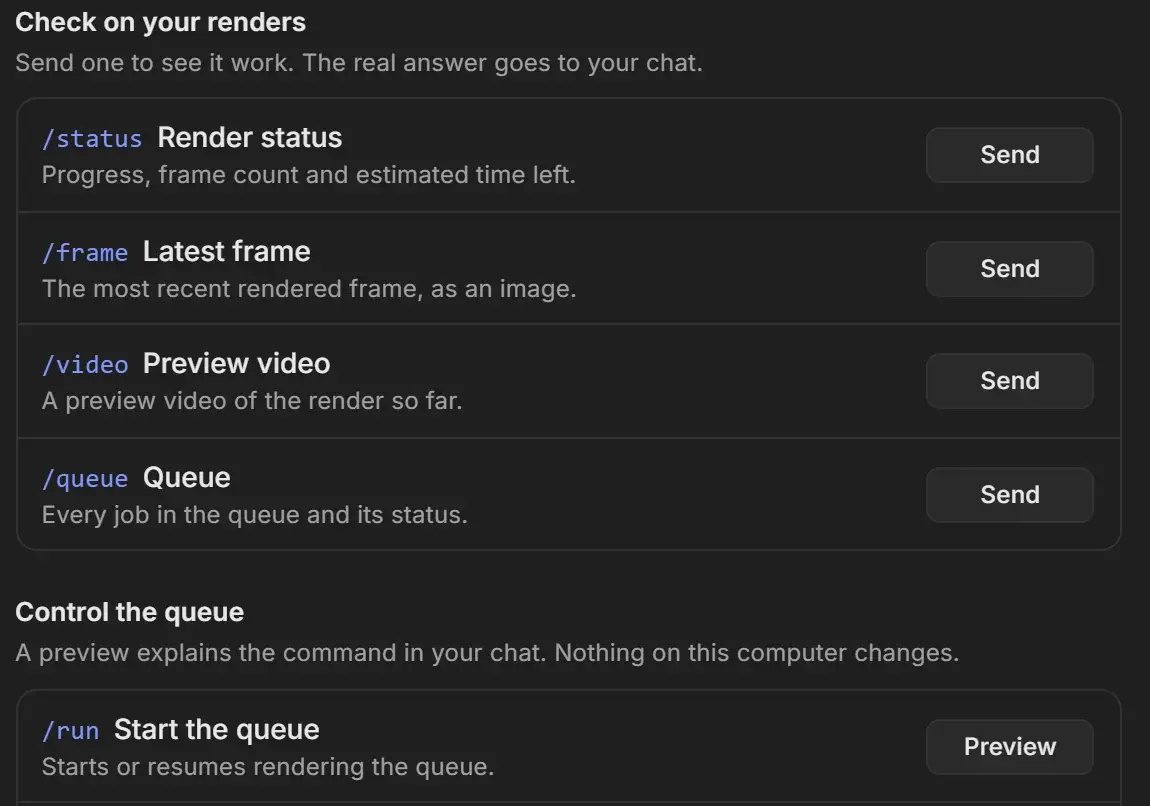
| Command | Menu name | What it does |
|---|---|---|
/status | Live Status | Progress of the job that is rendering |
/queue | Queue Information | Every job in the queue and its status |
/frame | Latest Frame | Sends the most recent rendered frame |
/video | Video Preview | Sends a short preview video of the render so far |
/run | Start Queue | Starts or resumes the queue |
/stop | Stop Queue | Stops the current render and the queue |
/skip | Skip Current Render | Skips the job that is rendering |
/power | Power Controls | Sleep or shut down the computer |
/commands | Command List | Lists the commands |
/start | Chat ID | Links the bot, or shows this chat's ID |
Check on your renders
/status
With nothing rendering, the reply is "No render is running". While a job renders, "Status Update" lists:
| Line | Example |
|---|---|
| Project | the job name |
| Type | the job type |
| Scene, View Layer, Camera | for Blender render jobs |
| Frames | 1 - 250 |
| Current Frame | 45 |
| Progress | 18% |
| Elapsed | 5m 25s |
| ETA | time left, after two frames have finished |
| Last Frame | the most recent finished frame |
/queue
"Queue Status" shows "No renders in queue", or the counts Total Jobs, Rendering, Queued, Completed and Failed, followed by a numbered job list. Each job has an icon for its state: rendering, done, failed, queued or other.
/frame
The bot replies "Searching for latest frame..." and then sends the image with the caption "Latest Rendered Frame" and the frame's file name.
- It uses the job that is rendering, or else the most recent job, and picks its highest frame number.
- EXR, DPX and other formats Telegram cannot show are converted to PNG.
- Frames over 20 MB arrive as a compressed preview with two buttons: Download Original sends the full file as a document, Skip leaves it.
If there is nothing to send, the reply is "No rendered frame found" with likely reasons: no render jobs, no completed renders, or an empty export folder.
/video
The bot replies "Creating preview video..." and then sends "Preview Video (Compressed)" with the project name and frame count. It is a low-quality clip for a quick look, not a final output. The job needs at least 2 rendered frames; otherwise the reply is "Insufficient frames". More in Receive render previews on your phone.
Control the queue
/run
Starts the queue. The reply is "Queue started successfully!" with how many jobs will be processed. If nothing can start, it explains why, for example "Cannot start queue: No jobs in queue", "All jobs are already completed", "All jobs are skipped" or "All jobs have failed".
/stop
Stops the render in progress, closes Blender and stops the queue. Reply: "Queue stopped successfully!". See Start, pause and stop the queue.
/skip
Skips the job that is rendering and moves on. Reply: "Job Skipped Successfully!" with the job name and "Continuing with next job...", or "No more jobs in queue - queue stopped." If nothing is rendering: "Cannot skip: No job is currently rendering". See Skip a job.
/power
Sends "Power Controls" with three buttons:
| Button | What happens |
|---|---|
| Sleep | "System Will Sleep in 30 Seconds" with an Abort button. The computer shows its 30-second countdown. |
| ShutDown | "System Will Shutdown in 30 Seconds" with an Abort button. |
| Stop Queue | Same as /stop. |
Press Abort within 30 seconds to cancel; the reply is "Power action aborted successfully" and the countdown closes on the computer.
Other commands
/commandslists every command with a short description./startlinks the bot the first time. Sent later by the owner, it replies "Welcome to RenderGod Bot!" with "Your Chat ID is:" and the ID.
If a command does not answer
- "Bot is starting up, please try again in a moment": RenderGod just started. Wait and resend.
- No reply at all: the computer is off or asleep, RenderGod is closed, you are signed out, or you are writing from a chat that does not own the bot.