Shut Down or Sleep When the Render Queue Finishes
Set RenderGod to shut down or sleep your computer after the last render job, turn the completion sound on or off, and cancel the 3 minute countdown.
Set a When Done action to shut down or sleep your computer after the render queue finishes, for example at the end of an overnight batch. You get a 3 minute countdown before anything happens, so you can still cancel.
Choose what happens when the queue is done
- Click the alarm clock button at the right end of the queue toolbar.
- Under When Done, choose an action.
- Turn Play Sound on or off.
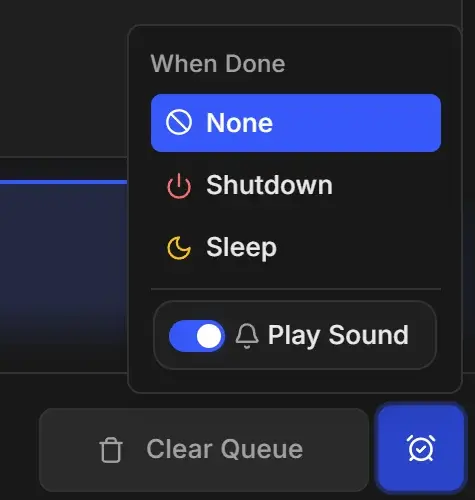
| Option | What happens after the last job | When to use it |
|---|---|---|
| None | Nothing. The computer stays on. This is the default. | You are working on the computer or rendering more later |
| Shutdown | The computer shuts down after a 3 minute countdown | Overnight renders when nobody needs the computer until morning |
| Sleep | The computer goes to sleep after a 3 minute countdown | You want to save power but resume quickly |
| Play Sound | Plays a sound when the queue finishes. On by default. Turning it on plays the sound once so you can hear it. | Works together with any of the options above |
The choice is remembered across restarts and applies to every future queue until you change it back to None.
When Shutdown or Sleep is set, the alarm clock button turns red (Shutdown) or amber (Sleep), and its tooltip reads "When Done: Shutdown" or "When Done: Sleep".
The reminder card in the queue
With Shutdown or Sleep set, a card at the end of the queue reminds you:
| Action | Card title | Buttons |
|---|---|---|
| Shutdown | Shutdown When Done, "Computer will shut down after all jobs complete (3 min countdown)" | Switch to Sleep, Cancel Shutdown |
| Sleep | Sleep When Done, "Computer will sleep after all jobs complete (3 min countdown)" | Switch to Shutdown, Cancel Sleep |
Cancel Shutdown and Cancel Sleep set the action back to None.
What happens when the queue finishes
- The completion sound plays, if Play Sound is on.
- A message reads "Queue completed - Shutdown in 3 minutes" (or "Sleep in 3 minutes").
- A countdown window opens, titled System Shutdown or System Sleep, with a timer counting down from 3:00 and a reminder to save your work.
- When the timer reaches zero, the computer shuts down or goes to sleep.
If the RenderGod window is not in front, a desktop notification also says "Every job is done. This computer shuts down shortly - open RenderGod to cancel." (or "sleeps shortly").
Cancel or skip the countdown
| Button in the countdown window | Result |
|---|---|
| Cancel, the close button, Esc or a click outside the window | Cancels this shutdown or sleep. Your When Done choice stays set for the next queue. |
| Shutdown Now / Sleep Now | Shuts down or sleeps right away |
The countdown window can also be opened from the Telegram bot's power command. See Telegram bot commands.
On macOS
The first time you choose Shutdown, macOS asks whether RenderGod may control System Events. Allow it, or the shutdown cannot run. If you denied it, allow RenderGod under System Settings > Privacy & Security > Automation. If the action fails, RenderGod shows "Failed to execute system action" with the reason.