Desktop Notifications for Finished and Failed Renders
Get Windows and macOS desktop notifications when the RenderGod render queue finishes, a job fails or a crashed render recovers, and learn how to turn them off.
RenderGod sends desktop notifications when something important happens while you are not looking at the window: the render queue finishes, a job fails, or a crashed render recovers. They appear in the Windows notification area or in macOS Notification Center.
When you get a notification
| Title | Message | When |
|---|---|---|
| Render complete | "Every job in the queue is done." | The last job in the queue finishes |
| Render complete | "Every job is done. This computer shuts down shortly - open RenderGod to cancel." (or "sleeps shortly") | The queue finishes and a When Done action is set |
| Render failed | The job name and the reason, for example "No camera in the scene", with "Open RenderGod to retry it." | A job fails |
| Render recovered | ""Cube Hero Render" is resuming from frame 118." | UnCrash restarts Blender after a crash |
Notifications are sent only when the RenderGod window is hidden, minimized or behind another window. While RenderGod is in front and focused, you see the in-app messages in the bottom right corner instead.
Turn desktop notifications on or off
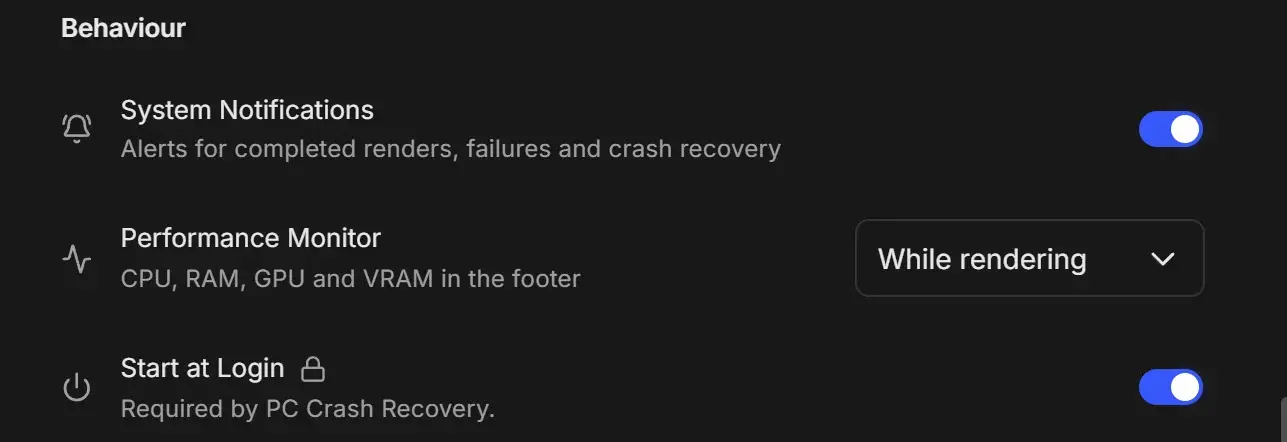
- Open Settings > System Settings.
- Under Behaviour, switch System Notifications on or off. It is on by default.
The change applies right away.
In-app messages
Inside the window, short messages appear in the bottom right corner, for example "Completed rendering Cube Hero Render" or "Queue stopped - all processes ended".
- Up to three show at once; more wait their turn.
- Success messages close after a few seconds; errors stay longer.
- Hover a message to keep it open. Swipe or drag it to the right to dismiss it.
- Repeated identical messages merge into one with a count.
- Messages with buttons, such as the Blender add-on invitation, stay until you act on them.
Get notifications on your phone
Desktop notifications only reach the computer running RenderGod. To get render updates, frames and videos on your phone, connect a Telegram bot.
Troubleshooting notifications
I do not get notifications on Windows
- Check that System Notifications is on in RenderGod.
- Check Windows Settings > System > Notifications and make sure notifications are allowed for RenderGod.
- Do not disturb or Focus in Windows hides notifications.
On macOS
- Notifications appear in Notification Center.
- The first time, macOS asks whether RenderGod may send notifications. If you declined, allow them in System Settings > Notifications > RenderGod.