Themes, Color Palettes, Font and UI Scale
Change how RenderGod looks with light and dark themes, four color palettes, the Inter or system font, and UI scale from 75 to 150 percent with shortcuts.
You can change how RenderGod looks: switch between light and dark themes, pick one of four color palettes, choose the font and scale the whole interface. All appearance options are in Settings > System Settings under Appearance, and every change applies right away.
Appearance options
| Setting | Options | Default | Shortcut |
|---|---|---|---|
| Theme | Light, Dark, System | System | F6 switches between light and dark |
| Color palette | Neutral, Blender, Classic, Slate | Neutral | |
| Font | Inter, System | Inter | |
| UI Scale | 75%, 90%, 100%, 110%, 125%, 150% | 100% | Ctrl + +, Ctrl + -, Ctrl + 0 to reset |
Choose a theme
System follows the light or dark mode of your operating system. Light and Dark stay fixed. Pressing F6 anywhere (outside a text field) switches between light and dark and leaves System mode.
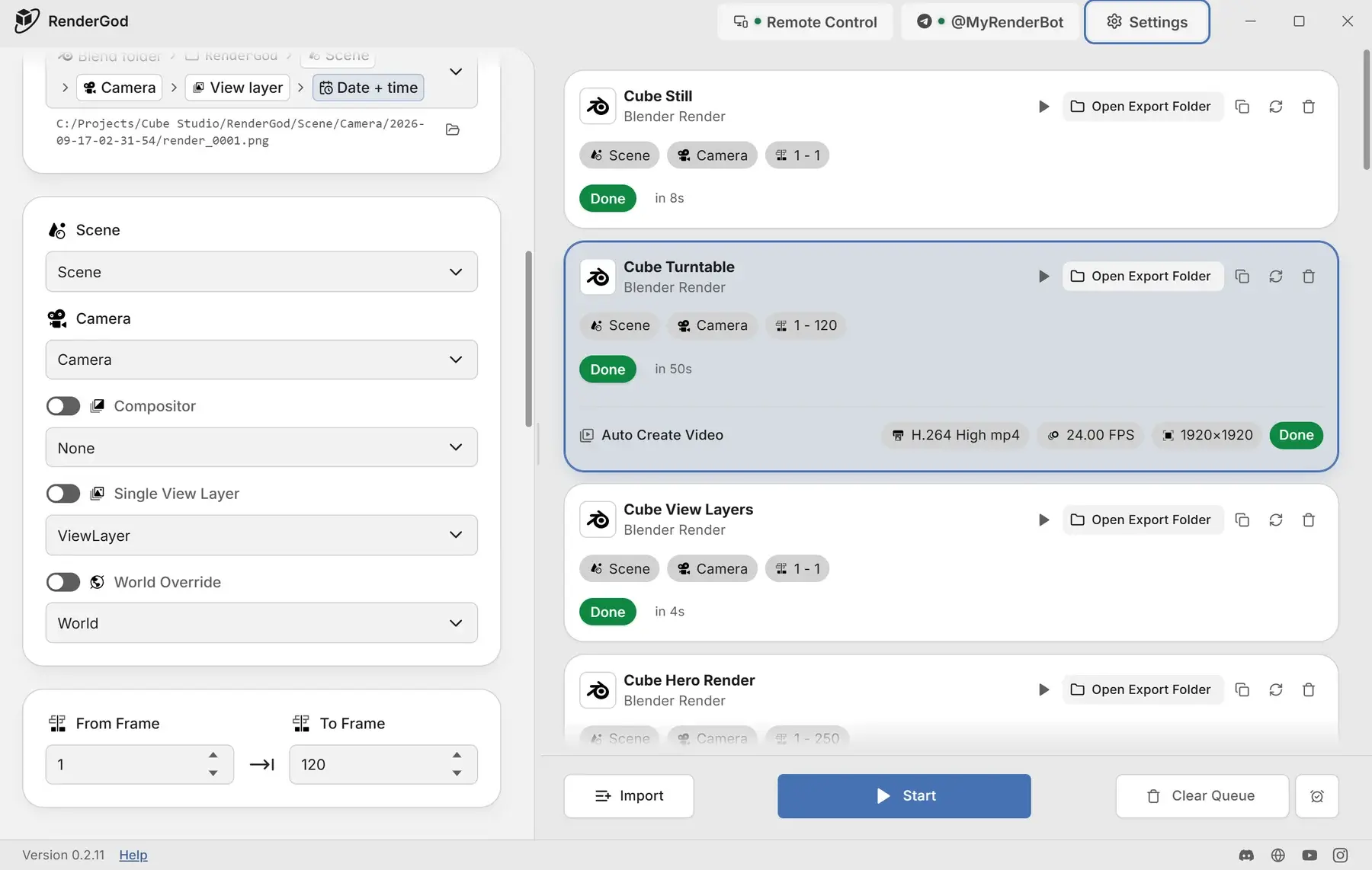
The separate preview window is always dark, so frames are judged against the same background.
Choose a color palette
Each palette works in both light and dark themes.
| Palette | Look |
|---|---|
| Neutral | Grey chrome, white cards and one blue accent |
| Blender | Blender's greys and its selection blue, to feel at home next to Blender |
| Classic | The original RenderGod colors |
| Slate | Cool blue-grey, tuned to the RenderGod blue |
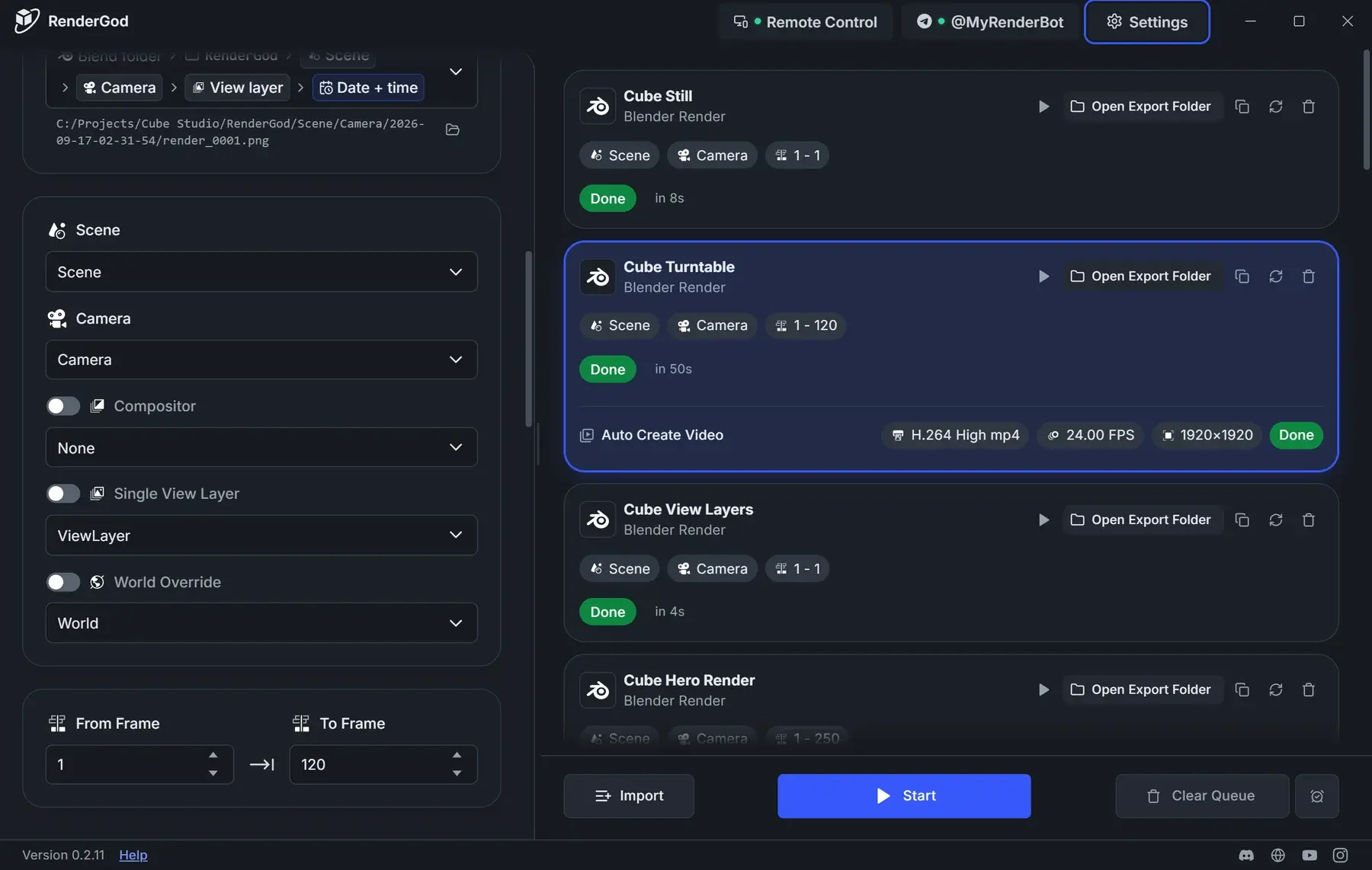
Neutral
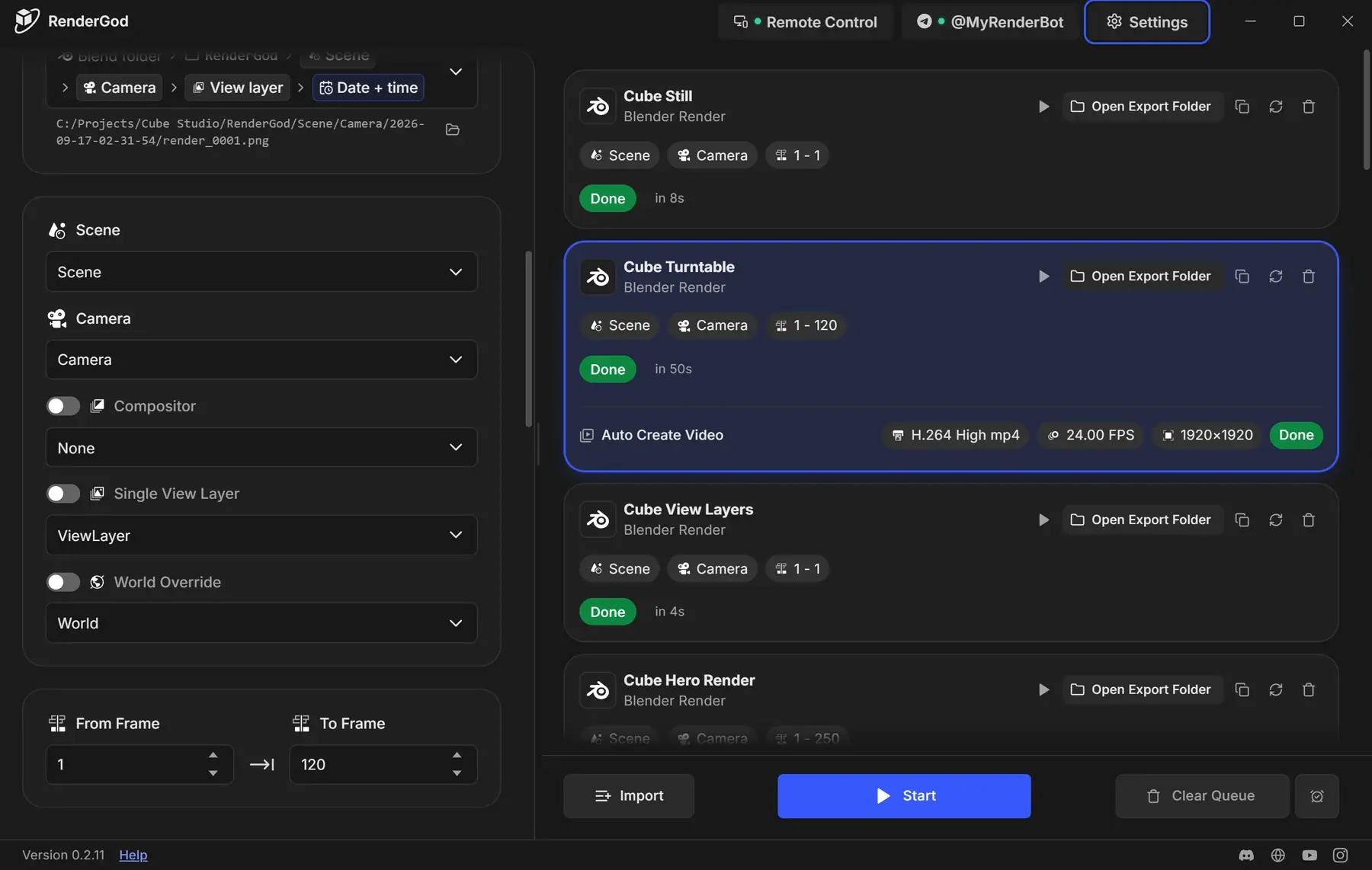
Blender
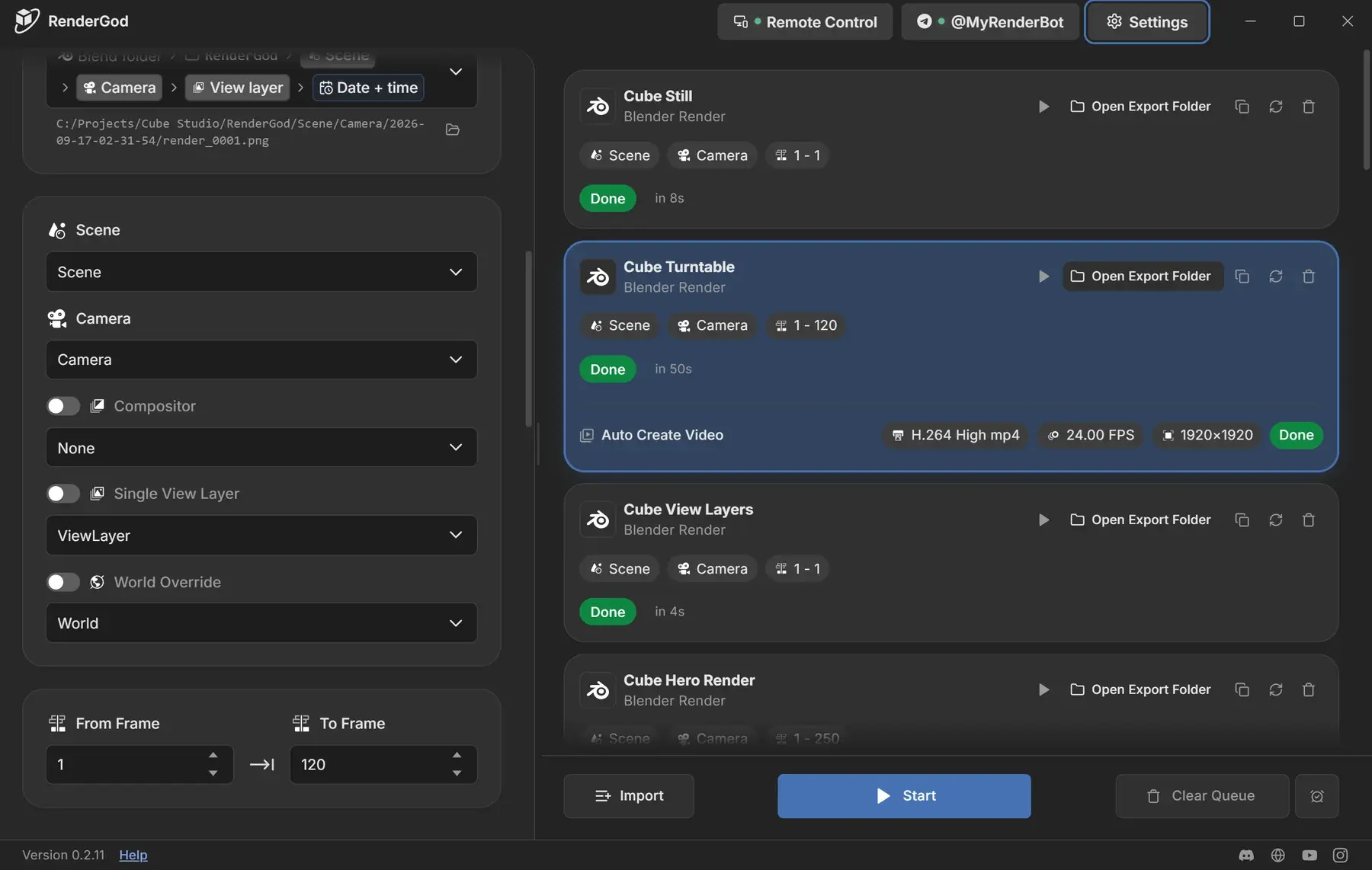
Classic
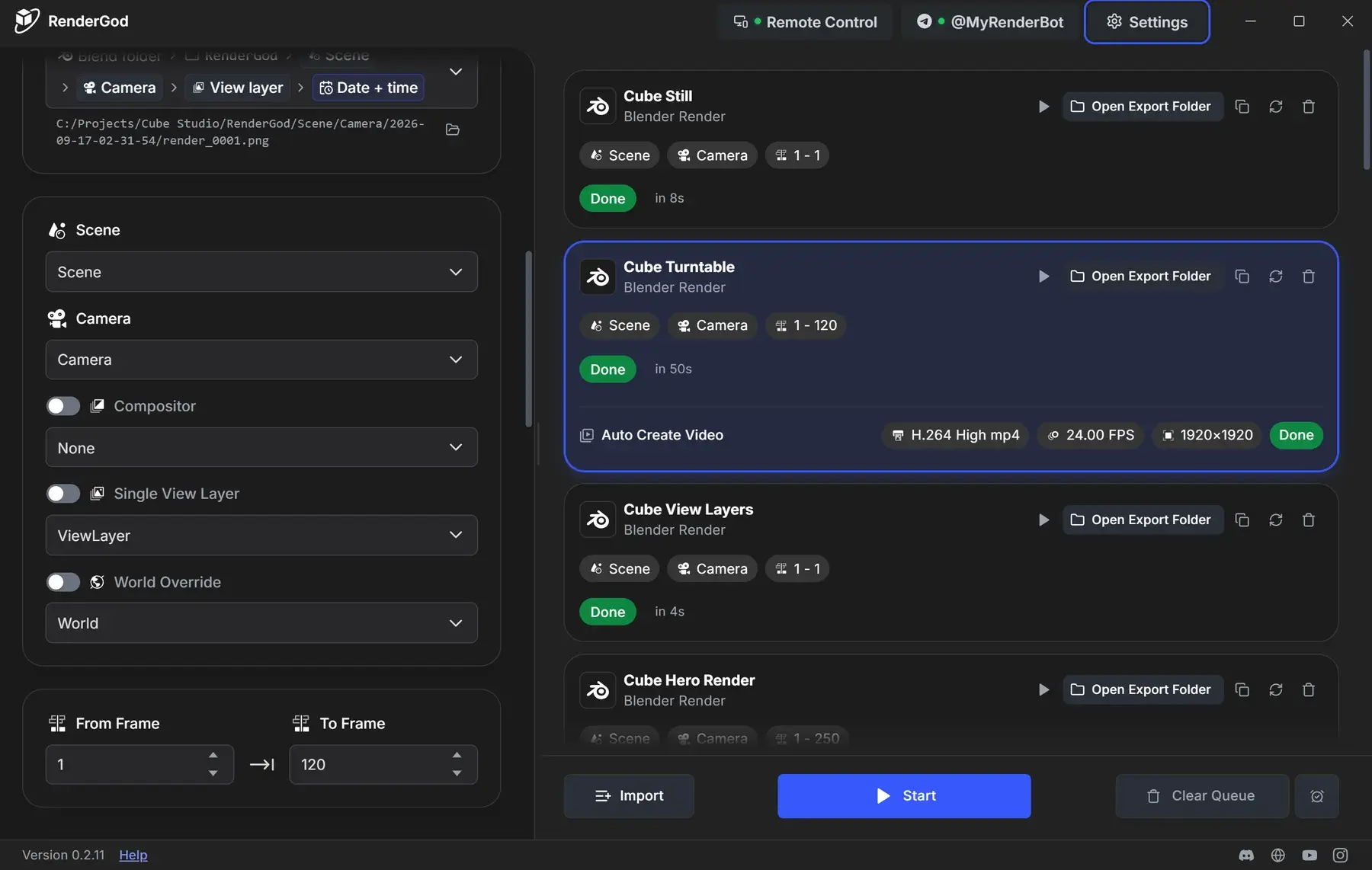
Slate
Choose the font
- Inter is the RenderGod font and looks the same on every computer.
- System uses your operating system's interface font, such as Segoe UI on Windows or San Francisco on macOS.
Change the UI scale
Make all text and controls larger or smaller, for example on a high-resolution monitor or a small laptop screen.
- In System Settings, use the - and + buttons next to UI Scale.
- Anywhere in the app, press Ctrl + + or Ctrl + -. A short message shows the new scale.
- Press Ctrl + 0 to go back to 100%.
In a browser connected with remote control, use the browser's own zoom instead (Ctrl + + / -, or pinch on a phone).
On macOS
Use Cmd instead of Ctrl for the UI scale shortcuts.