Tour of the RenderGod Window and Its Controls
A guided tour of the RenderGod window, covering the header, render queue, render settings panel, queue toolbar, footer hardware readout, messages and tray icon.
The RenderGod window has five areas: the header at the top, the settings panel on the left, the render queue on the right, the queue toolbar under the queue, and the footer. This tour shows what each part of the window does.
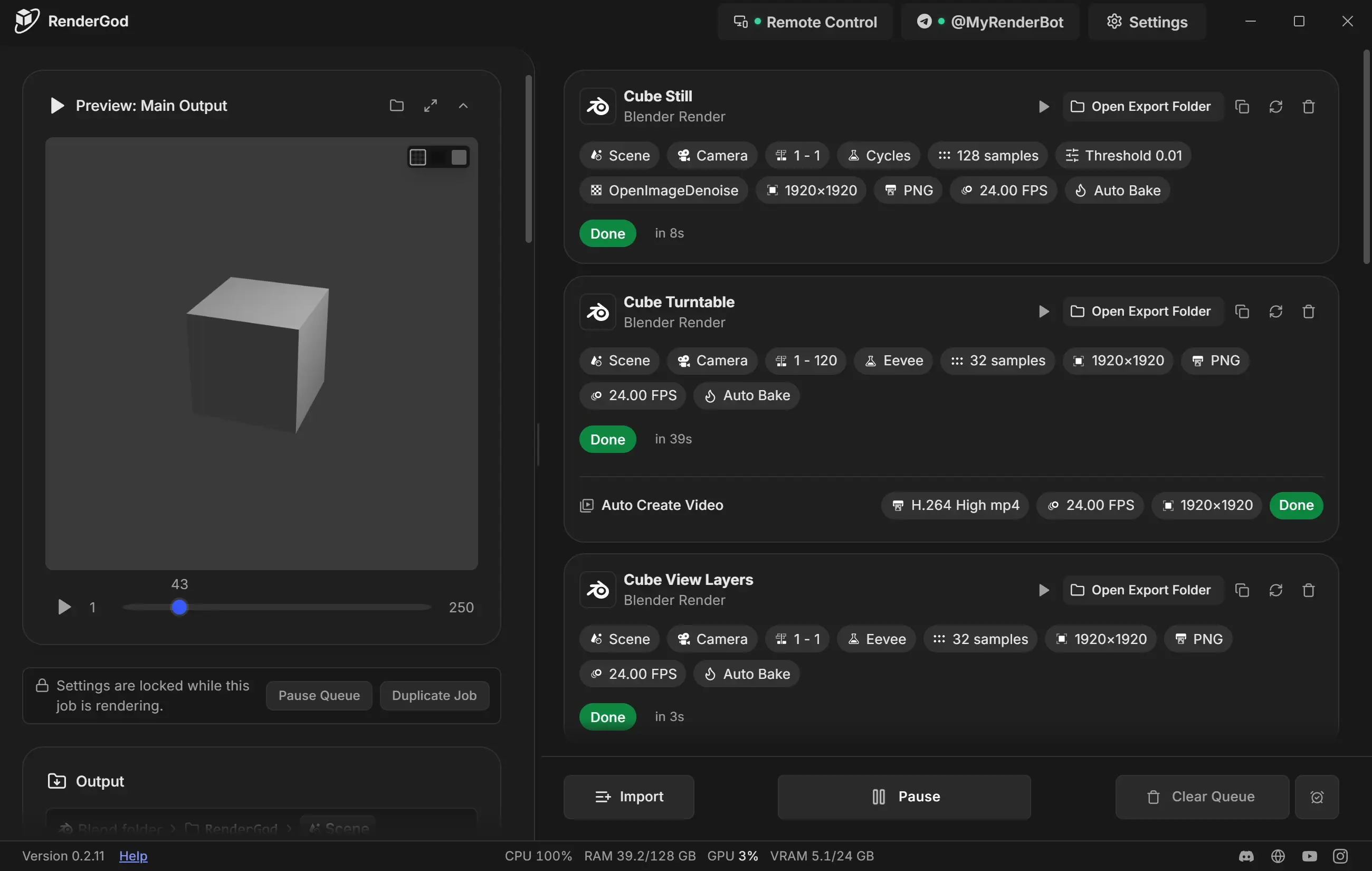
Header

| Control | What it does |
|---|---|
| RenderGod logo | Reloads the window. Your queue and running renders are not affected. |
| Remote Control | Opens Remote Control settings. A green dot means remote control is on. It reads Session Connected when a browser is controlling this computer. |
| Link Telegram Bot / bot name | Opens Telegram Bot settings. Shows your bot name with a green dot when connected, or an amber dot when notifications are paused. |
| Settings | Opens Settings. |
| Sign In | Shown when you are signed out. See First launch and sign in. |
| Minimize, Maximize, Close | Window controls. Close hides RenderGod to the system tray; renders keep running. |
Drag the header to move the window. In a narrow window the Telegram and Remote Control buttons hide to save space.
Render queue
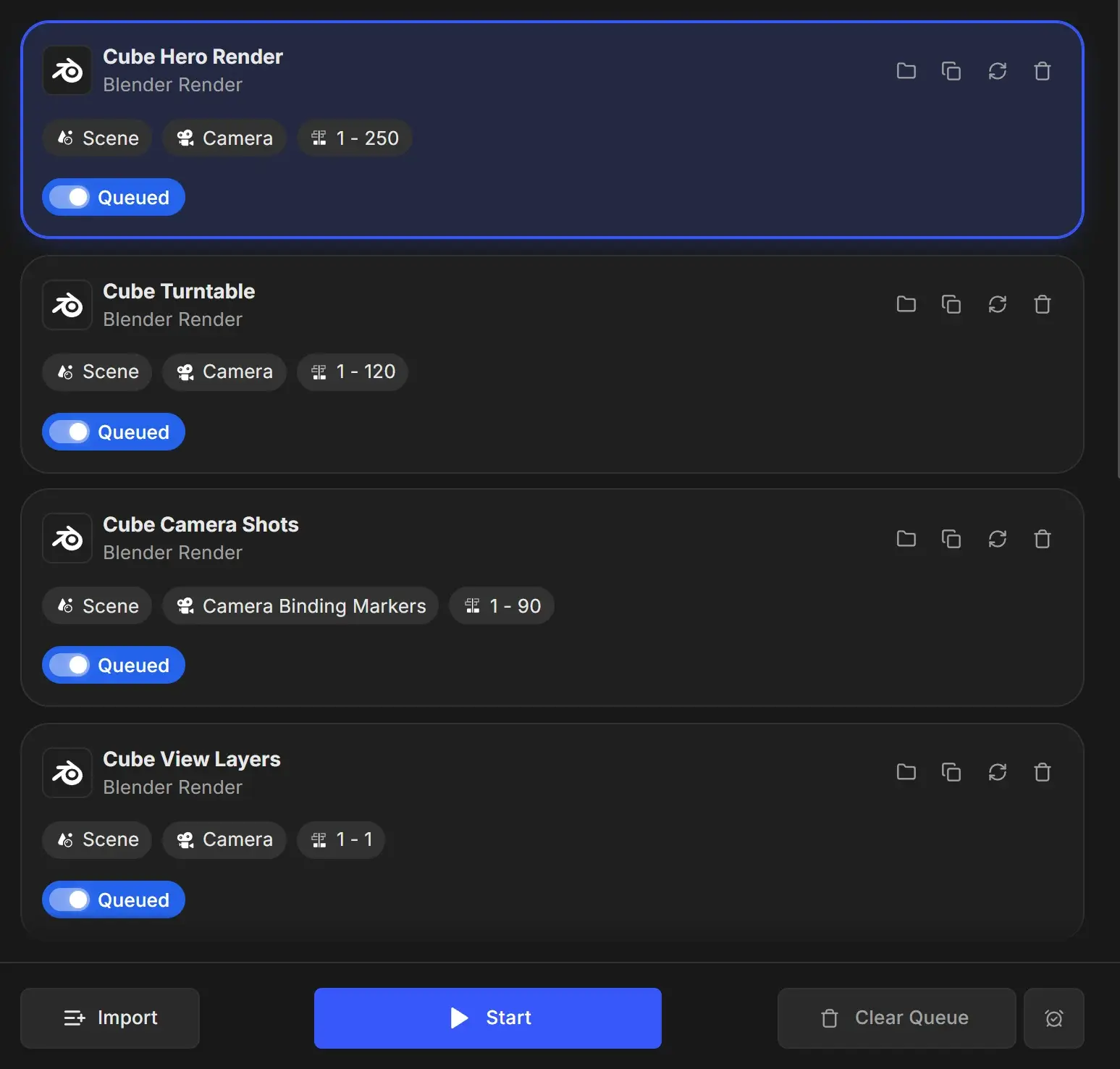
The queue lists your jobs from top to bottom in the order they render. Each card shows the job name, type, badges such as scene, camera and frame range, its status, and quick action buttons. Click a card to select it. See The render queue explained and Reading a job card.
When the queue is empty it shows Get Started! with import buttons.
Settings panel
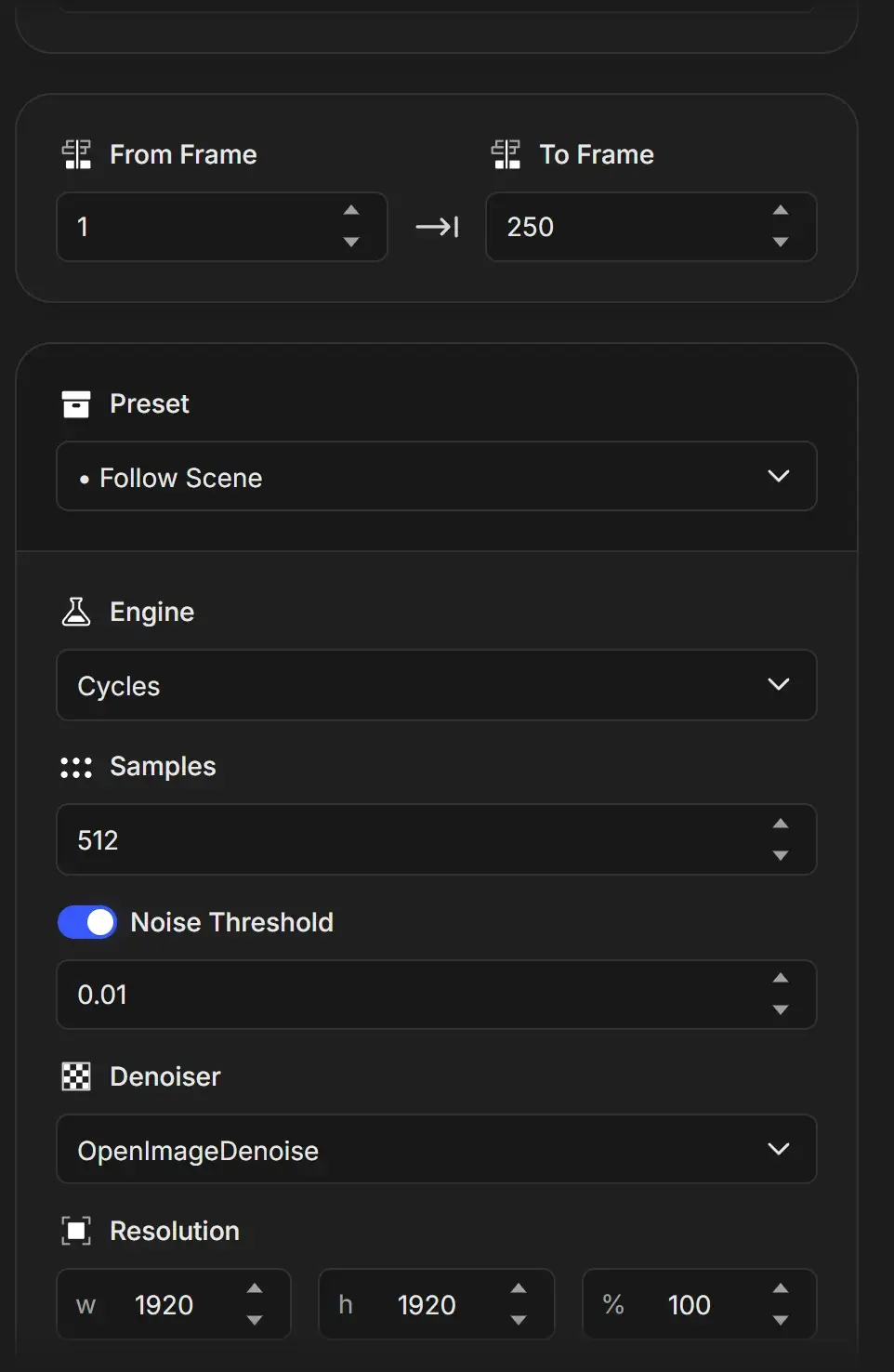
The left panel shows the settings of the selected job. What it contains depends on the job type:
| Job type | Panel |
|---|---|
| Blender render | Render settings panel: preview, output, scene, frame range, engine, format and more |
| Image sequence to video, image sequence conversion | Image sequence to video settings |
| Video to image sequence, video conversion, audio extraction | Video to image sequence settings |
| Audio conversion | Convert audio settings |
Changes save as you make them. Drag the divider between the panel and the queue to resize them; double-click it to restore the default split.
Queue toolbar

| Button | What it does |
|---|---|
| Import | Adds .blend files, video, audio, image sequences or job files, and installs the Blender add-on. See Supported file types. |
| Start / Pause | Starts the queue, or pauses it. See Start, pause and stop the queue. |
| Clear Queue | Removes all jobs except one that is rendering. See Remove jobs and clear the queue. |
| Alarm clock | Shut down or sleep when the queue finishes, and turn the completion sound on or off. See When done actions. |
Footer and hardware readout

| Item | What it does |
|---|---|
| Version | Shows the installed version. Click it to check for updates. See Update RenderGod. |
| Help | Opens rendergod.app for documentation and support. |
| Hardware readout | CPU, RAM, GPU and VRAM usage, refreshed every 2 seconds. Hover a value for details, such as the GPU name. GPU and VRAM appear only for NVIDIA GPUs. |
| Community icons | Discord, website, YouTube and Instagram. |
By default the hardware readout is visible only while rendering. Change it with Performance Monitor in System Settings: Always, While rendering or Off. It is hidden in very narrow windows.
Messages
Short messages appear in the bottom right corner, for example when a render completes or a job is removed. Up to three show at once. Hover a message to keep it open, or swipe it to the right to dismiss it. Messages with buttons, such as the Blender add-on invitation, stay until you act on them.
When RenderGod is hidden or in the background, important events also appear as desktop notifications.
Narrow windows
When the window is narrower than about 800 pixels, RenderGod shows one pane at a time. The queue shows first. Click a job to open its settings full width, then use Back to queue or swipe right to return.
System tray and closing the window
RenderGod keeps an icon in the system tray (on macOS, the menu bar) with Show RenderGod, Hide RenderGod and Quit RenderGod. Click the icon to show or hide the window.
| Action | Result |
|---|---|
| Close button in the header | Hides the window. RenderGod and your renders keep running. |
| Alt + F4 or closing from the taskbar | Quits RenderGod. The queue is saved and Blender is stopped. |
| Quit RenderGod in the tray menu | Quits RenderGod. |
Opening RenderGod again while it is running brings the existing window to the front instead of starting a second copy.
On macOS
- The window has the standard macOS close, minimize and zoom buttons in the top left.
- Closing the window with the red button or Cmd + W hides it; renders keep running. Click the Dock icon to bring it back.
- Quit with Cmd + Q. The queue is saved and render processes are stopped.
- The menu bar has a Render menu with Start Render Queue and Stop Render Queue.
- The hardware readout shows CPU and RAM only.