First Launch and Sign In to RenderGod
See what happens the first time you open RenderGod, from the connection check and updates to the empty queue, the add-on invitation and signing in with Google.
The first time you open RenderGod, it checks your connection, makes sure you have the latest version and shows an empty queue ready for your first files. This page walks through each step and how to sign in.
What you see when RenderGod starts
Loading window. A small window with the RenderGod logo and "Loading RenderGod…" appears while the app starts.
Connection check. The main window opens dimmed with a spinner while RenderGod checks that it can reach the internet. On a slow network this can take up to a minute. If it still cannot connect, the No Internet Connection window appears. See No internet connection message.
Update check. If a newer version exists, the Update Available window opens. Install it to continue. See Update RenderGod.
Empty queue. The queue shows Get Started! with import buttons.
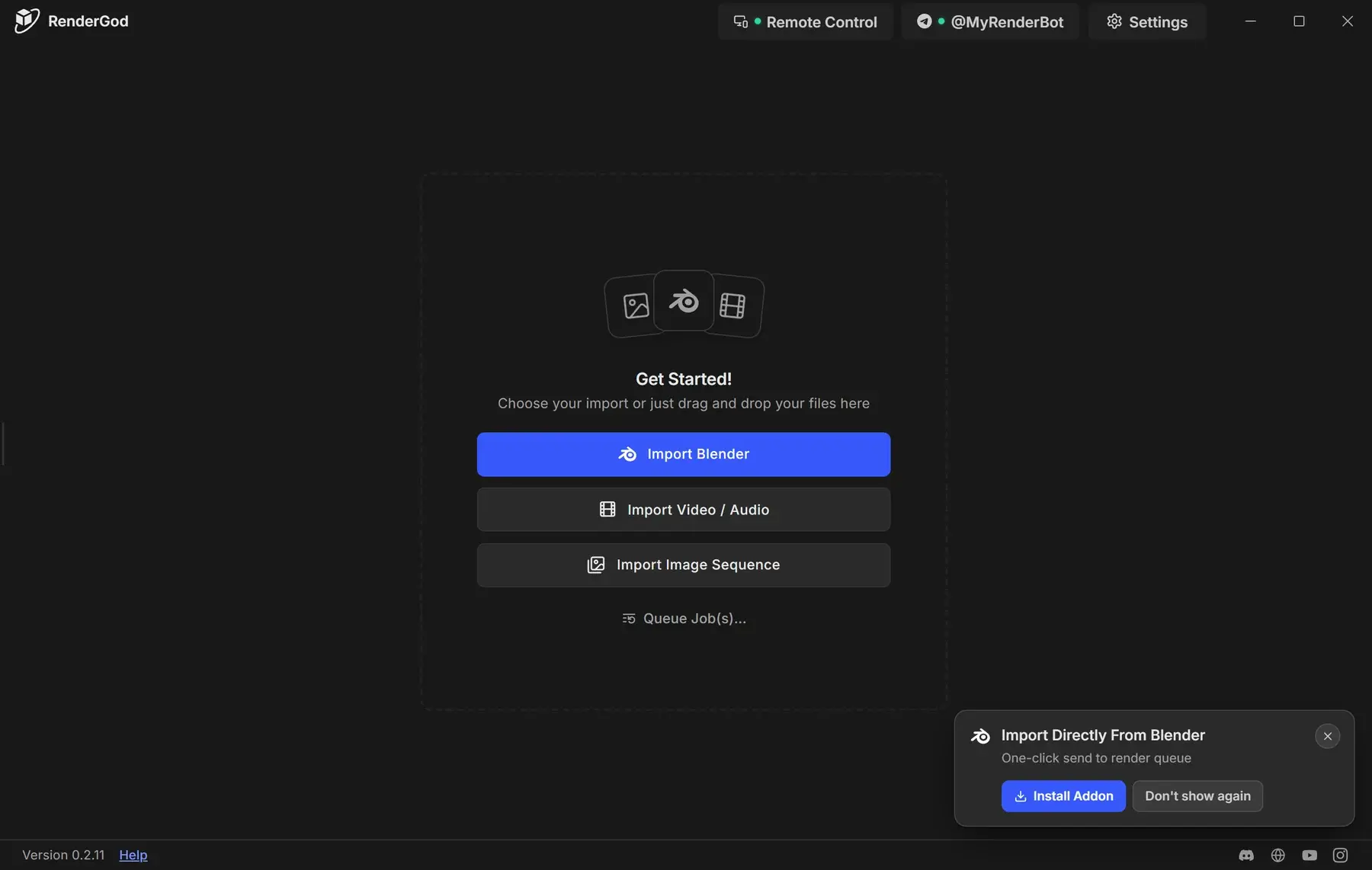
RenderGod remembers the window size and position, and the queue, for next time.
The Blender add-on invitation
A card titled Import Directly From Blender appears in the bottom right corner while the queue is empty.
| Button | What happens |
|---|---|
| Install Addon | Opens Settings > Install Blender Addon, where you pick the Blender versions to install it into. See Install the Blender add-on. |
| Don't show again | Hides the card. A message reminds you that you can install the add-on from Settings later. |
To bring the card back, turn on Show RenderGod Addon popup when queue is empty in Install Blender Addon settings.
Sign in
You can import files and adjust settings without an account, but you need to be signed in to start the render queue. Signing in also turns on remote control, the Telegram bot and UnCrash. If you press Start while signed out, the sign-in window opens by itself.
Click Sign In at the top right of the window.
Click Continue with Google. Your default browser opens the Google sign-in page.
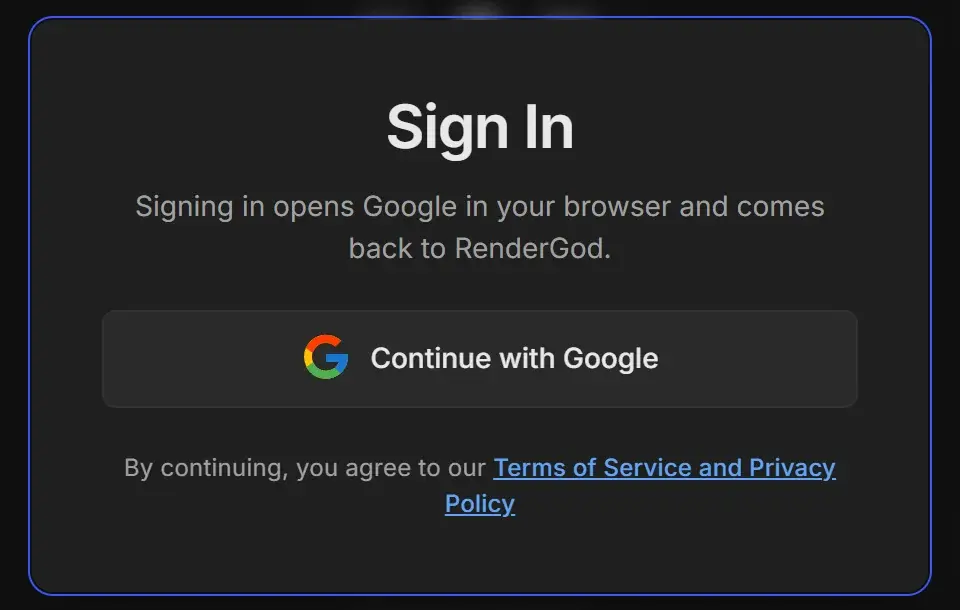
Finish signing in in the browser. RenderGod shows "Waiting for your browser…" and returns signed in when you are done.
When you are signed in, Sign In is replaced by the Remote Control and Telegram buttons. See Account and sign in.
Next steps
- Find your Blender installations so RenderGod knows which Blender to use.
- Take the tour of the window.
- Render your first Blender file.
On macOS
- The window uses the standard macOS title bar with the close, minimize and zoom buttons.
- macOS may ask to allow notifications and access to folders. Allow both so RenderGod can alert you and read your project files.