RenderGod System Requirements for Windows and macOS
Check the operating system, Blender versions, GPU and internet connection RenderGod needs on Windows and macOS before you install it and start rendering.
RenderGod runs on Windows and macOS and renders with Blender versions you already have installed. Check these system requirements before you install.
Operating system
| Platform | Requirement |
|---|---|
| Windows | 64-bit Windows 10 or Windows 11. Installing needs administrator permission once. |
| macOS | macOS 11 Big Sur or later. |
Some features are Windows only, such as the background recovery service that resumes renders after a PC crash, power loss or restart.
Blender versions
RenderGod works with Blender 4.2 and newer. It has been tested with Blender 4.2, 4.3, 4.5, 5.0, 5.1 and 5.2.
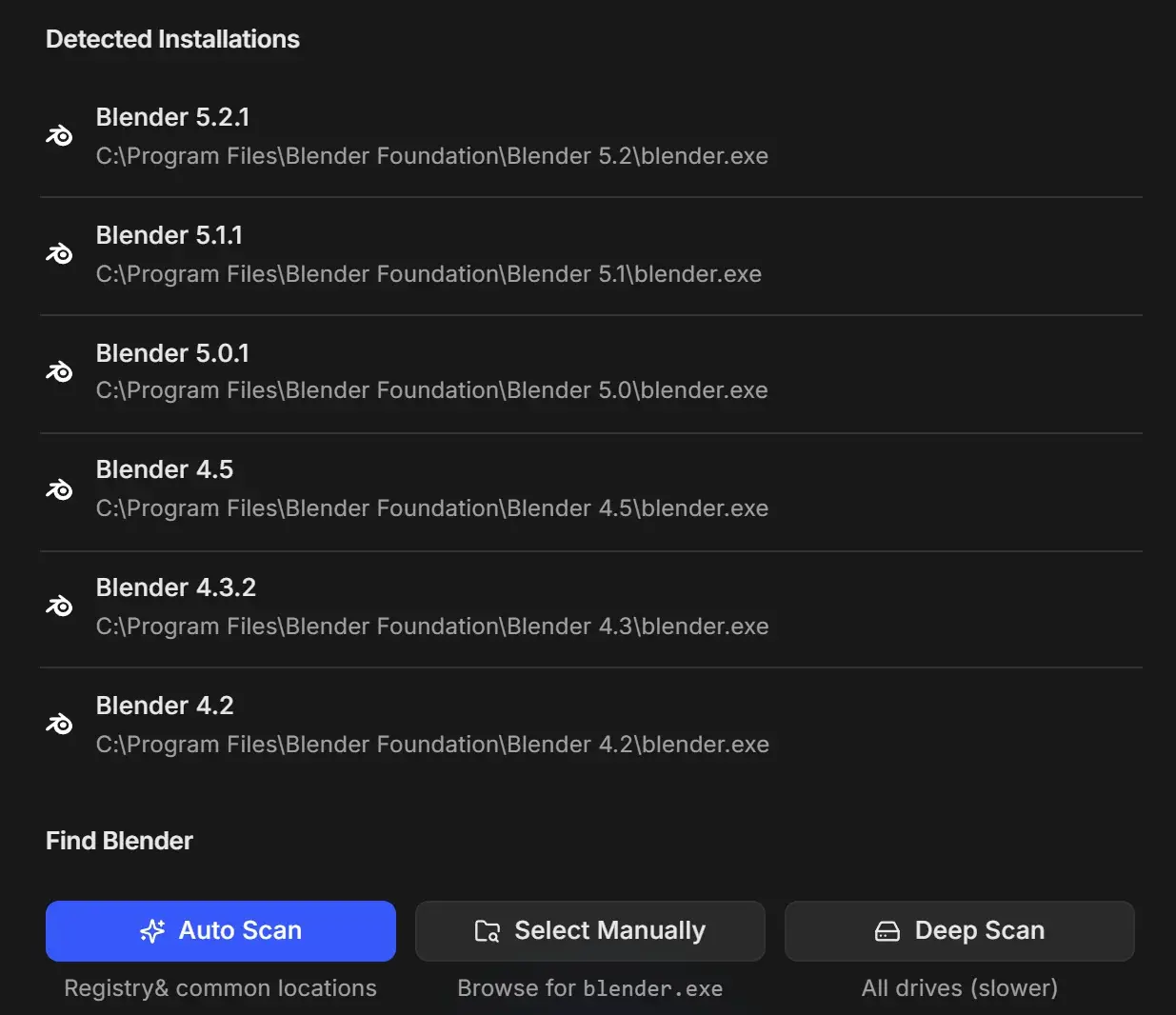
- Install Blender the usual way before you use RenderGod. RenderGod does not include Blender.
- You can have several versions installed and pick one per job. See Pick the Blender version for a job.
- The Blender add-on also needs Blender 4.2 or newer.
GPU
RenderGod itself does not need a fast GPU. Blender does the rendering, so your GPU matters for Blender in the usual way.
| Area | What to know |
|---|---|
| Cycles GPU rendering | Force Cycles to use the GPU picks the right backend: OptiX or CUDA on NVIDIA, HIP on AMD, oneAPI on Intel, Metal on macOS. See Optimization overrides. |
| OptiX denoiser | Needs an NVIDIA GPU. OpenImageDenoise works on any computer. |
| NVIDIA driver | Blender 5.2 needs NVIDIA driver 575 or newer for OptiX and CUDA. |
| GPU video encoding | Uses NVIDIA, AMD or Intel encoders on Windows and VideoToolbox on macOS, and falls back to the CPU when none is available. See GPU and CPU encoding. |
| Footer GPU and VRAM readout | Shown only for NVIDIA GPUs. CPU and RAM are shown on every computer. |
Internet connection
RenderGod needs an internet connection when it starts. It verifies the app each time it opens and stays locked until the check succeeds. If there is no connection, the No Internet Connection window appears and retries by itself.
Once RenderGod has started, you can disconnect and keep working offline. The check runs again the next time RenderGod starts. See No internet connection message.
Account
You need a Google account to sign in to RenderGod. Signing in is required to start the render queue, and to use remote control, the Telegram bot and UnCrash crash recovery. See First launch and sign in.
Disk space for renders
Rendered frames are saved next to your .blend file by default, in a RenderGod folder. Make sure that drive has room for the frames, especially for EXR sequences. See Choose where renders are saved.