Fix the No Internet Connection Message in RenderGod
Why RenderGod shows No Internet Connection and stays locked, what the check does with your data, and how to get past it with firewall, proxy and network checks.
The No Internet Connection message appears when RenderGod cannot reach the internet to verify this copy. RenderGod stays locked until the check succeeds, then you can keep working offline.
Symptom
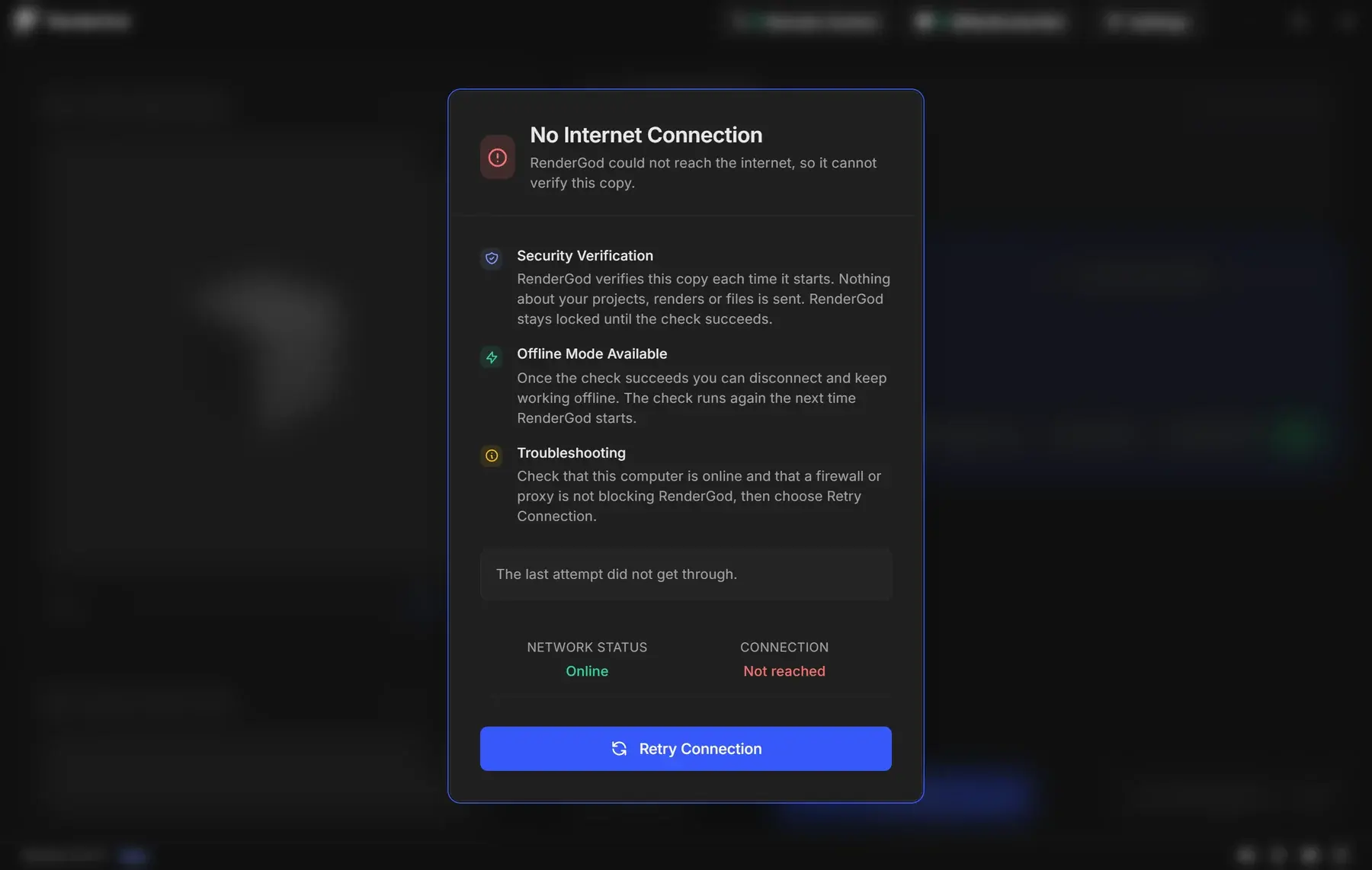
A window that cannot be closed covers the app:
- Title No Internet Connection (or Verifying Connection while it checks).
- "RenderGod could not reach the internet, so it cannot verify this copy."
- Network Status shows Online or Offline, and Connection shows Checking… or Not reached.
- A Retry Connection button.
Pressing Esc explains that the message cannot be dismissed until the check finishes.
Cause
RenderGod verifies this copy each time it starts. When it opens, it keeps trying for up to a minute before showing this window, so a slow network after starting the computer does not block you. The window also appears if the connection drops while RenderGod is open.
The check sends nothing about your projects, renders or files.
Fix
- Check the computer is online. Open a website in your browser.
- Click Retry Connection. RenderGod also retries every few seconds by itself and closes the window as soon as the check succeeds.
- Check your firewall and antivirus. Allow RenderGod to reach the internet. On Windows, look in Windows Security > Firewall & network protection > Allow an app through firewall. On macOS, check any firewall app you use, such as Little Snitch or LuLu.
- Check a proxy or VPN. Company proxies and some VPNs block the check. Try without the VPN, or ask your IT team to allow RenderGod.
- Restart RenderGod after changing network or firewall settings.
| Network Status | Connection | Likely cause |
|---|---|---|
| Offline | Not reached | The computer has no network. Check cable, Wi-Fi or adapter |
| Online | Not reached | The network works but RenderGod is blocked. Check firewall, proxy or VPN |
If the check keeps failing the message "The connection check did not complete" appears with "Check this computer's connection, then choose Retry Connection."
Working offline
After the check succeeds you can disconnect and keep working, including rendering. The check runs again the next time RenderGod starts, so start RenderGod while connected before taking a computer offline.
Remote control from a browser and the Telegram bot always need an internet connection.