Blender Not Found in RenderGod or the Add-on
Fix RenderGod not finding your Blender installation, a missing Blender version for a job, or the Blender add-on saying RenderGod not found.
"Blender not found" problems come in two directions: RenderGod cannot find Blender to render with, or the Blender add-on cannot find RenderGod to send a scene to. Find your symptom below.
RenderGod cannot find Blender
Symptoms
- The Blender version window opens when you import a
.blendor click Start. - Settings > Blender Version Manager shows "No Blender installations found. Use Auto Scan or Select Manually below."
- The Render panel has no Blender Version card.
Cause
Blender is installed somewhere RenderGod does not look, such as a custom folder, a second drive or a portable ZIP copy. Or it is not installed at all.
Fix
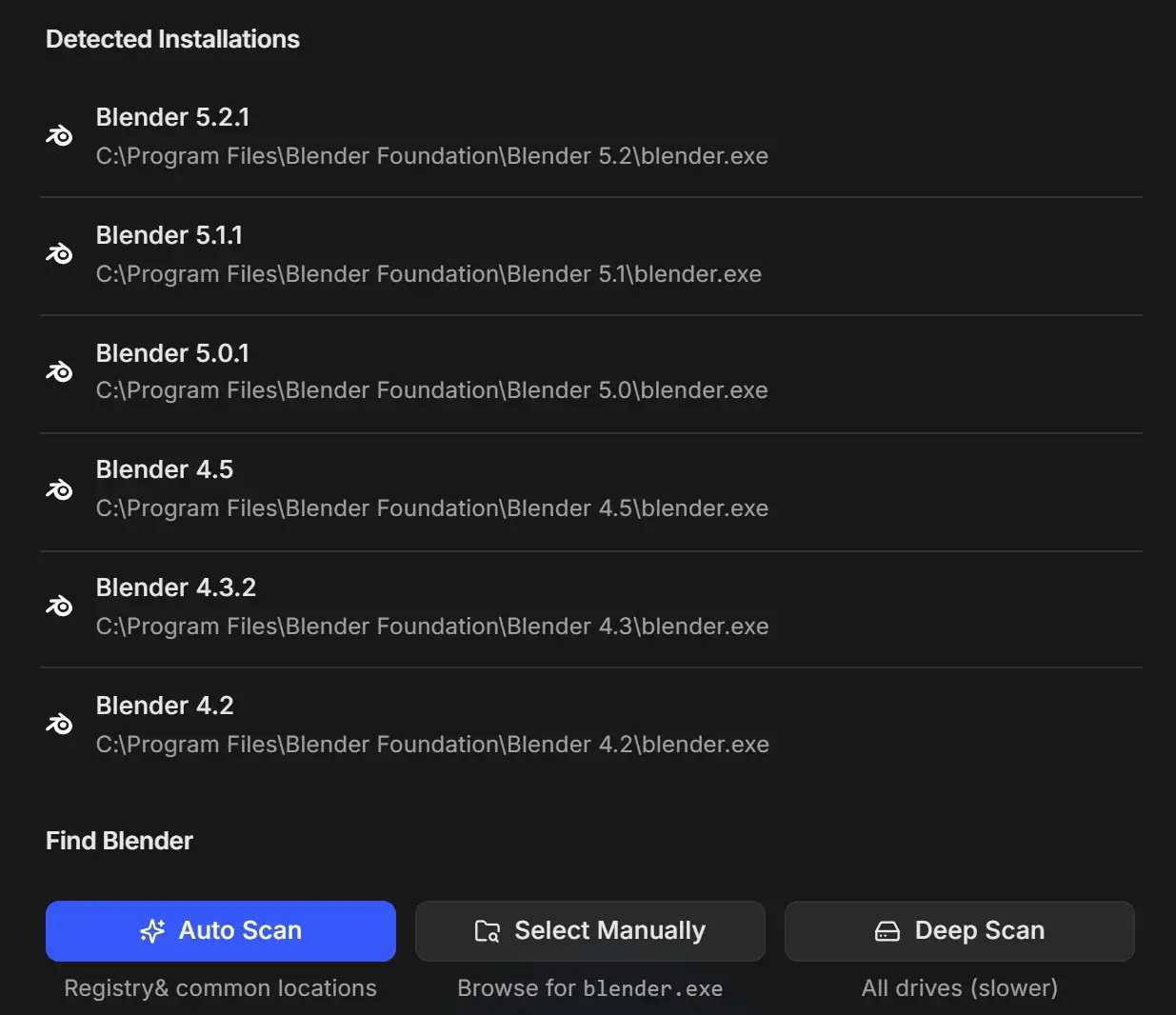
- Open Settings > Blender Version Manager.
- Click Auto Scan. On Windows it checks the registry and common locations, on macOS Spotlight and common locations.
- If your version is still missing, click Select Manually and choose
blender.exe(on macOS, Blender.app). - On Windows, Deep Scan searches every drive. It takes longer, and you can stop it with the red button.
If Select Manually refuses the file
The error panel reads "That file was not accepted as blender.exe" (or Blender.app).
- On Windows, pick the file named exactly
blender.exe, notblender-launcher.exeor a shortcut. - Blender must be on a local drive. Network paths such as
\\server\Blender\blender.exeare not accepted. Copy Blender to a local folder. - Make sure the file still exists and Blender starts when you open it yourself.
Scan errors
| Message | Fix |
|---|---|
| "Auto Scan failed" or "Couldn't scan for Blender installs" | Click Try again, or use Select Manually |
| "Deep Scan failed" or "The deep scan didn't finish" | Use Select Manually with the path to blender.exe |
| "Couldn't use that Blender executable" | Choose a working local blender.exe or Blender.app |
Nothing is removed from the list when a scan fails.
A job needs a Blender version you do not have
Symptoms
- An amber line under Blender Version: "Blender 4.3 is not registered - this job will use the closest installed version. Add it in Settings to render with the exact one."
- A warning such as "Saved with Blender 4.3, will render with 4.5 (4.3 is not installed) - the picture can differ".
- When importing an
.rgjob: "Needs Blender 4.3, which isn't installed".
Fix
The job still renders with the closest version. To render with the exact one, install that Blender version, then run Auto Scan and choose it under Blender Version. See Work with several Blender versions.
The Blender add-on cannot find RenderGod
Symptoms
- The RenderGod tab in Blender's sidebar shows "RenderGod not found." with an Install Folder field and Reload RenderGod.
- Clicking Send to RenderGod shows "Couldn't find RenderGod on this computer. Install it and run it once, or set its folder in the add-on preferences."
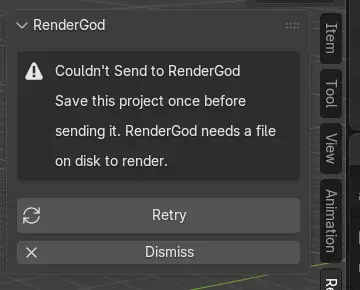
A failed send shows its reason in the sidebar panel, with Retry and Dismiss:
Cause
RenderGod records its location the first time it runs. If it was never opened after installing, was moved, or was reinstalled somewhere else, the add-on cannot find it.
Fix
- Open RenderGod once on this computer, then close it if you like.
- In Blender, click Reload RenderGod, or Retry on the error.
- If it still fails, set the folder: in the Install Folder field, or under Edit > Preferences > Add-ons > RenderGod > RenderGod Install Folder, choose the folder RenderGod is installed in. On macOS choose RenderGod.app.
- Click Reload RenderGod. "RenderGod loaded successfully!" confirms it.
If the message says a file is missing from RenderGod's folder and to reinstall RenderGod, reinstall it. For other add-on problems, see Add-on troubleshooting.