Checks RenderGod Runs Before a Render Starts
RenderGod checks frame range, resolution, samples, the .blend file, output drive, scene, camera and view layer before launching Blender. See each fix.
Before a render starts, RenderGod checks each job so a mistake fails in a second instead of after Blender has loaded a heavy scene. These pre-render checks run every time a queued job's turn comes.
What happens when a check fails
- The job changes from Queued to Failed without opening Blender.
- The card shows Failed: with a short reason, or Failed with the full message in a red box.
- The message ends with "Fix the reported setting on this job, then start the queue again. No Blender process was launched."
- The queue continues with the next job.
Fix the setting, then click Retry on the card.
Settings checks
| Check | Message | Card shows | Fix |
|---|---|---|---|
| Start frame is 1 or higher | Invalid frame range: start_frame=0 must be >= 1 | Failed: Invalid frame range | Set From Frame to 1 or higher |
| End frame is not before the start frame | Invalid frame range: start_frame=100 > end_frame=50 (inverted range) | Failed: Invalid frame range | Set To Frame equal to or after From Frame |
| Range is at most 999999 frames | Invalid frame range: length=... exceeds maximum of 999999 frames | Failed: Invalid frame range | Split the range into several jobs |
| Resolution percentage is 1 to 1000 | Invalid resolution percentage: 0 must be >= 1 (Blender UI min) or ... exceeds maximum of 1000 (Blender UI cap) | Failed: Render resolution too small | Set the % field between 1 and 1000 |
| Width and height are 1 or more, within Blender's maximum | Invalid resolution width: 0 must be >= 1 (Blender UI min) (or height, or exceeds maximum) | Failed: Render resolution too small | Set w and h to real pixel sizes |
| Samples are 1 to 65535 | Invalid samples: 0 must be >= 1 or Invalid samples: ... exceeds maximum of 65535 (Blender UI cap) | Failed with the message | Set Samples between 1 and 65535 |
File checks
| Check | Message | Card shows | Fix |
|---|---|---|---|
The job has a .blend file | Pre-flight: could not load the .blend file - no file is set for this job; re-import it | Failed: Can't open the .blend file | Remove the job and import the file again |
The .blend exists | Pre-flight: could not load the .blend file - blend file does not exist: C:\Projects\Cube Studio\Cube Turntable.blend | Failed: Blend file is missing | Put the file back, reconnect its drive, or import it from its new location |
The file is a real .blend | Pre-flight: could not load the .blend file - Blend file too small to be valid ..., ... Could not read .blend header: ... or ... Not a valid .blend file ... | Failed: Can't open the .blend file | Open the file in Blender. If it is damaged, use a backup (.blend1) or an autosave |
| The output drive is connected | Pre-flight: output drive 'E:\' is not available - reconnect it or pick another output folder (current: '...') | Failed with the message | Reconnect the external or USB drive, or pick another output folder |
Scene checks
| Check | Message | Card shows | Fix |
|---|---|---|---|
| The job's scene is in the file | Pre-flight: scene 'Studio' was not found in the .blend file (available: ...) - reload the scene data or pick another scene | Failed: Scene not found in the file | Click Reload, then choose a scene from the list |
| The scene has a camera | Pre-flight: no camera in scene 'Scene' - add a camera to that scene, or pick a scene that has one | Failed: No camera in the scene | Add a camera in Blender and save, or bind cameras to markers |
| The Single View Layer still exists | Pre-flight: missing render layer - view layer 'Beauty' does not exist in scene 'Scene' (available: ...); pick an existing view layer | Failed: No render layer enabled | Pick a view layer that exists, or turn off Single View Layer |
| The frame range is not inverted | Pre-flight: invalid frame range 100-50 - the start frame is greater than the end frame; fix the range on the job | Failed: Invalid frame range | Fix From Frame and To Frame |
The scene, camera and view layer checks use the settings read when the file was imported. If you saved the .blend after importing it, these three checks are skipped and Blender reports any problem itself. Click Reload after editing a file so RenderGod checks the current version. See Reload settings after changing the .blend file.
Warnings you can see before starting
Some problems show up in the Render panel as soon as you select the job, before you click Start:
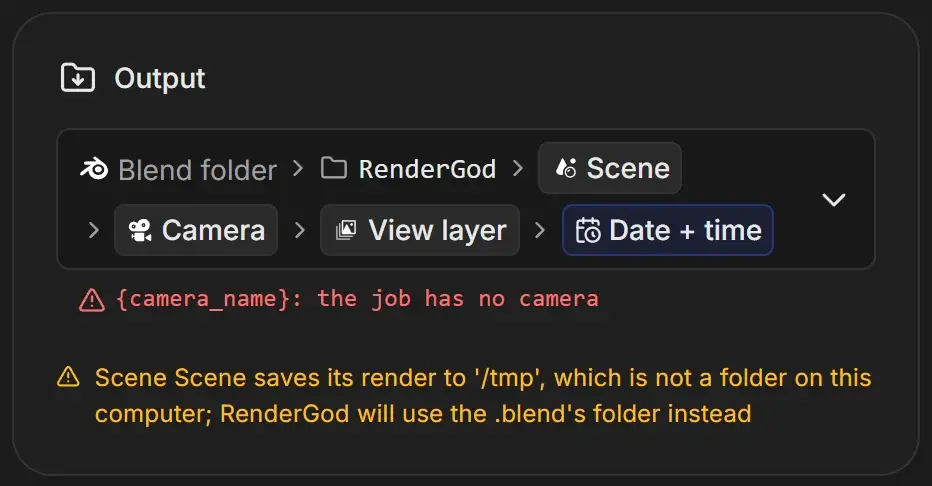
| Warning | Meaning |
|---|---|
{camera_name}: the job has no camera (red) | The output path uses the camera name, but no camera is selected. The render fails if you start it |
| "Scene ... saves its render to '/tmp', which is not a folder on this computer; RenderGod will use the .blend's folder instead" (amber) | The scene's output path from Blender does not exist here. RenderGod picks a safe folder |
| "Scene ... is set not to save render output; RenderGod will save frames anyway" (amber) | Blender's save output option is off in the file. RenderGod saves the frames regardless |
| "File Output node ... writes files without an extension; RenderGod will add the extension" (amber) | A File Output node in Blender 5.2 or newer has its file extension option off |
| "End frame cannot be less than start frame" (red, under the frame range) | Click Set End Frame to Start Frame or type a larger end frame |
Amber warnings are information. The job still renders.
Windows and macOS differences
- Output drive is checked on Windows only, for drive letters. Network paths such as
\\server\shareare not checked. - Missing .blend file is not caught before launch on macOS. Blender fails instead, and the card shows Failed: Can't open the .blend file or Failed: Blend file is missing.