Set the Frame Range for a Blender Render
Set the start and end frame of a RenderGod render job, render a single still frame, fix range errors and edit the range after a job was paused.
The frame range sets which frames of the animation a job renders. From Frame is the first frame and To Frame is the last. Both start with the values saved in the .blend scene.
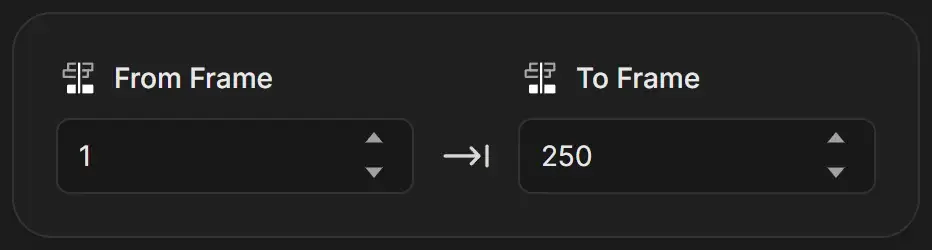
Set the start and end frame
- Select the job.
- Type the first frame into From Frame, or use the arrows.
- Type the last frame into To Frame.
| Field | Accepts | Notes |
|---|---|---|
| From Frame | Whole numbers, 0 or higher | If you type a start later than the end, To Frame rises to match |
| To Frame | Whole numbers, 0 or higher | Must be the same as or later than From Frame |
In a narrow panel the labels shorten to Start and End.
Both frames are included in the render. A range of 1 to 250 renders 250 frames.
Render a single frame
Set From Frame and To Frame to the same number. For example, 1 and 1 renders one still image.
Fix "End frame cannot be less than start frame"
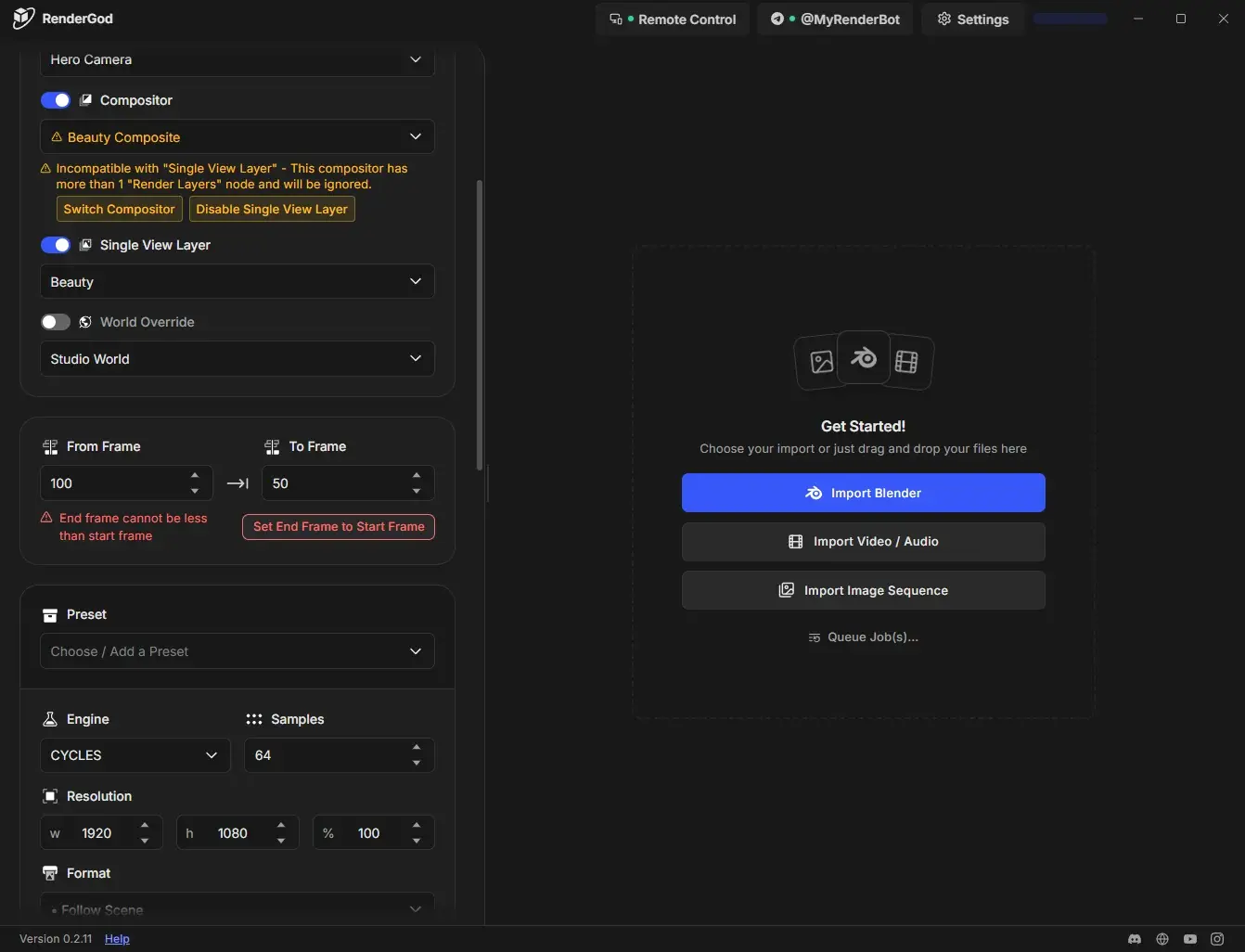
If To Frame is lower than From Frame, the field turns red and the value is not saved. A message appears with the button Set End Frame to Start Frame. Click it, or type a valid end frame.
Edit the range of a paused job
When a job is paused partway through its range, both fields become read-only so that resuming continues from the right frame. A notice shows "Currently paused at frame 57." (with your frame number).
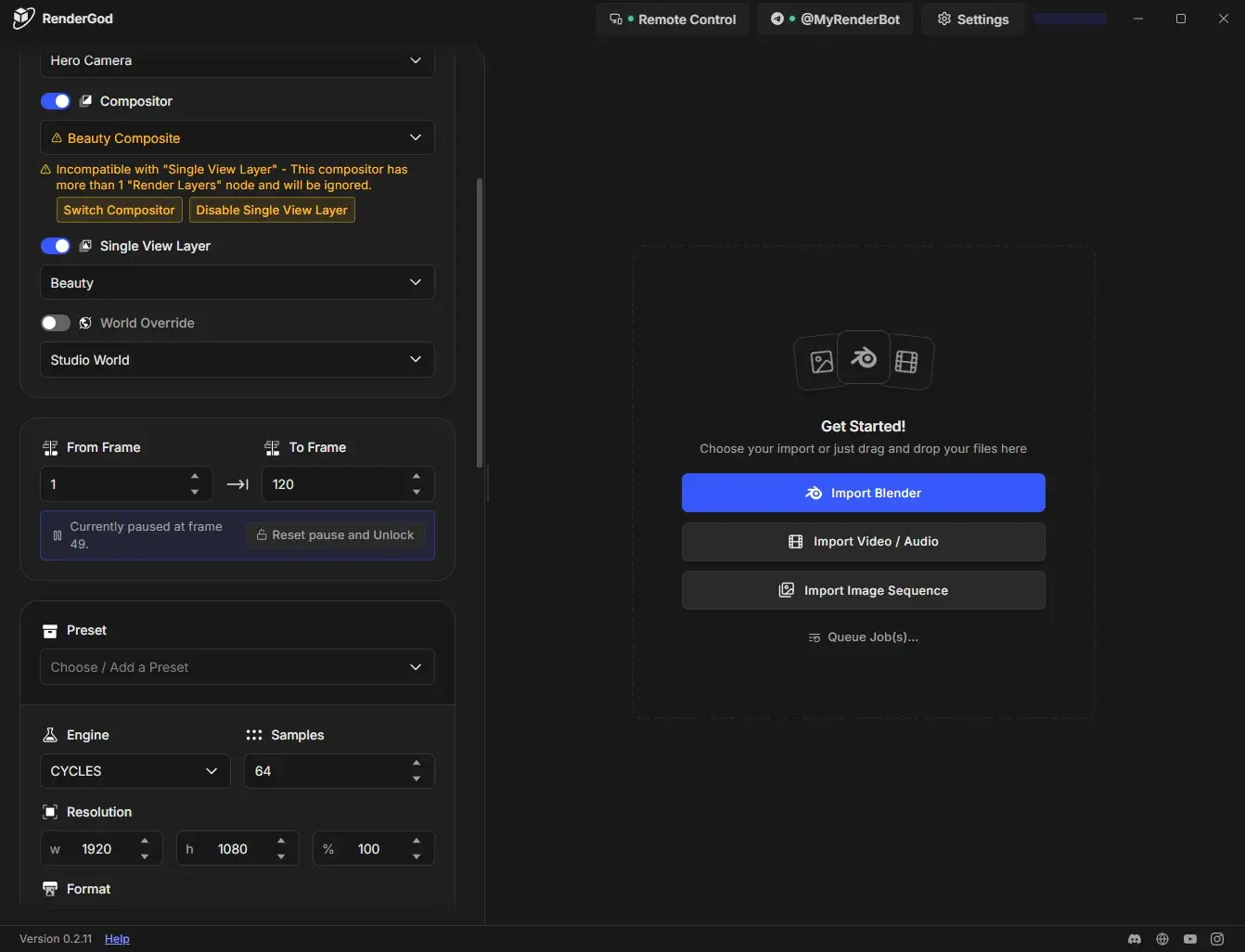
To change the range anyway:
- Click Reset pause and Unlock.
- Edit From Frame and To Frame.
- Start the queue. The job renders the full range again from the start, overwriting any existing frames.
The frame range is also read-only while a job renders and after it finishes. See Why settings are locked.
Frame rate
The render has no frame rate field. It uses the frame rate saved in the scene. For the video made after the render, you can set a different frame rate in Auto Create Video.