Progress, Frame Timer and Time Remaining
Read render progress in RenderGod: percentage, current frame, ETA, elapsed time, the live frame timer and the previous frame time on each job card.
While a job renders, its card shows how far it has come and how long it has left: render progress, the current frame, the time remaining (ETA) and a live timer for the frame in flight.
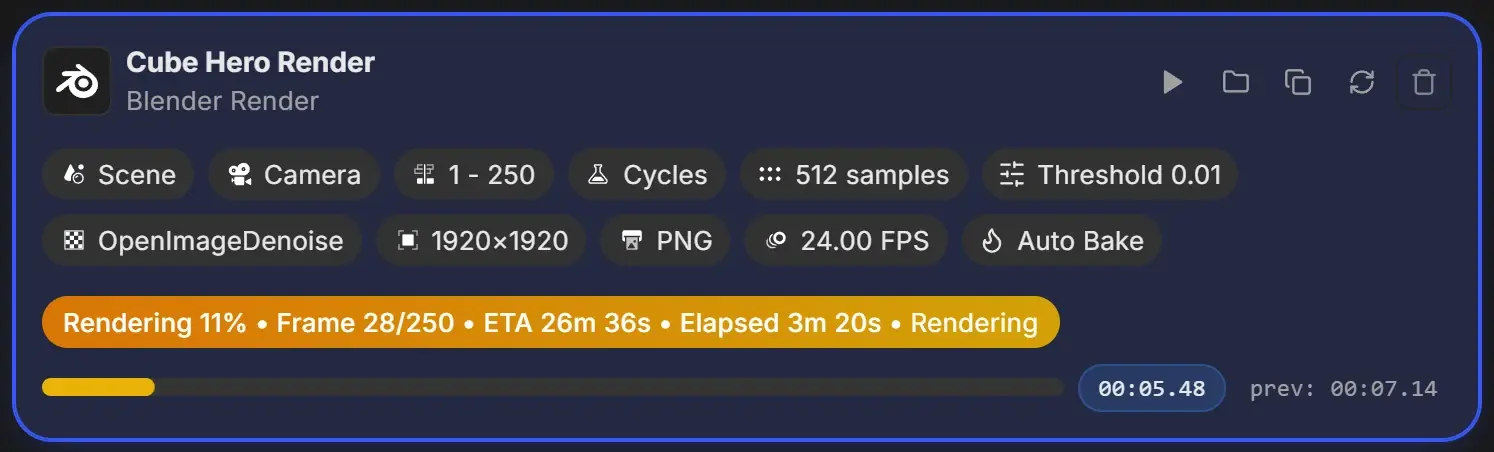
The status line
The amber status line is made of parts separated by dots.
| Part | Example | Meaning |
|---|---|---|
| Percentage | Rendering 49% | How much of the frame range is done |
| Frame | Frame 123/250 | The frame being rendered and the total number of frames |
| ETA | ETA 15m 4s | Estimated time until the job finishes |
| Elapsed | Elapsed 14m 27s | Time spent rendering this job so far, not counting pauses |
| Blender status | Rendering, or for example Path Tracing Sample 12/128 | What Blender reports it is doing right now |
How the ETA works
- The ETA appears after two frames have finished, so from the third frame on.
- It is based on the average time per frame so far.
- A + after the time, for example ETA 12m 30s+, means the current frame is taking longer than average, so the job may finish later than shown.
- Times are shown as seconds, minutes and seconds, or hours, minutes and seconds.
The frame timer
- The blue chip next to the progress bar counts up the time of the frame being rendered, as minutes, seconds and hundredths.
- prev: shows how long the previous frame took. It is hidden on the first frame.
The progress bar
The bar moves smoothly within each frame, using the average frame time, so it does not jump only when a frame completes. It never moves backwards unless you reset the job.
| Bar colour | Job |
|---|---|
| Yellow | Blender render |
| Purple | Physics baking |
| Orange | Paused job, frozen at the paused point |
| Green | Image sequence to video |
| Blue | Video to image sequence |
| Other colours | Other conversions (image format, video format, audio) |
Conversion jobs show a percentage and frame count, such as Creating video... 40%, with no ETA.
After the job finishes
The status changes to Done with the total render time beside it, for example in 50s. This time adds up every rendering session and leaves out pauses.
Progress outside the window
- The RenderGod taskbar button (Windows) or Dock icon (macOS) shows the progress of the current job.
- On your phone, the Telegram bot can report progress. See Monitor a long render from your phone.