Monitor a Long Blender Render From Your Phone
Follow a long RenderGod render from your phone with Telegram messages and frame previews, or open the queue in a mobile browser to pause or check jobs.
Monitor a long render from your phone so you know when a job finishes, fails or recovers from a crash without walking back to the computer. RenderGod offers two ways, and you can use both.
| Feature | Telegram bot | Browser remote control |
|---|---|---|
| Messages when a render starts, finishes or recovers | Yes, pushed to your phone | No |
| Latest frame and a short preview video | Yes, on request or automatically | Preview images in the queue |
| Start, stop and skip | Yes, with commands | Yes, the full queue interface |
| Change render settings | No | Yes |
| Setup | Create a bot once | Turn on in Settings, sign in with the same account |
Both need the computer on, RenderGod running and an internet connection.
Option 1: Telegram notifications
Connect your bot
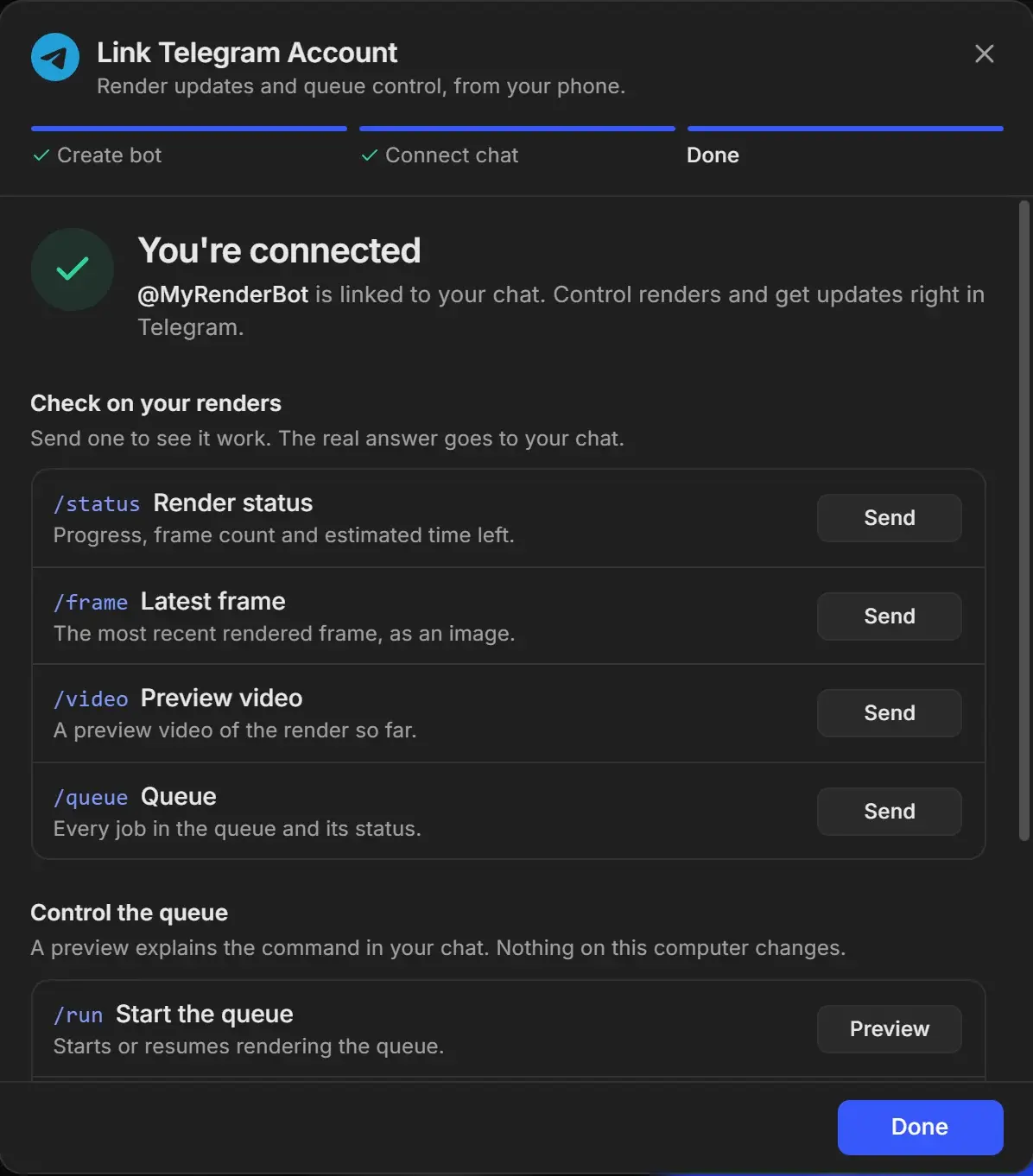
Open Settings > Telegram Bot and click Link Telegram Account. The wizard helps you create a bot with BotFather and link your chat. See Create your Telegram bot and Connect the bot to RenderGod.
Choose your notifications
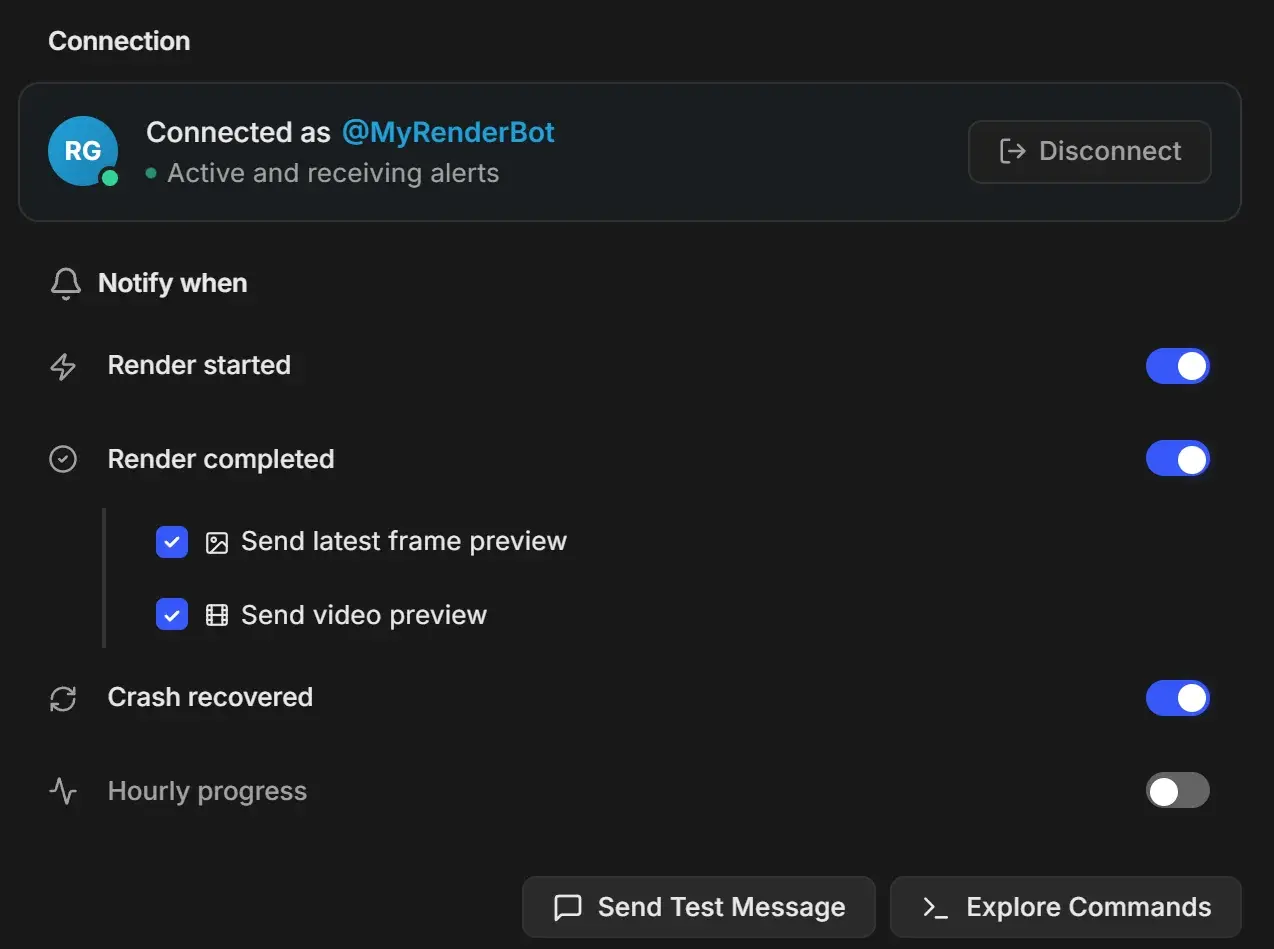
Under Notify when, pick what you want pushed to your phone. For a long render, turn on Hourly progress as well.
Check in with commands
Send commands to your bot at any time:
| Command | What you get |
|---|---|
| /status | Progress, current frame, elapsed time and time remaining |
| /frame | The latest rendered frame as an image |
| /video | A short preview video of the frames so far (needs at least 2 frames) |
| /queue | Every job and its status |
| /stop, /run, /skip | Stop the queue, start it, or skip the current job |
Option 2: Open the queue in your phone's browser
Turn on remote control
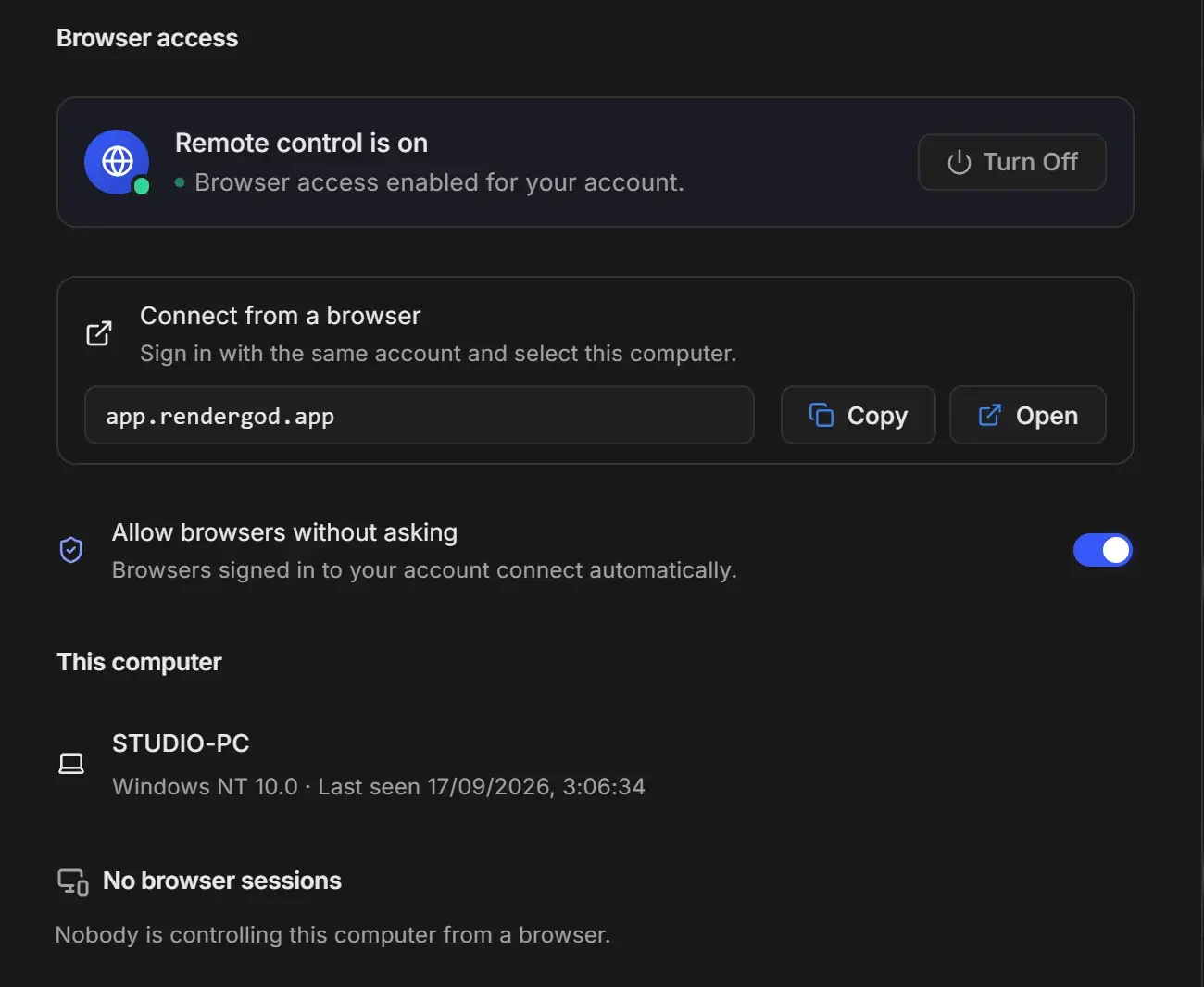
On the rendering computer, open Settings > Remote Control and click Turn On Remote Control. You need to be signed in to RenderGod. See Turn on remote control.
Sign in on your phone
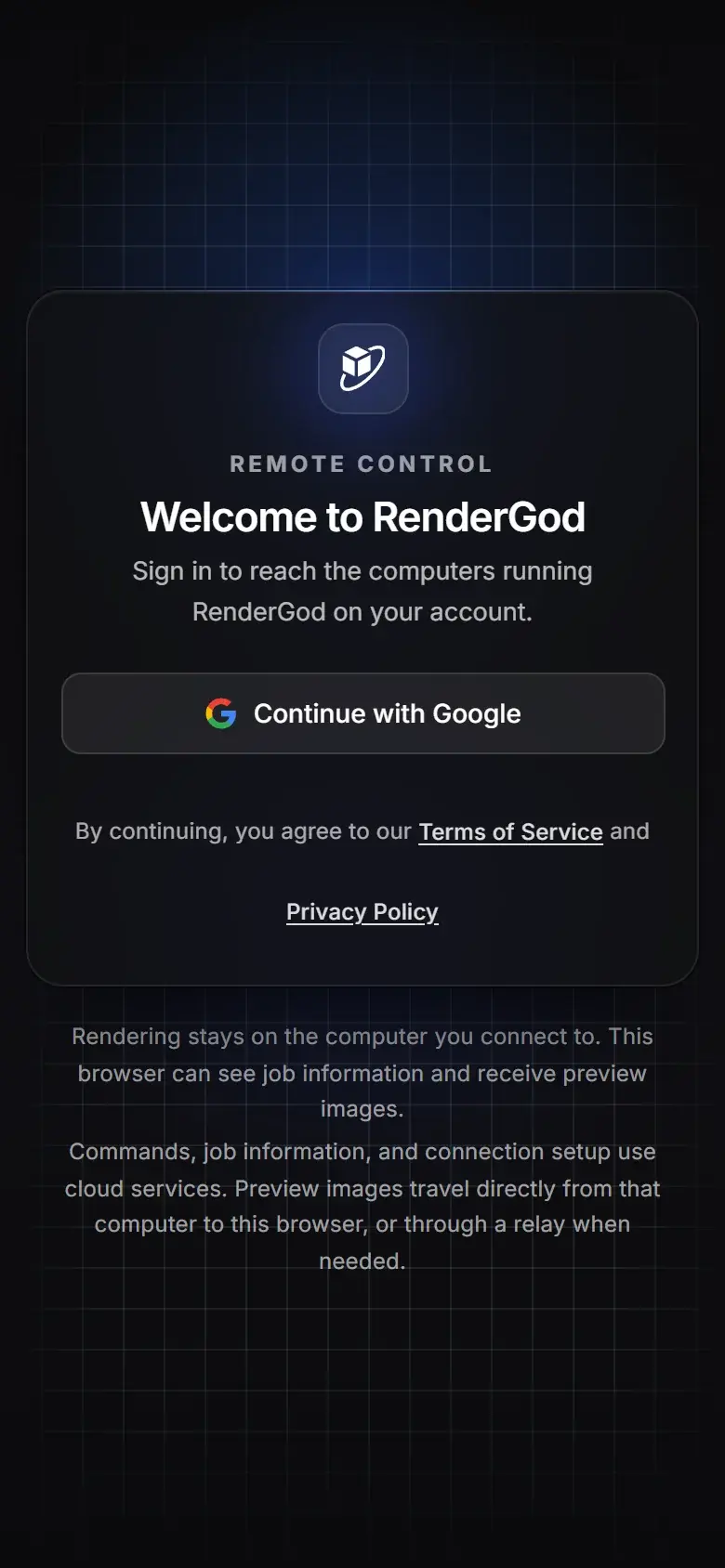
Open app.rendergod.app in your phone's browser. On "Welcome to RenderGod", tap Continue with Google, sign in with the same account and pick your computer from Your computers.
Approve the phone on the computer
The first time, the computer asks "Let a browser control this computer?". Choose Always allow or Just this time. Do this before you leave, or turn on Allow browsers without asking. See Approve or deny browser access.
Watch and control the queue
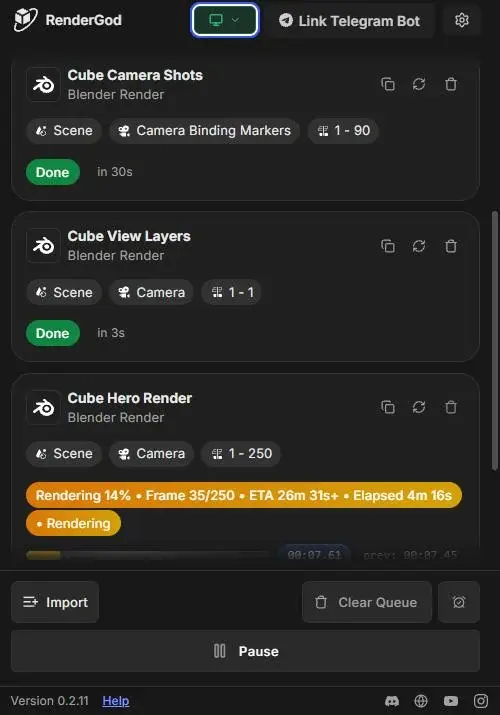
Your phone shows the same queue in one column, with live progress and preview images. Import, Clear Queue and When Done sit under the queue, with Pause on its own row. You can pause, start, reorder and change jobs. Importing files and opening folders only work on the computer. See What you cannot do from a browser.