Convert an EXR Image Sequence to an MP4 Video
Turn a folder of EXR frames into an MP4 or ProRes video in RenderGod. Import the sequence, pick H.264, set the frame rate and encode without opening an editor.
Convert an EXR sequence to MP4 in RenderGod when you need a quick review video from rendered frames, without opening Blender, After Effects or DaVinci Resolve. The same steps work for PNG, TIFF, DPX and other image sequences.
This example uses the folder C:\Projects\Cube Studio\Media\Turntable EXR\ holding turntable_0001.exr to turntable_0048.exr.
Convert the sequence
Import the EXR folder
Click Import > Image Sequence and choose the folder, or drag one EXR frame onto the RenderGod window. The whole folder becomes one Image Sequence job. See Import image sequences.
Select the job and choose Video
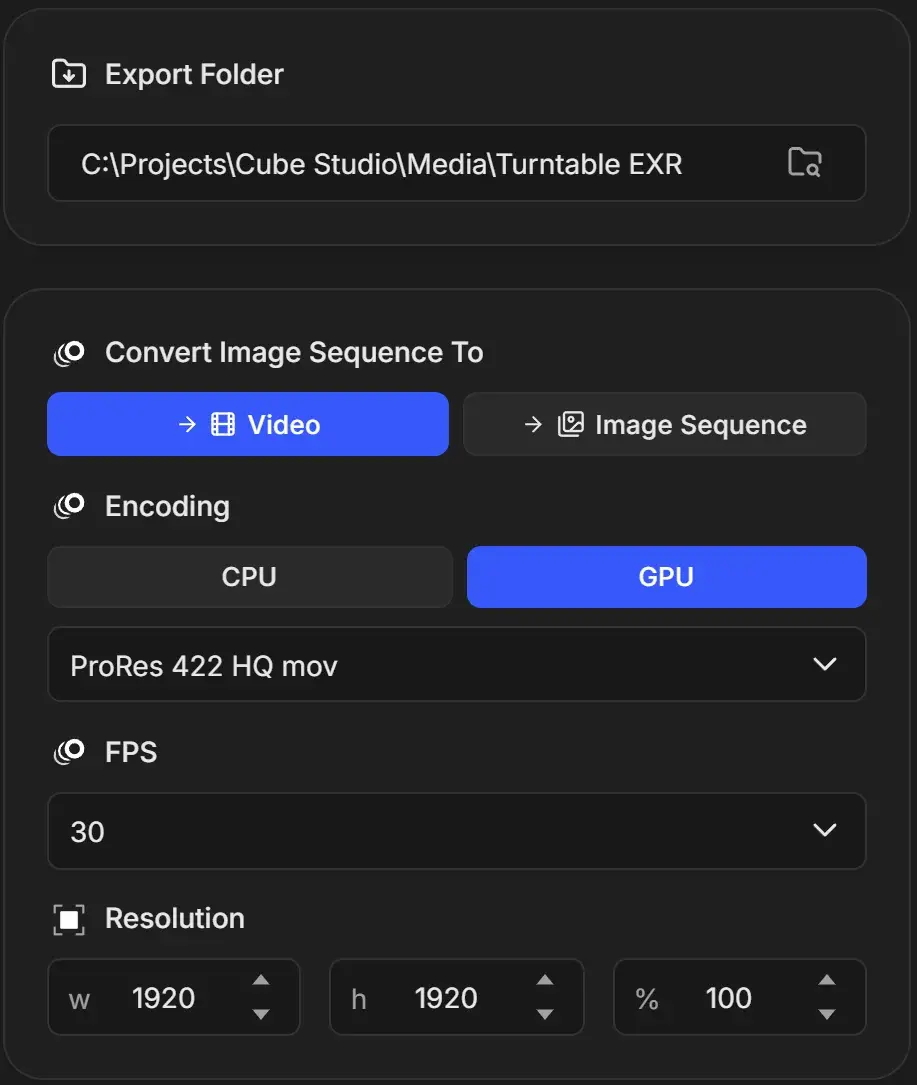
Click the job card. Under Convert Image Sequence To, make sure Video is selected.
Pick an MP4 format
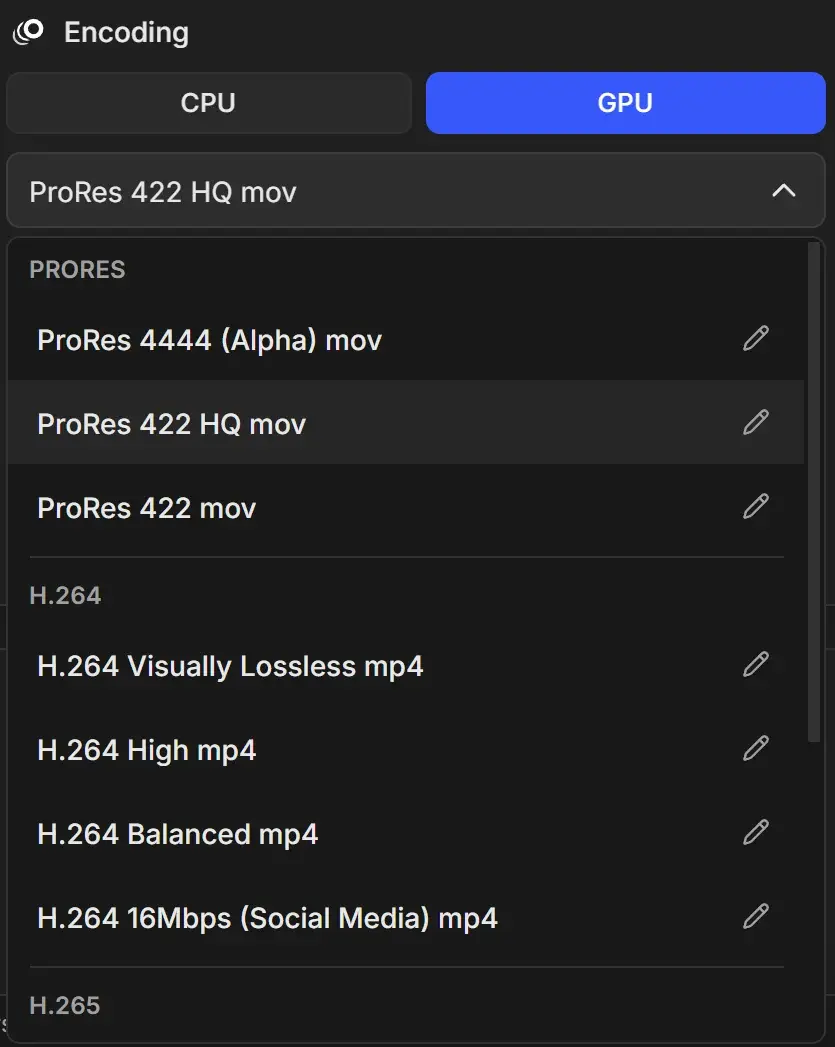
Under Encoding, open the format list and choose an H.264 or H.265 option, such as H.264 High mp4. Choose GPU for speed or CPU for the best detail at small file sizes.
Set the frame rate and size
Pick the FPS your animation was made for. The frame rate changes how long the video plays, not how many frames it has: 48 frames at 24 FPS play for 2 seconds.
Change Resolution only if you want a smaller video, for example 50% for a lightweight review file.
Choose the export folder
The video is saved in the Export Folder, which starts as the image folder itself. Pick another folder if you want to keep the frames folder clean.
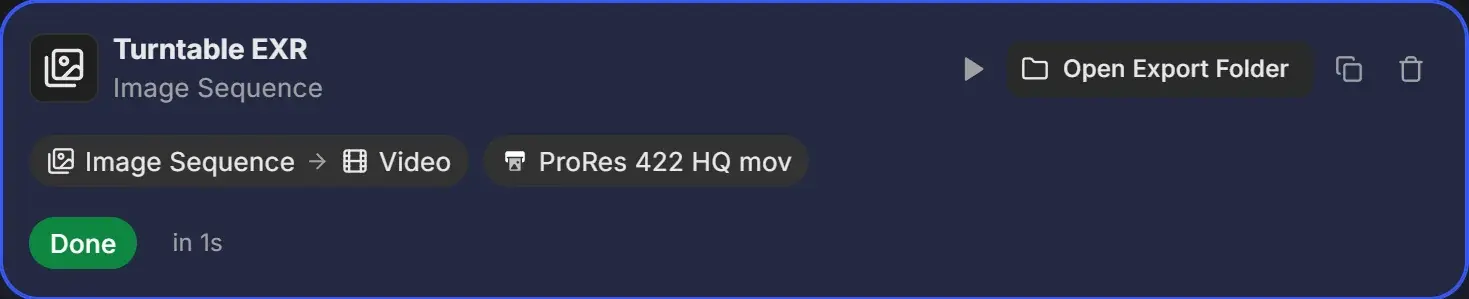
output with the format's extension. Converting again into the same folder replaces the previous output.mp4. Use a different export folder to keep both.Good to know
- Colour: RenderGod encodes the EXR pixel values as they are, without Blender's view transform. Linear EXRs can look darker or flatter than in Blender. For a review video that matches the viewport, render a PNG or JPEG version of the sequence, or add a video with Auto Create Video on the original render job.
- Transparency: H.264 and H.265 drop alpha. Use ProRes 4444 (Alpha) mov to keep it.
- Odd sizes: H.264 and H.265 work best with even widths and heights. If encoding fails, set an even resolution. See Video encoding failed.
- Previewing EXR: the source preview may show "Cannot show these frames". Click Build preview proxies to scrub the sequence. See Preview EXR and other formats.
- Numbering: frames must be numbered in order, such as
name_0001.exr,name_0002.exr. Keep one sequence per folder.