Importing Files
Import Image Sequences Into RenderGod
Import a folder of numbered PNG, EXR, JPEG, TIFF or DPX frames as an image sequence job to turn it into a video or convert it to another image format.
Import an image sequence when you have a folder of numbered frames, such as an EXR render, and want to turn it into a video or convert it to another image format. The folder becomes one Image Sequence job in the queue.
Import a folder of frames
- Click Import at the bottom of the queue and choose Image Sequence. When the queue is empty, click Import Image Sequence instead.
- Pick the folder that holds the frames and confirm.
- Click the new card to set up the conversion.
You can also drag the folder onto the window. Dropping a single image file works too: RenderGod imports the folder that the image is in.
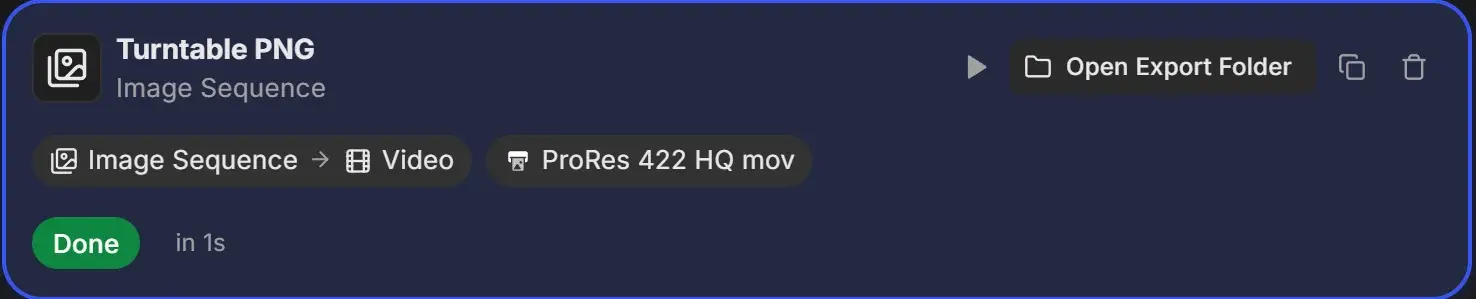
What a new image sequence job starts with
| Setting | Starts as |
|---|---|
| Conversion | Image sequence to video |
| Video format | Your default from conversion defaults (ProRes 422 HQ mov unless you changed it) |
| Frame rate | Your default frame rate (30 unless you changed it) |
| Resolution | The size of the first image |
| Export folder | The image folder itself |
Next steps: Turn an image sequence into a video or Convert an image sequence to another format.
How RenderGod reads the frames
- Frames can be png, jpg, jpeg, exr, tiff, tif, tga, bmp, hdr or dpx.
- File names need a frame number, for example
0001.png,render_0001.exrorShot.0001.jpeg. At least two files must follow the same pattern. - The sequence starts at the number of the first file, so a sequence that begins at
0101starts at frame 101. - Keep one sequence per folder. If a folder holds several differently named sequences, RenderGod uses the one that comes first alphabetically.
- Keep the numbering continuous. Missing frame numbers can end the sequence early.
A single
.tif file dropped on the window is refused, because only .tiff is accepted for single files. A folder of .tif frames imports correctly with Import Image Sequence.