Media Conversion
Set Default Formats for New Conversion Jobs
Choose the video format, CPU or GPU encoder, frame rate, image format and audio format that new conversion jobs start with, so you set them only once.
Conversion defaults decide which format, encoder and frame rate a conversion job has when you import media. If you always deliver H.264 at 24 FPS, set that once and every new image sequence job starts that way.
Open Conversion Defaults
- Go to Settings > Conversion Defaults.
- Or choose ⚙ Setup Defaults at the bottom of any video format list.
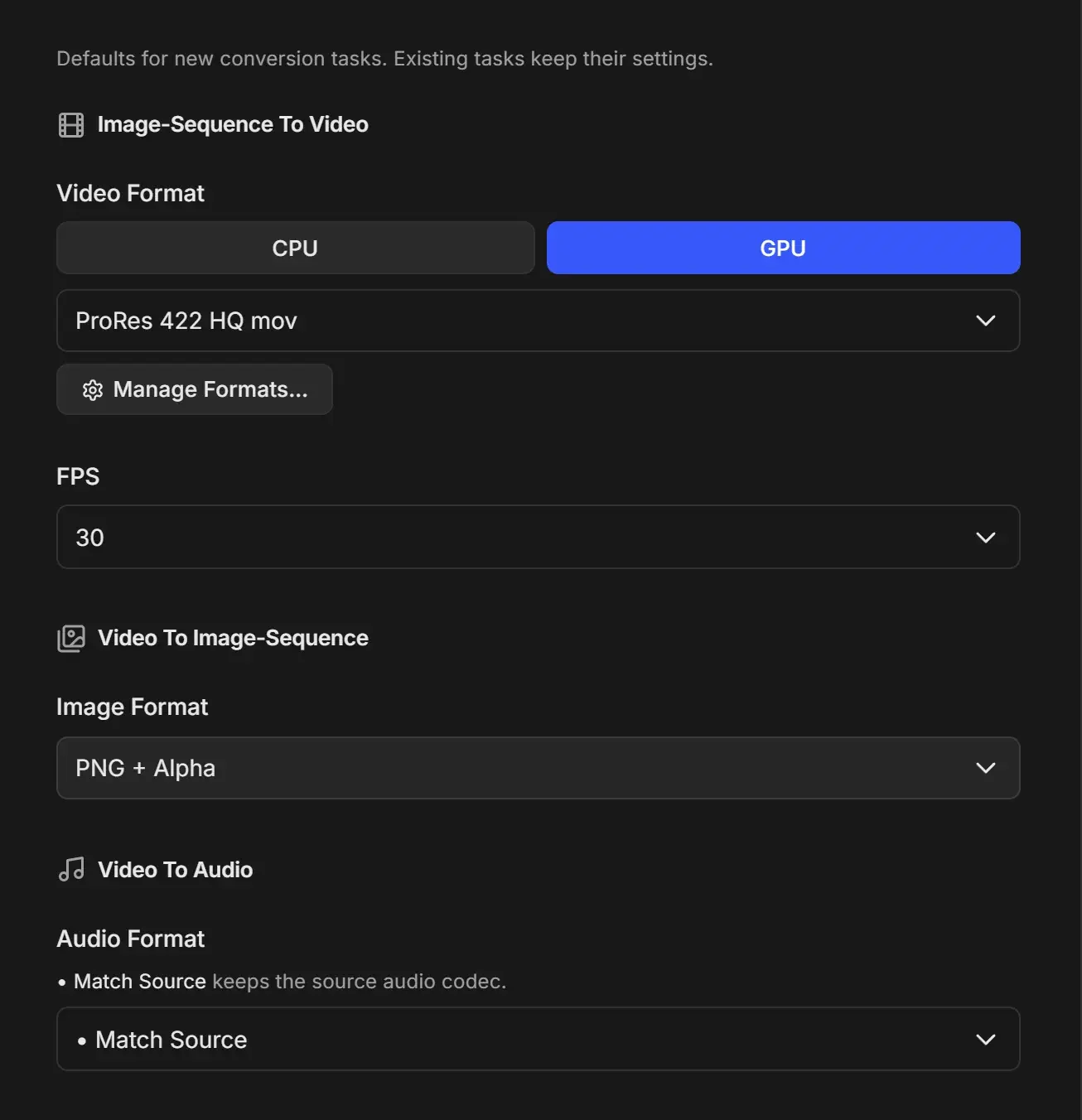
What each default controls
| Default | Used by | Factory value |
|---|---|---|
| Image-Sequence To Video > Video Format (with CPU / GPU) | New image sequence jobs | GPU, ProRes 422 HQ mov |
| Image-Sequence To Video > FPS | New image sequence jobs | 30 |
| Video To Image-Sequence > Image Format | Image sequence jobs you switch to Image Sequence output | PNG + Alpha |
| Video To Audio > Audio Format | New audio jobs and videos switched to Audio | • Match Source |
- The CPU / GPU choice is also the default for Auto Create Video.
- • Match Source picks the audio format closest to the source codec, for example AAC for a video with AAC sound or FLAC for a lossless source. The audio is still re-encoded.
- A video you import always opens as a video-to-image-sequence job with PNG. Change the format on the job if you need another one.
- Manage Formats… opens the Format Manager.
"Defaults for new conversion tasks. Existing tasks keep their settings." Changing a default never changes jobs already in the queue.
Suggested setups
| Workflow | Video Format | FPS | Image Format | Audio Format |
|---|---|---|---|---|
| Editing masters | ProRes 422 HQ mov | Your project rate | PNG + Alpha | WAV (PCM 24-bit) |
| Client review | H.264 High mp4 | Your project rate | JPEG Baseline | AAC 256kbps |
| Social media | H.264 16Mbps (Social Media) mp4 | 30 | PNG | AAC 256kbps |
| Compositing | ProRes 4444 (Alpha) mov | Your project rate | PNG + Alpha | • Match Source |
For the full list of every setting on the page, see Conversion Defaults settings.