Frame Rate and Custom FPS for Conversions
Set the frame rate for image sequence and video conversions in RenderGod, add a custom FPS such as 12 or 48, and learn when FPS changes speed or frame count.
The frame rate (FPS) controls how many frames play per second. In RenderGod it behaves differently depending on what you convert, so check this page before you change it.
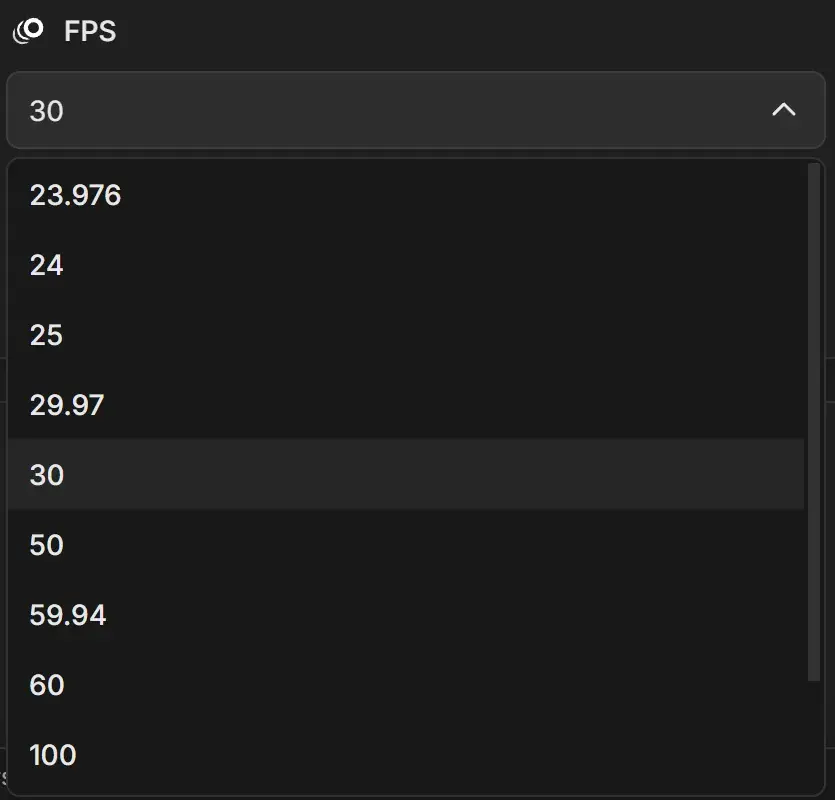
Built-in frame rates
| FPS | Common use |
|---|---|
| 23.976 | Film look on NTSC-region video and streaming |
| 24 | Cinema and most animation |
| 25 | PAL-region TV and video (Europe, much of Asia) |
| 29.97 | NTSC-region TV and video (North America, Japan) |
| 30 | Web video, screen recordings, phones |
| 50 | Smooth motion, PAL-region sports and broadcast |
| 59.94 | Smooth motion, NTSC-region broadcast |
| 60 | Games, UI animation, smooth web video |
| 100, 120 | High frame rate footage and slow motion sources |
What FPS changes
| Conversion | What a new FPS does |
|---|---|
| Image sequence to video | Changes playback speed and duration. No frames are added or removed. 240 frames play for 10 seconds at 24 FPS and 4 seconds at 60 FPS. |
| Video to image sequence, Custom | Changes how many frames are extracted. Frames are dropped or repeated to reach the rate, and the duration stays the same. |
| Video to video, Custom | Same as above: the video keeps its length and frames are dropped or repeated. |
For video jobs, As Source uses the frame rate read from the video and greys out the list. Click Custom to choose another value.
Add a custom frame rate
- Open the FPS list and choose CUSTOM ADD at the bottom.
- In Add Custom FPS, type a value in Frame Rate or use the arrows. The hint reads "Frames per second, greater than zero. Decimals are allowed, such as 23.976."
- Click Add or press Enter. Add stays greyed out until you type a value.
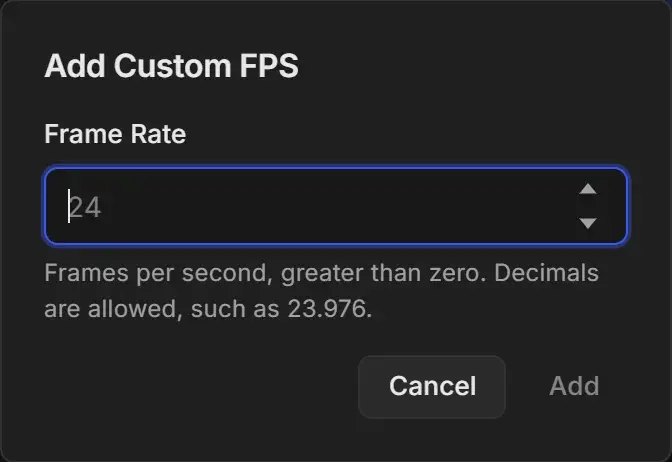
The new rate is applied to the selected job and added to the list. Custom rates stay in the list until you close RenderGod. The job keeps its frame rate after a restart.
If you type a rate that is already in the list, RenderGod tells you to choose it from the list instead. If you close the dialog with a value typed, it asks whether to Keep Editing or Discard Changes.
When you open CUSTOM ADD from Conversion Defaults, the value becomes the default frame rate for new image sequence conversions.