Import Video and Audio Files Into RenderGod
Import MP4, MOV, MKV, WAV, MP3 and other video and audio files into RenderGod to convert them, extract frames or extract audio from the render queue.
Import video and audio files when you want RenderGod to convert them: turn a video into an image sequence or another video format, extract its audio, or convert an audio file. Each file becomes a job in the render queue.
Import video or audio files
- Click Import at the bottom of the queue and choose Video / Audio. When the queue is empty, click Import Video / Audio instead.
- Select one or more files and confirm.
- Wait for the card to finish loading while RenderGod reads the file's length, frame rate and resolution.
- Click the card to choose what to convert it to.
You can also drag and drop the files onto the window.
What a new video job looks like
A video file becomes a Video job that converts to a PNG image sequence by default.
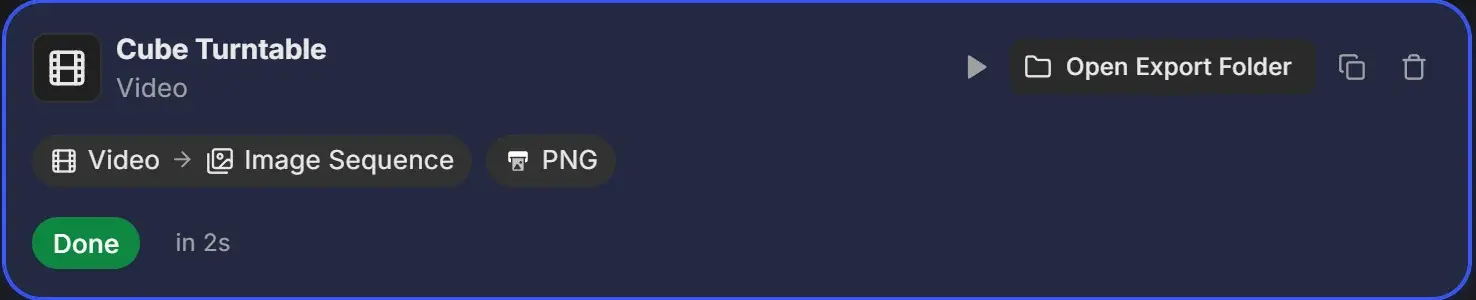
| Setting | Starts as |
|---|---|
| Conversion | Video to image sequence |
| Image format | PNG |
| Frame rate | Read from the video (30 if it cannot be read) |
| Resolution | Read from the video (1920×1080 if it cannot be read) |
| Export folder | A new folder next to the video named after it, for example Turntable_RenderGod |
Change the conversion in the panel. See Extract an image sequence from a video, Convert a video to another format and Extract audio from a video.
What a new audio job looks like
An audio file becomes an Audio job.
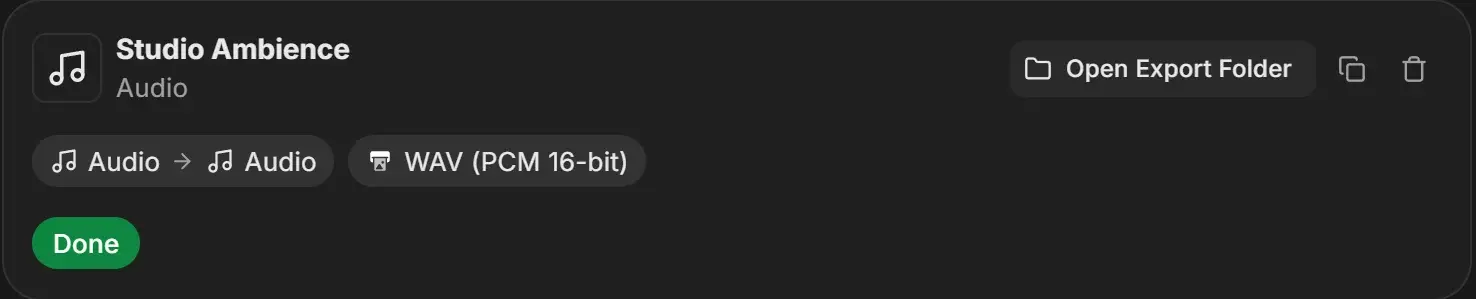
- The output format comes from your conversion defaults. With the default, Match Source, RenderGod picks a format that matches the original file.
- The export folder is a new folder next to the audio file, named after it with
_RenderGodat the end.
See Convert audio files.
Accepted formats
| Type | Extensions |
|---|---|
| Video | mp4, mov, avi, mkv, webm, wmv, flv |
| Audio | mp3, wav, flac, m4a, ogg, opus, aac, wma |
Other video types, such as .m4v, .mxf or .ts, are refused with "Unsupported file type".