Move a Render Job to Another Computer With .rgjob
Export a RenderGod job as an .rgjob file, copy it with your project to a second computer or render node and import it there with every render setting intact.
Move a render job to another computer when your workstation is busy, or hand a shot to a render node, without setting up scene, camera, frame range and output again. RenderGod saves the job's settings in an .rgjob file that the other computer imports.
What travels in an .rgjob file
| Included | Not included |
|---|---|
| Scene, camera, view layer, frame range | The .blend file and its textures |
| Render settings, output template, overrides | Where Blender is installed |
| Auto Create Video settings | Render progress and rendered frames |
| Python scripts attached to the job | App settings on the computer |
Copy the project files yourself, for example the whole C:\Projects\Cube Studio\ folder.
Move the job
Export the job
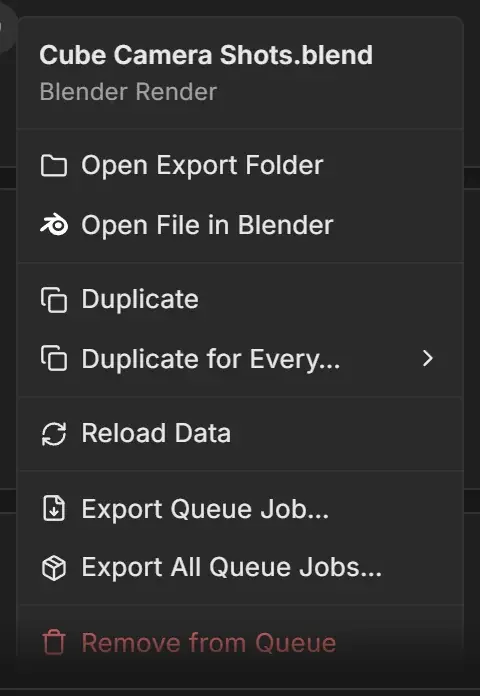
On the first computer, right-click the job card and choose Export Queue Job.... To send the whole queue in one file, choose Export All Queue Jobs... instead.
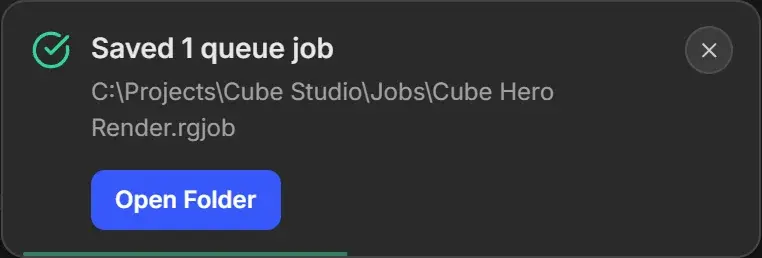
Copy the project and the .rgjob file
Copy the project folder (with the .blend and everything it links to) and the .rgjob file to the other computer. Using the same folder path on both computers, such as C:\Projects\Cube Studio\, saves a step later.
Import on the other computer
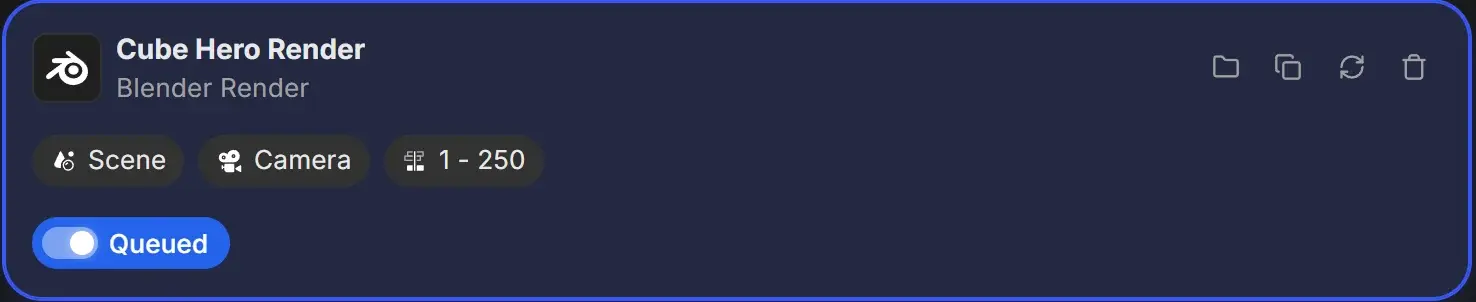
In RenderGod on the second computer, drag the .rgjob onto the window, or click Import > Queue Job(s).... If the .blend is found at the same path, the job is added straight to the queue.
Fix anything the import asks about
If something needs attention, a Review Import window opens first:
| Message | What to do |
|---|---|
| Blend file not found | Click Locate... and choose the .blend on this computer. Apply to all fixes other jobs that use the same file. |
| "Needs Blender 4.3, which isn't installed" | Install that Blender version or click Manage Blender versions. The job otherwise uses the closest version. |
| Scripts with Enable this script | Scripts start turned off. Only enable scripts from a file you trust. |
| Match Settings window | A scene, camera or other item is missing from this .blend. Pick a replacement or click Keep defaults. |
Click Add Queue Job(s) to finish.
Render
Check the job's Blender version and output folder, then click Start.
.blend saves next to the copied .blend on the second computer.