Render and Shut Down the Computer Automatically
Start a Blender render in RenderGod and have the computer shut down or sleep when the last job finishes, with a 3 minute countdown you can still cancel.
Render and shut down the computer automatically with the queue's When Done action. RenderGod waits for every job to finish, shows a 3 minute countdown, then shuts down or puts the computer to sleep.
Set up shutdown after rendering
Queue your jobs
Import the .blend files and check their settings. If you are leaving for the night, follow Render a batch of Blender files overnight first.
Choose Shutdown or Sleep
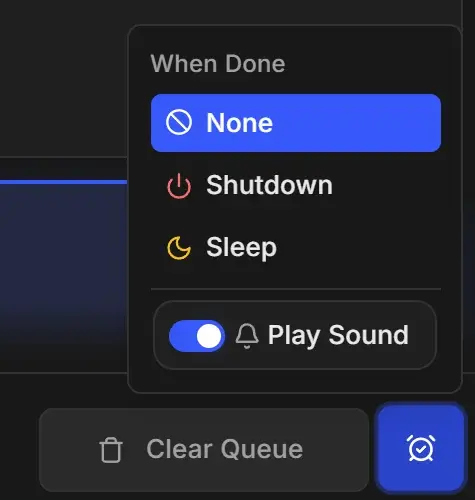
Click the alarm clock button at the right end of the queue toolbar and choose Shutdown or Sleep. The button turns red for Shutdown and amber for Sleep, and a Shutdown When Done or Sleep When Done card appears at the end of the queue.
Save work in other apps
Shutdown closes every program on the computer. Save anything open in Blender or other apps before you walk away.
Click Start
Click Start. While the queue runs, RenderGod keeps the computer awake. When the last job finishes, a System Shutdown or System Sleep window counts down from 3:00, then the action runs.
Which option to pick
| Option | Pick it when |
|---|---|
| Shutdown | Nobody needs the computer until tomorrow and you want to save the most power |
| Sleep | You want to wake the computer and look at the frames quickly |
| None | You want to queue more work or check the computer remotely after the render |
Cancel the shutdown
- Before the queue finishes: click Cancel Shutdown (or Cancel Sleep) on the card at the end of the queue.
- During the countdown: click Cancel or press Esc. Your When Done choice stays set for the next queue. To shut down or sleep the computer later from your phone instead, use the Telegram bot's /power command. See Telegram bot commands.
The When Done choice is remembered. Set it back to None when you no longer want it.
On macOS
The first time you choose Shutdown, macOS asks whether RenderGod may control System Events. Allow it. If you declined, allow RenderGod under System Settings > Privacy & Security > Automation, otherwise the shutdown fails with "Failed to execute system action".