Render a Batch of Blender Files Overnight
Queue several .blend files, check each job, protect the batch from crashes and let RenderGod render overnight so every shot is waiting for you in the morning.
Render a batch of Blender files overnight by loading every .blend into the render queue, checking each job once, and letting RenderGod work through them one after another. This guide walks through a typical end-of-day setup for a project folder such as C:\Projects\Cube Studio\.
Before you start
- Save every
.blendfile. RenderGod renders what is on disk. - Make sure RenderGod has found your Blender installations. See Find your Blender installations.
Set up the overnight batch
Add all the files to the queue
Drag the .blend files from Explorer (or Finder) onto the RenderGod window, or click Import and choose Blender. You can select several files at once. Each file becomes its own job. See Import .blend files.
Check each job
Click each job card and look at the Render panel on the left:
- Scene and Camera are the ones you want.
- From Frame and To Frame cover the full shot.
- The Output card shows where frames will be saved, with no red or amber warnings under it.
Settings you change here apply to the render only. Your .blend file is not modified. See The Render Settings Panel.
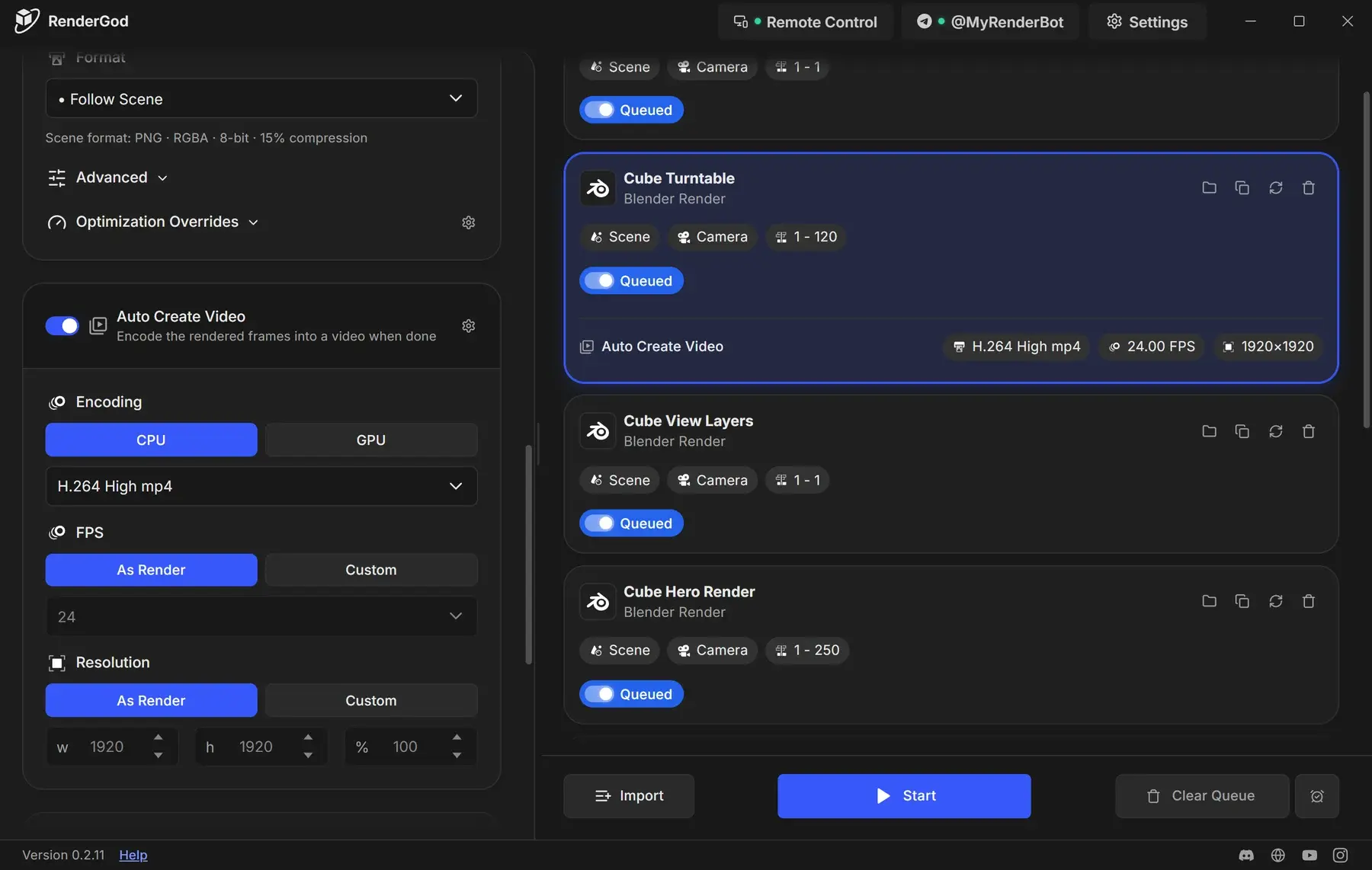
Put the jobs in order
Jobs render from the top down. Drag the most important shot to the top so it finishes first, even if something goes wrong later in the night. See Reorder jobs.
To leave a job in the queue without rendering it tonight, turn off the switch in its status pill. See Skip a job.
Turn on crash recovery
Open Settings > UnCrash Render Recovery and turn on Blender crashes and Frozen frames. If Blender crashes or a frame hangs, RenderGod restarts Blender and continues the job instead of stopping for the night.
On Windows, also turn on PC crash, power loss or restart to resume after a reboot or power cut. See UnCrash: automatic render crash recovery.
Choose what happens when the queue is done
Click the alarm clock button at the right of the toolbar and choose None, Shutdown or Sleep. See Render and shut down the computer automatically.
Get updates away from the computer (optional)
Connect a Telegram bot or turn on remote control to follow progress from your phone. See Monitor a long render from your phone.
Click Start
Click Start. The first queued job begins rendering and the button changes to Pause. While the queue runs, RenderGod keeps the computer from going to sleep on its own.
Check the results in the morning
| What you see on a job card | What to do |
|---|---|
| Done with a render time | Click Open Export Folder to see the frames |
| Failed or Failed: with a reason | Fix the cause, then click Retry. See Render error messages and fixes |
| Skipped Frames box with frame numbers | Those frames failed repeatedly and were skipped. See Skipped frames |
| Queued | The queue did not reach it. Click Start again |
A failed job does not stop the batch. RenderGod moves on to the next job.