Render the Same Scene With Different Settings
Compare Cycles and EEVEE, samples or denoisers on one Blender scene by duplicating a RenderGod job, changing one setting per copy and rendering them all.
Render the same scene with different settings to compare engines, sample counts or denoisers before committing to a long render. In RenderGod you duplicate the job, change one setting on each copy and let the queue render them all. The .blend file itself never changes.
Compare render settings with Duplicate
Import the scene once
Add the .blend to the queue, for example C:\Projects\Cube Studio\Cube Hero Render.blend.
Render a short test range
Select the job and set From Frame and To Frame to one or a few representative frames, for example 60 to 60. A short range keeps the test fast. See Set the frame range.
Duplicate the job
Right-click the job card and choose Duplicate, or click the Duplicate button on the card and choose Duplicate. The copy is added to the end of the queue and selected. Make one copy per variation you want to test.
Change one setting on each copy
Select each copy and change what you are testing:
| Test | Setting to change |
|---|---|
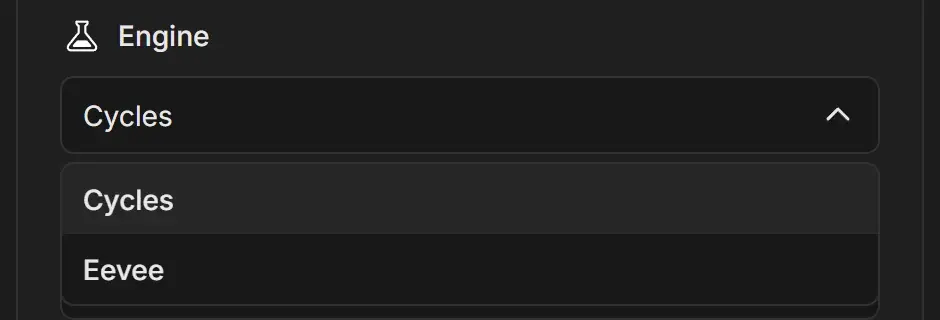
| Cycles against EEVEE | Engine |
| Noise against render time | Samples and Noise Threshold |
| Denoiser quality | Denoiser |
| Final size | Resolution percentage |
| A saved look | Preset |
Tell the copies apart on the queue
Copies have the same name. Turn on the Engine, Samples or Denoiser badges in Settings > Badge Display so each card shows what it renders. See Job badges.
Render and compare
Click Start. Each job shows its render time next to Done, so you can compare speed as well as quality. Open each job's previews to compare frames, or click Open Export Folder.
Where each version is saved
Every duplicate gets its own output folder identity. With the default Organized template, each job writes into its own date and time folder, so versions never overwrite each other. To put the engine name in the path, build a template that includes the Engine token. See Build a custom output template.
Duplicate a job that is rendering or finished
Settings of a rendering or finished job are locked. Click Duplicate Job on the lock banner to get an editable copy without stopping anything.

When you have picked a winner
Set the frame range back to the full shot on the best version and remove the other copies. To reuse the settings on other files, save them as a render preset. See Create your own render preset.