Build a Custom Output Template
Use the RenderGod template builder to design your own render output folders and file names with scene, camera, date and version chips, then preview the path.
A custom output template lets you decide exactly how RenderGod names folders and files for every render, for example one folder per client and shot with a version number. You build it from chips, see a live preview of the path, and reuse it on any job.
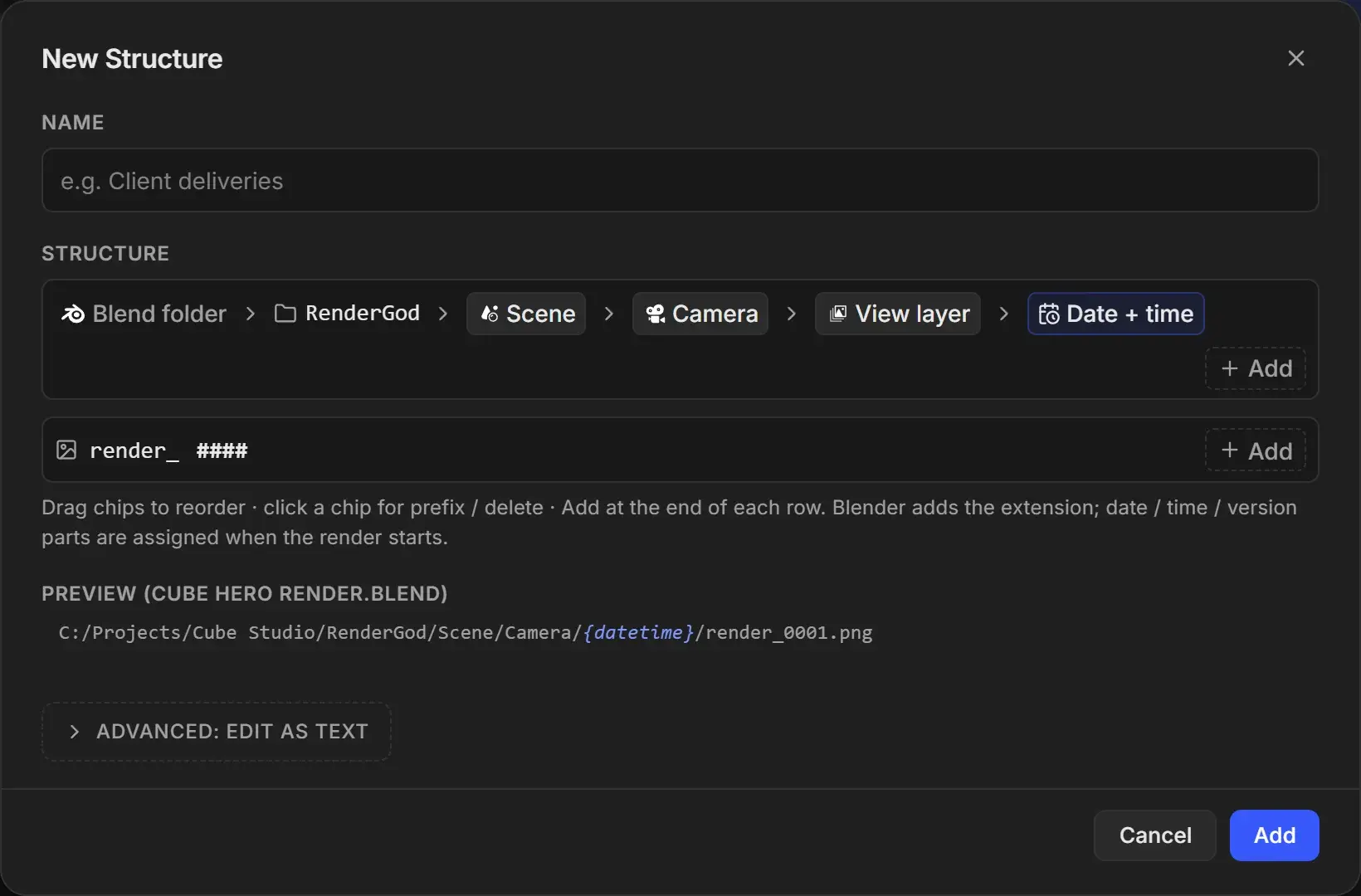
Create a new template
Select a job, open the dropdown on the Output card and choose + Add Custom Template. You can also click Add New Template in the Output Templates Manager.
Type a Name, such as "Client deliveries". Names must be unique and cannot be only spaces.
Edit the folder row and the file name row (see below). New templates start from the Organized layout.
Check the Preview line. It uses the selected job's .blend, or a sample project.
Click Add. The template appears under My templates in every job's Output dropdown.
Set the root folder
The first chip in the folder row is the root. Click it to choose:
| Root | What it does |
|---|---|
| Blend folder | Starts next to the .blend file. Renders stay with each project. |
| Choose folder... | Starts in a fixed folder on disk, such as C:\Renders\. All projects write under that folder. |
Add folders and file name parts
Each row has an Add button at its end. The top row builds folders; the second row, with the image icon, builds the file name.
| Add menu entry | What it inserts |
|---|---|
| Folder name... / Text... | Fixed text you type |
| Frame number | ####, always at the end of the file name. Offered only if it is missing. |
| From the project: Scene, Camera, View layer, Blend name, FPS, Width, Height, Engine | Values read from the job. The menu shows an example for each. |
| Assigned at render start: Date + time, Date, Time, Version | Values set when the render starts, shown as blue chips |
Width and height use the final size after the resolution percentage.
Edit, move and delete chips
Click a chip to open its menu:
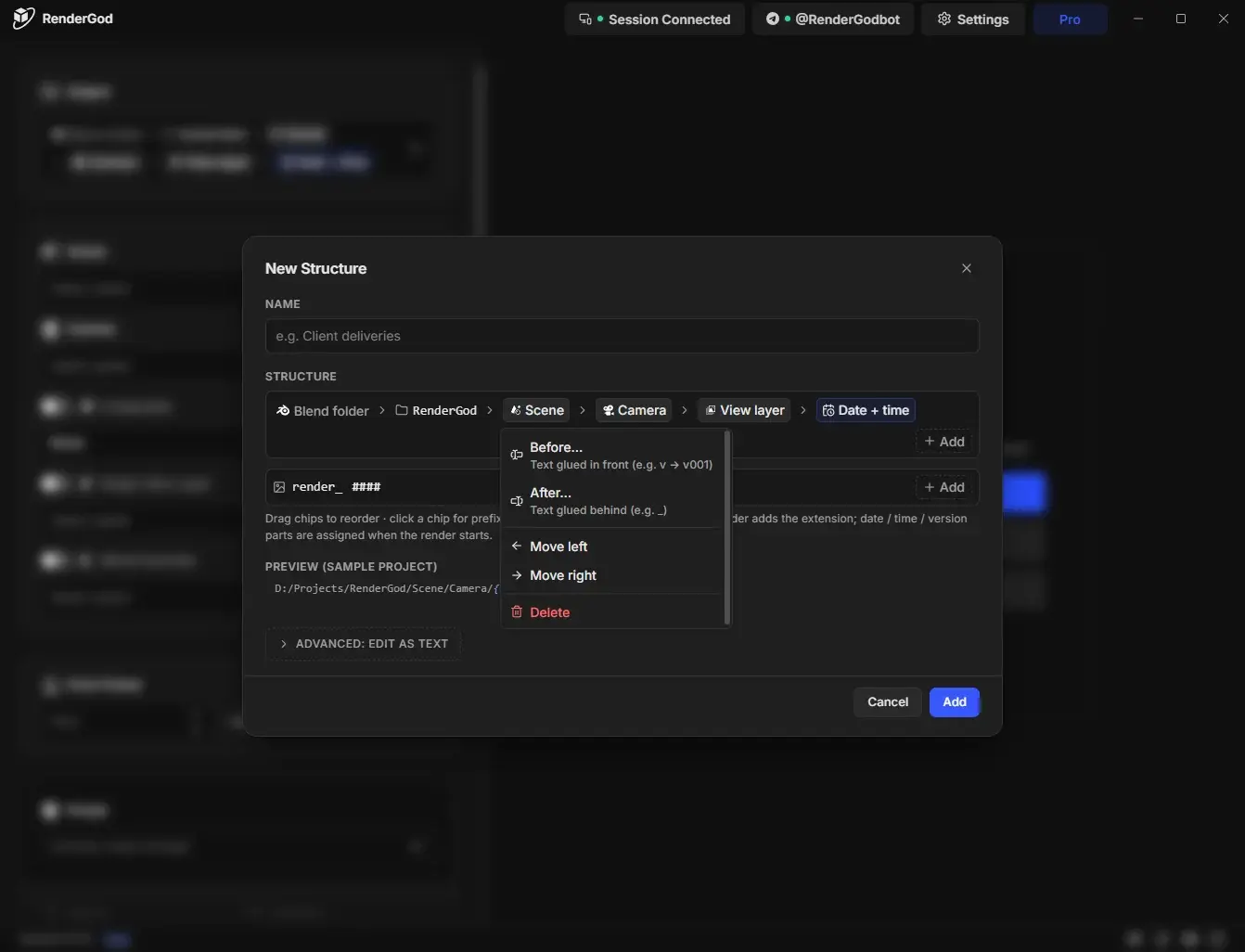
| Menu entry | What it does |
|---|---|
| Before... | Text glued in front, for example v to get v001 |
| After... | Text glued behind, for example _ |
| Digits | Number of digits: 1 to 6 for Version, 2 to 8 for the frame number |
| Edit text... | Change a text chip |
| Move left / Move right | Reorder |
| Delete | Remove the chip (the frame number cannot be deleted) |
You can also drag chips to reorder them. On a touch screen, press and hold a chip briefly before dragging.
Blender adds the file extension, so do not type .png or .exr into the name.
Edit the template as text
Click Advanced: edit as text to type the template directly. Use this for things the chips cannot express. The text field shows the current template, for example //RenderGod/{scene_name}/{camera_name}/{view_layer}/{datetime}/render_####, where // stands for the folder of the .blend file.
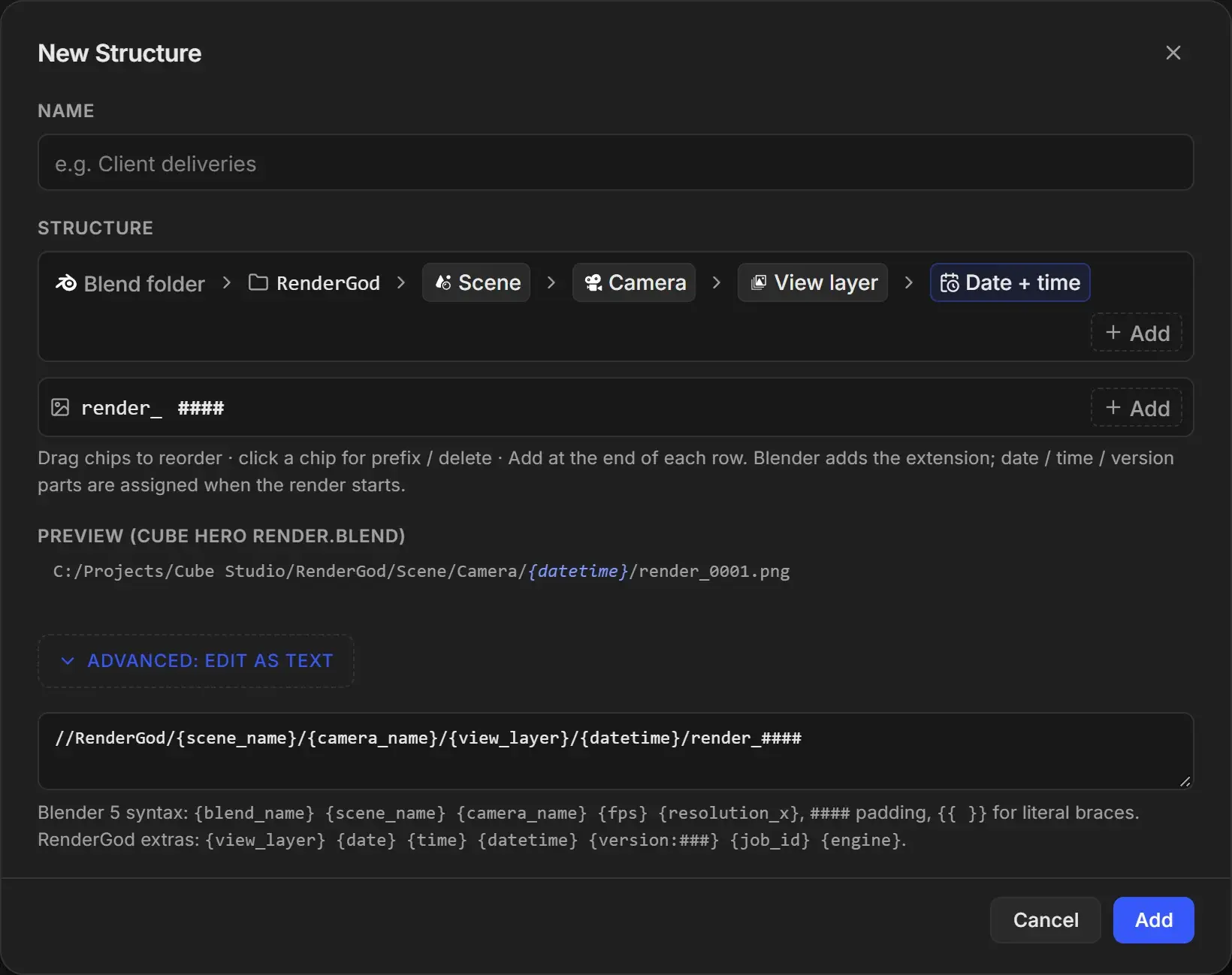
The help line under the field lists the syntax in two groups:
- Blender 5 syntax:
{blend_name}{scene_name}{camera_name}{fps}{resolution_x},####padding,{{ }}for literal braces. - RenderGod extras:
{view_layer}{date}{time}{datetime}{version:###}{job_id}{engine}.
| Placeholder | Filled with |
|---|---|
{blend_name}, {scene_name}, {camera_name} | Blend file name, scene, camera |
{fps}, {resolution_x} | Frame rate, width |
{view_layer}, {engine} | View layer, render engine |
{date}, {time}, {datetime} | Set when the render starts |
{version:###} | Next free version number with three digits |
{job_id} | The job's unique identifier |
#### | Frame number padding |
{{ and }} | Literal braces |
Add ? inside the braces, such as {scene_name?}, to include that folder only when the file has more than one scene. A part combined from several placeholders shows as one chip that you can edit only in the text view.
Example: //Renders/{scene_name}/v{version:###}/{camera_name}_#### saves Renders/Studio/v003/Cam Front_0001.png next to the .blend file.
Fix errors when saving
Add or Save checks the path first. Errors appear in the dialog, for example "Give the template a name." or a message about an unknown placeholder. Your changes stay in the dialog until you fix them. If you close with unsaved changes, RenderGod asks Keep Editing or Discard Changes.