Output Templates Settings for New Render Jobs
Choose the default output template new render jobs use, see a preview of the resulting path and open the Output Templates Manager to edit your own.
The Output Templates setting chooses where new render jobs save their frames and how files are named. "Output folders and filenames for new render jobs. Existing jobs keep their template."
Open it from Settings > Output Templates, or choose ⚙ Setup Defaults in a job's output template dropdown.
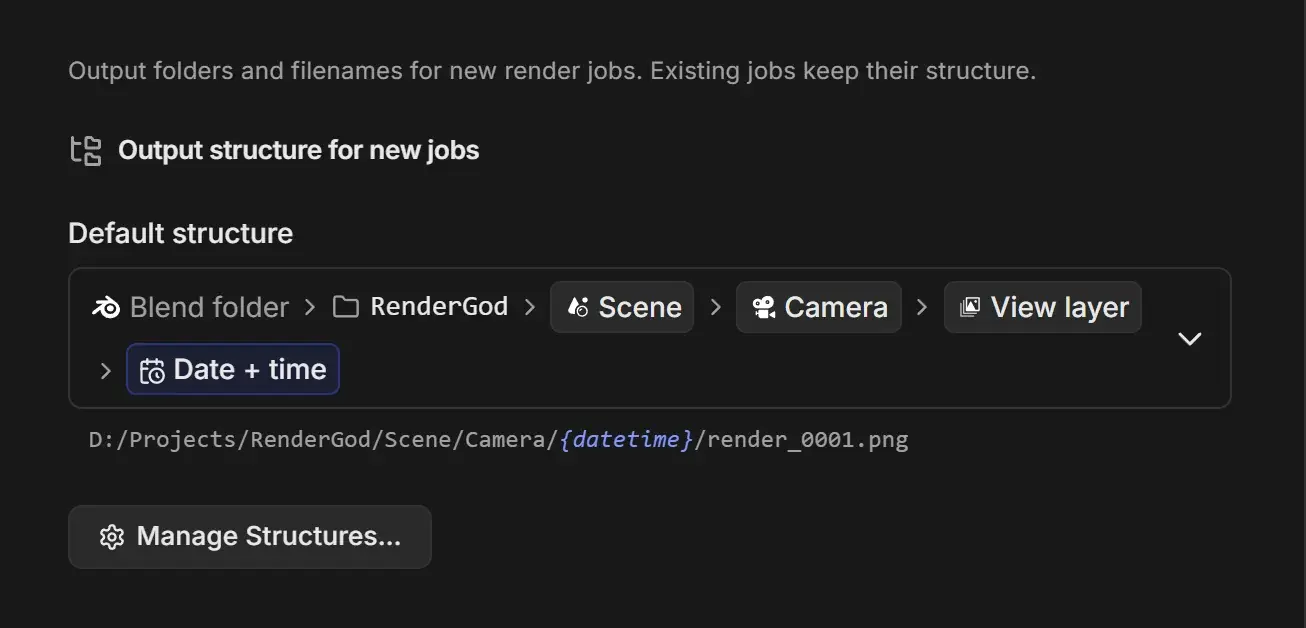
Pick the default template
Open the Default template dropdown. Each template is drawn as a row of folder chips, and an example path appears under the dropdown.
| Template | Folders | Use it when |
|---|---|---|
| Organized - Scene / Camera / Layer / Date (default) | Next to the .blend: RenderGod/<scene>/<camera>/<view layer>/<date and time>/render_#### | You want every render kept apart by scene, camera and time |
| Versioned - 001, 002… | RenderGod/<scene>/<camera>/<view layer>/001/render_#### | You prefer numbered versions over dates |
| Flat - Date + time | RenderGod/<date and time>/render_#### | Simple projects with one camera |
| Flat - 001, 002… | RenderGod/001/render_#### | Simple projects, numbered versions |
| Same as the original .blend file | The output path saved in the .blend | You already set the output path in Blender |
Templates you create yourself appear under My templates. The dropdown also offers + Add Custom Template and • Output Templates Manager, and a pencil icon to edit a template.
Manage Templates… opens the Output Templates Manager, where you add, edit, delete and restore templates. See Manage output templates.
The default only applies to jobs you add from now on. Each job can still pick another template or a custom folder in its Output card.