Render View Layers and Passes to Separate Folders
Split a Blender render into one folder per view layer and send compositor passes to their own folders with RenderGod, ready for Nuke or After Effects.
Render view layers and passes to separate folders so every element of a shot arrives organized for compositing. RenderGod can split a file into one job per view layer, and can redirect the compositor's File Output nodes to folders you choose.
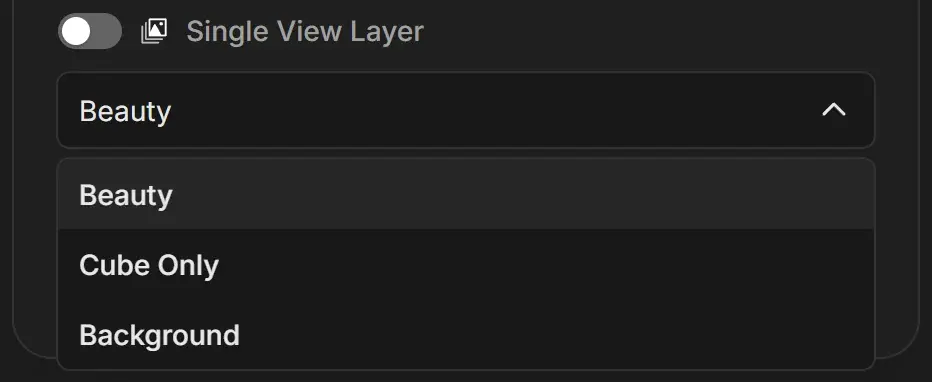
The examples use C:\Projects\Cube Studio\Cube View Layers.blend, with the view layers Beauty, Cube Only and Background.
Choose an approach
| You want | Use |
|---|---|
| One image sequence per view layer, each in its own folder | One job per view layer |
| Only one view layer rendered | Single View Layer on one job |
| Depth, normal, mist or other passes as separate sequences | File Output nodes |
| Every pass in one file per frame | Format set to a Multi-Layer EXR option. See Output image formats |
One job per view layer
Import the file
Add the .blend to the queue by dragging it onto the window or sending it from Blender.
Duplicate the job for every view layer
Right-click the job card and choose Duplicate for Every... > All View Layers. RenderGod creates one job per view layer, turns on Single View Layer for each, and removes the original job (its settings stay in History).
To combine it with cameras, use All Cameras + View Layers instead.
Check the output folder and start
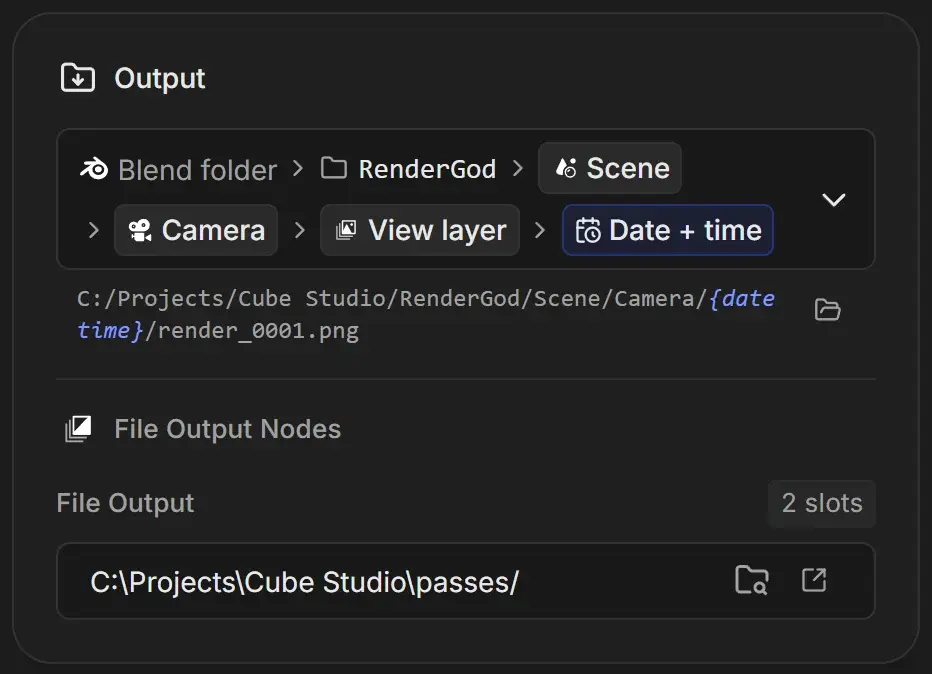
With the default Organized template, the output path contains a View layer folder, so each job writes to its own folder, for example C:\Projects\Cube Studio\RenderGod\Scene\Camera\Beauty\ followed by a date and time folder. Click Start.
Send passes to their own folders
Use File Output nodes in Blender's compositor for passes such as Depth or Normal, then set their folders in RenderGod.
Add File Output nodes in Blender
In the compositor, connect the passes to a File Output node, one input slot per pass. Save the file.
Turn on the compositor in RenderGod
Select the job and turn on Compositor, with the compositor that holds your File Output nodes. The nodes only render while the compositor is on.
Set a folder for each node
In the Output card, a File Output Nodes section lists each node and its number of slots. Type a folder or click the folder button to choose one.
Render and check the previews
Click Start. Each output gets its own preview card, such as Preview: Main Output and one per File Output node. See Watch frames live while rendering.