UnCrash Render Recovery Settings
Turn on automatic recovery from Blender crashes, frozen frames and PC restarts, and set how many retries RenderGod makes before it skips a frame or stops.
UnCrash Render Recovery settings decide how RenderGod reacts when a render is interrupted: by a Blender crash, by a frame that hangs, or by the whole PC crashing or restarting. They apply to every job on this computer.
Open it from Settings > UnCrash Render Recovery, or click Configure on the UnCrash Render Recovery card in the render settings panel.
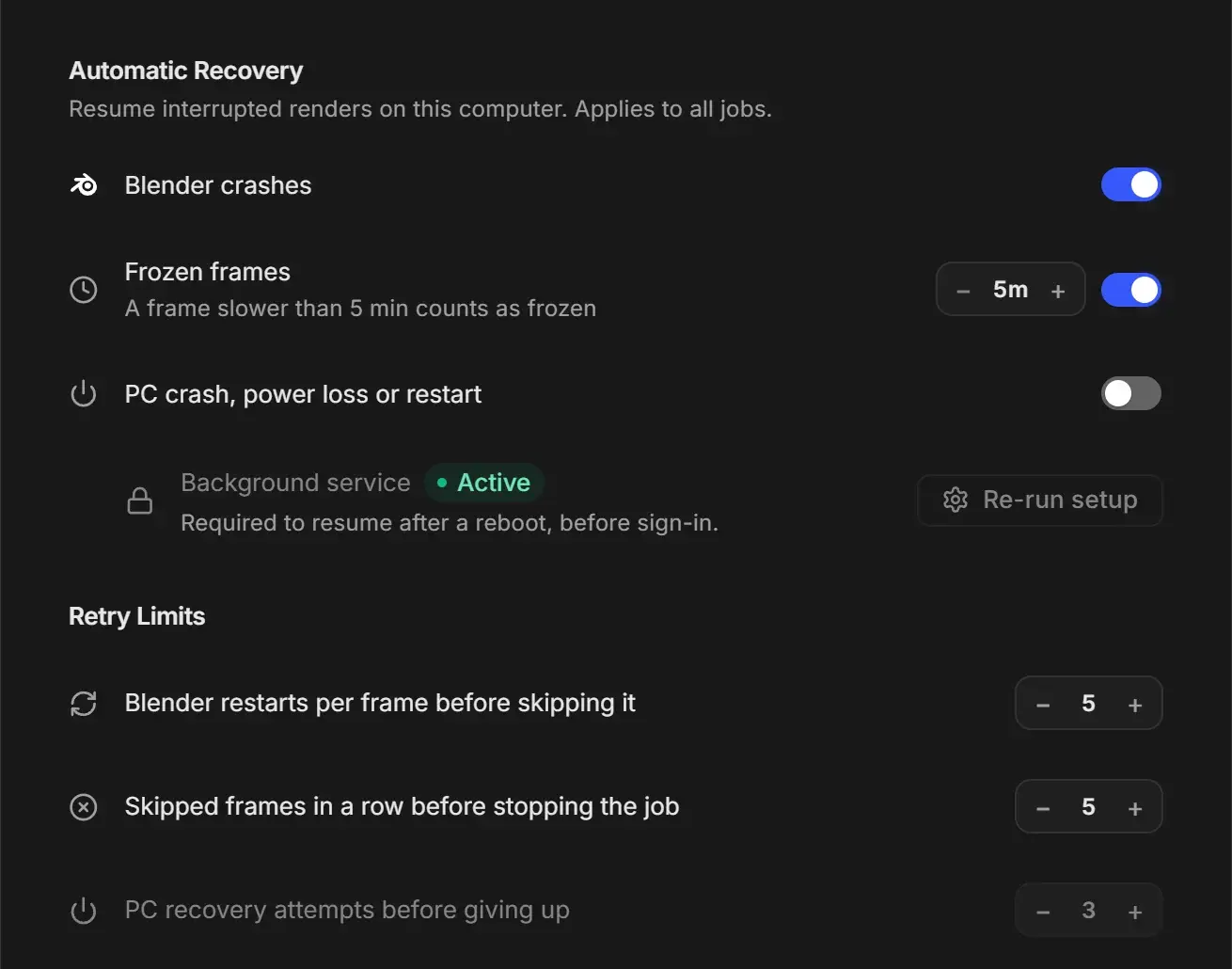
Automatic Recovery
"Resume interrupted renders on this computer. Applies to all jobs."
| Setting | Control | Default | What it does |
|---|---|---|---|
| Blender crashes | Switch | Off | When Blender crashes mid-render, RenderGod restarts Blender and continues from the frame that failed. |
| Frozen frames | Switch and a timeout stepper in minutes (5 to 60, in steps of 5) | Off, 5m | A frame that takes longer than the timeout counts as frozen. RenderGod closes Blender and renders the frame again. The row description shows the current value, for example "A frame slower than 5 min counts as frozen". The stepper is greyed out while the switch is off. |
| PC crash, power loss or restart (Windows only) | Switch | Off | Marks the queue for recovery after a Windows crash, power cut or reboot. The actual resume needs the background service below. |
| Background service (Windows only) | Set up or Re-run setup button, with a status of Active or Setup required | Not installed | "Required to resume after a reboot, before sign-in." Opens the Background Recovery Setup wizard. The row is greyed out until PC crash, power loss or restart is on. |
Set the frozen frame timeout comfortably above your slowest normal frame. A heavy frame that legitimately takes 12 minutes would be treated as frozen with a 10 minute timeout and never finish.
The Frozen frames switch is the same setting you see on the UnCrash card of the render settings panel.
Set up PC crash recovery (Windows)
Turn on PC crash, power loss or restart.
Click Set up on the Background service row.
Follow the Background Recovery Setup wizard and accept the one Windows administrator prompt.
Answer the power loss question at the end, then click Finish. The status changes to Active.
A successful setup also turns on PC crash, power loss or restart and Start at Login. While PC crash recovery is on, Start at Login in System Settings is locked on.
Turning the PC crash, power loss or restart switch off does not remove the background service. To remove it, click Re-run setup and choose Remove. The full walkthrough is in The Background Recovery Service.
Retry Limits
These steppers are greyed out until Blender crashes or Frozen frames is on (or, for the last one, PC crash, power loss or restart).
| Setting | Range | Default | What it does |
|---|---|---|---|
| Blender restarts per frame before skipping it | 1 to 100 | 5 | How many times RenderGod restarts Blender on the same frame. After that the frame is skipped and the render moves on. |
| Skipped frames in a row before stopping the job | 1 to 20 | 5 | If this many frames in a row are skipped, the job stops and is marked as failed, instead of skipping through a broken scene. |
| PC recovery attempts before giving up (Windows only) | 1 to 10 | 3 | How many times the background service tries to resume after a PC crash before it stops, so a scene that crashes the PC does not loop forever. |
Skipped frames are listed on the job so you can render them again later. See Skipped frames and how to re-render them.
On macOS
The section shows only Blender crashes, Frozen frames, Blender restarts per frame before skipping it and Skipped frames in a row before stopping the job. PC crash recovery and the background service are Windows only.