System Settings for Theme, Startup and Updates
Change theme, color palette, font and UI scale, set notifications, the performance monitor and Start at Login, check for updates, reset settings or force quit.
System Settings control how RenderGod looks, how it behaves on this computer, and app-wide actions such as checking for updates or resetting everything.
Open it from Settings > System Settings.
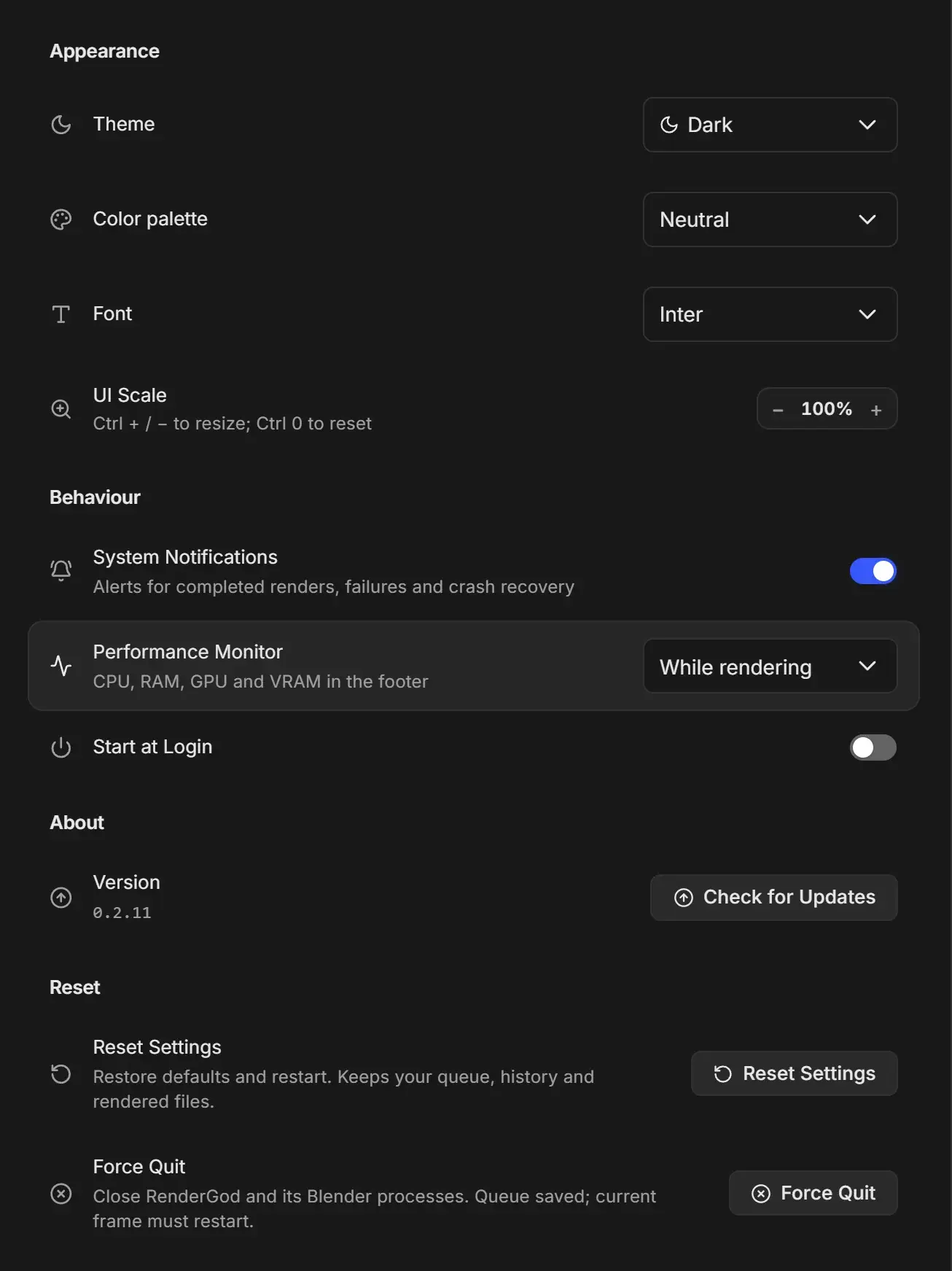
Appearance
| Setting | Options | Default | Notes |
|---|---|---|---|
| Theme | Light, Dark, System | System | System follows your operating system. Press F6 anywhere to switch between light and dark. |
| Color palette | Neutral, Blender, Classic, Slate | Neutral | Neutral: grey chrome, white cards and one blue accent. Blender: Blender greys and its selection blue. Classic: the original RenderGod colours. Slate: cool blue-grey. |
| Font | Inter, System | Inter | System uses your operating system's interface font. |
| UI Scale | 75%, 90%, 100%, 110%, 125%, 150% | 100% | Use the - and + buttons, or press Ctrl + + / Ctrl + - anywhere, and Ctrl + 0 to reset. |
More in Themes, color palettes, font and UI scale.
Behaviour
| Setting | Control | Default | What it does |
|---|---|---|---|
| System Notifications | Switch | On | Desktop alerts for completed renders, failures and crash recovery. They are not shown while the RenderGod window is in front and focused. See Desktop notifications. |
| Performance Monitor | Always, While rendering, Off | While rendering | Shows CPU, RAM, GPU and VRAM usage in the footer. |
| Start at Login | Switch | Off | Starts RenderGod when you sign in to your computer. |
Start at Login is locked
When PC crash recovery is turned on in UnCrash Render Recovery, Start at Login shows a lock and "Required by PC Crash Recovery." and cannot be switched off. Clicking it offers Disable PC Crash Recovery, which turns off both settings.
About
Version shows the installed RenderGod version. Check for Updates looks for a newer version (shortcut Ctrl + Shift + V). If one exists, the update window opens; otherwise you see "You're up to date". See Update RenderGod.
Reset
| Button | What happens | What is kept |
|---|---|---|
| Reset Settings | After you confirm "Reset all settings?", every setting on this computer goes back to its default (Blender installations, output templates, format presets, Telegram setup, recovery limits and appearance) and RenderGod restarts straight away. | Your queue, history and rendered frames |
| Force Quit | After you confirm "Force quit RenderGod?", RenderGod closes immediately along with any Blender it started. | The queue. The job resumes from the last finished frame; the frame that was rendering is lost and renders again. |
Reset Settings does not change Start at Login or the add-on reminder switch in Install Blender Addon.
On macOS
- Keyboard shortcuts use Cmd instead of Ctrl.
- Notifications appear in Notification Center.
- Start at Login starts RenderGod when you log in to your Mac. It is never locked, because PC crash recovery is Windows only.
- On macOS the Telegram bot token is stored in your Keychain and is kept after Reset Settings.