Update RenderGod to the Latest Version
Check for RenderGod updates from the footer, System Settings or a shortcut, install them in one click or download the installer without stopping a render.
RenderGod checks for updates every time it starts and you can check for updates yourself at any time. When a new version is available, the Update Available window lets you install it in one click.
Check for updates
Use any of these:
| Where | How |
|---|---|
| Footer | Click Version at the bottom left of the window |
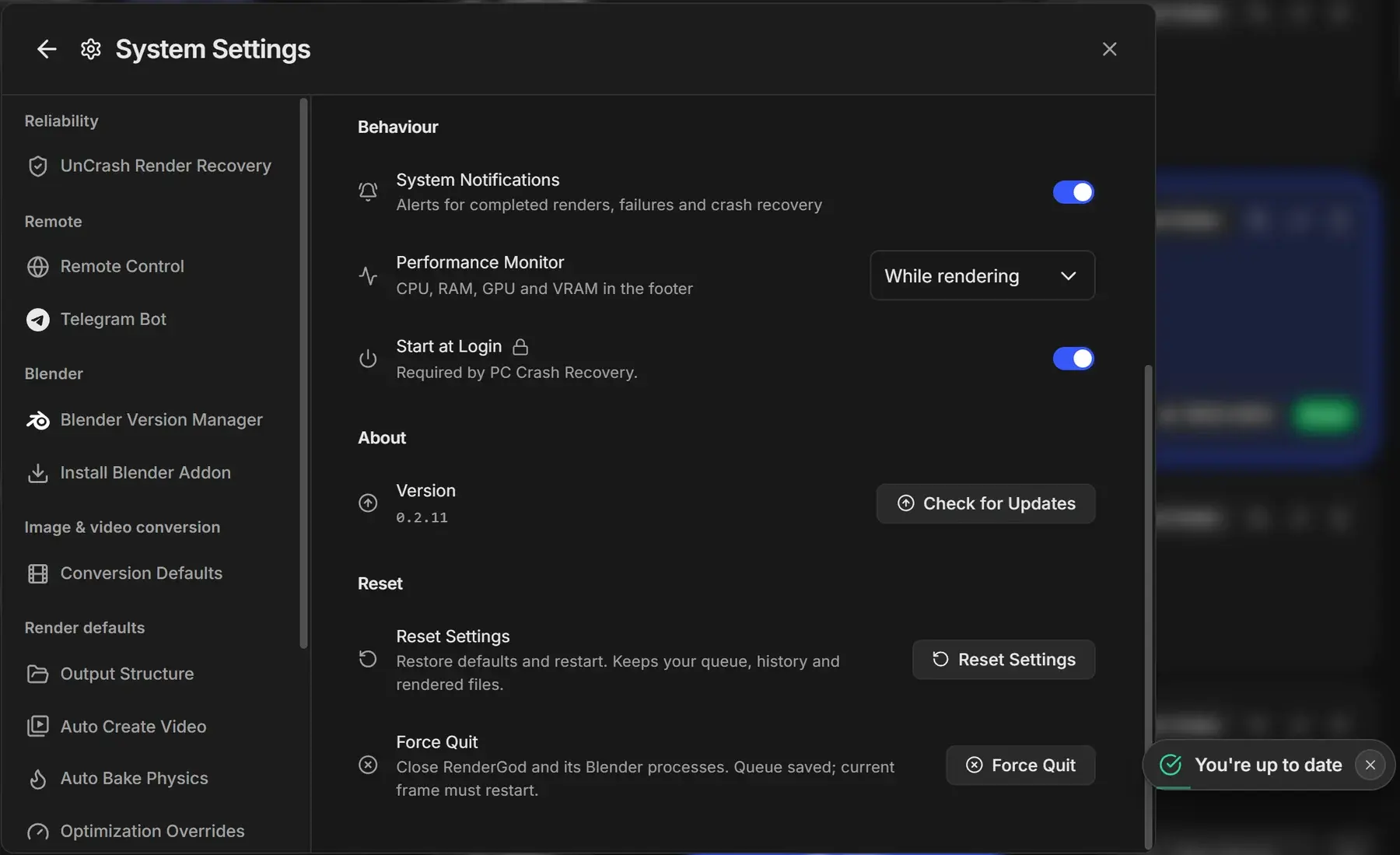
| System Settings | Settings > System Settings > Check for Updates |
| Keyboard | Ctrl + Shift + V (Cmd + Shift + V on macOS) |
If you already have the latest version, you see "You're up to date". If the check cannot reach the server, you see "Couldn't check for updates".
Install an update
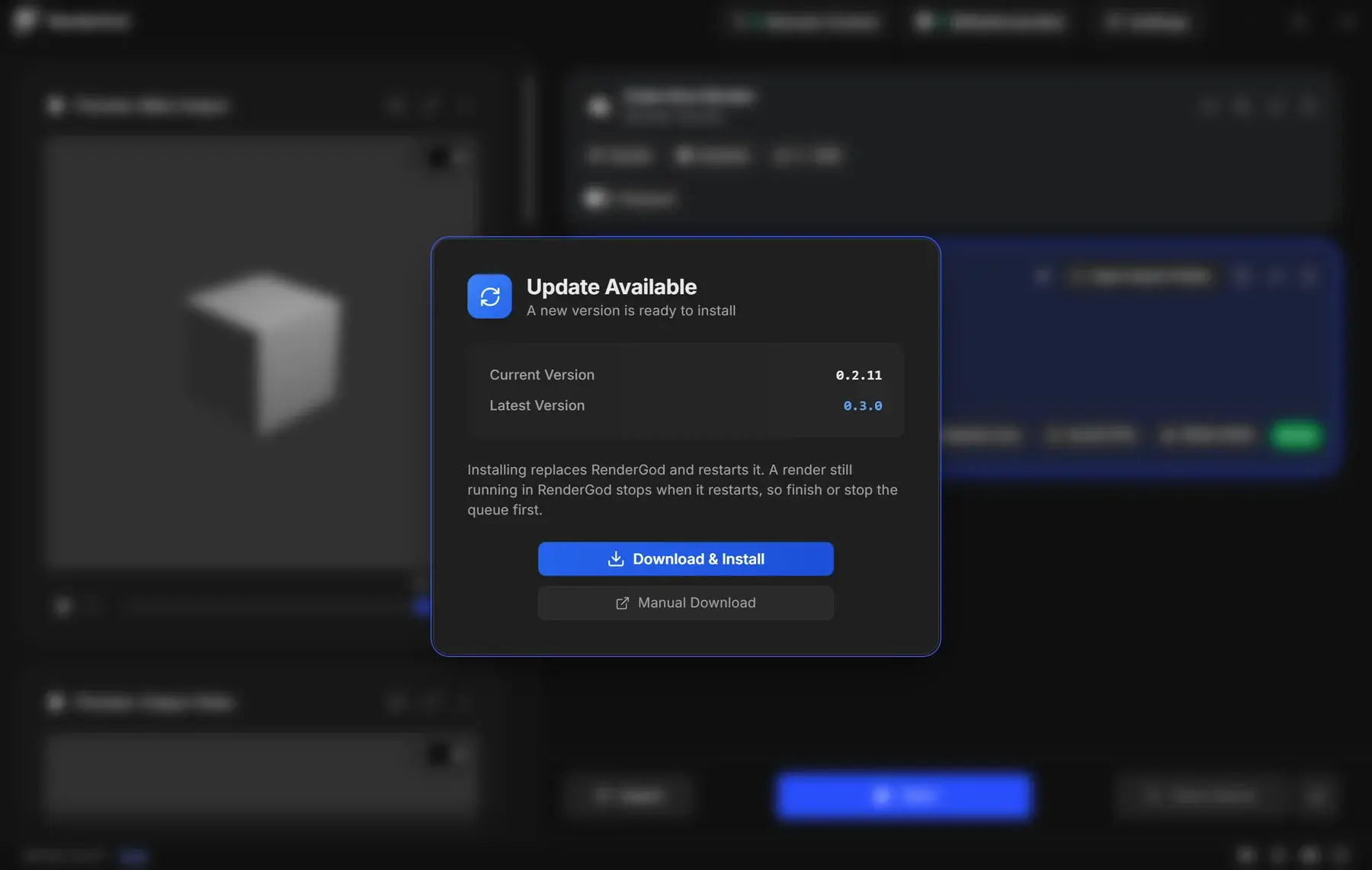
When a new version is found, the Update Available window opens with Current Version and Latest Version.
Click Download & Install. The progress shows "Downloading... N%", then "Installing the update…".
RenderGod shows "Installed - restarting RenderGod…" and opens again on the new version. Your queue and settings are kept.
On Windows the installer runs by itself with a progress bar and does not ask any questions.
Download the installer instead
Click Manual Download to save the installer to your computer. When the download finishes, RenderGod opens the folder so you can run the installer yourself, for example after the render queue has finished.
If the update does not install
The window shows "The update didn't install. Choose Retry." Click Retry, or use Manual Download and run the installer yourself. You can also download the latest version from rendergod.app.
Why the update window cannot be skipped
When RenderGod starts and finds a required update, it opens the Update Available window and does not continue until the update is installed. Pressing Esc explains that the update cannot be skipped. To leave without updating, quit RenderGod from the window controls.