Install RenderGod on Windows and macOS
Download and install RenderGod on Windows with the installer or on macOS from the disk image, learn what setup changes on your computer and how to uninstall.
Install RenderGod from the download on rendergod.app. Windows uses an installer; macOS uses a disk image. Check the system requirements first.
Install RenderGod
Download the Windows installer from rendergod.app.
Run the installer. Windows asks for administrator permission, because RenderGod is installed for every user on the computer. The setup wizard opens on the Welcome to RenderGod Setup page. Click Next to continue.
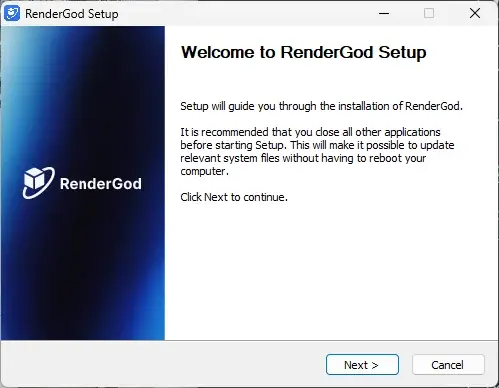
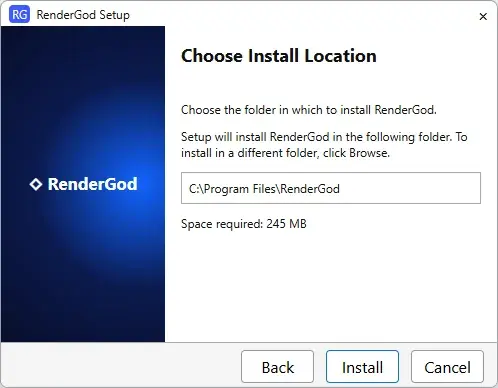
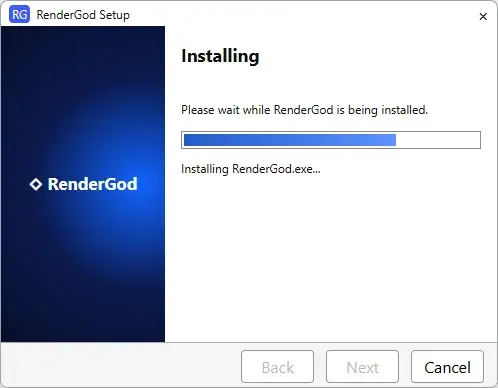
Follow the installer to the end. RenderGod is added to the Start menu.
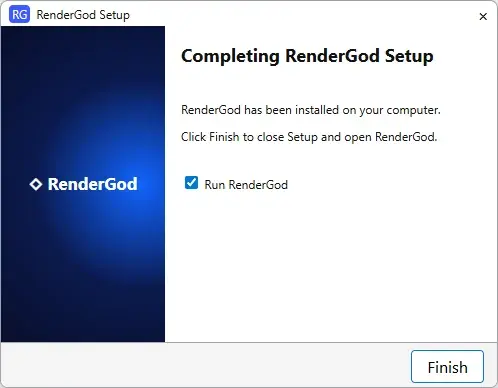
Open RenderGod. Continue with First launch and sign in.
What the Windows installer sets up
| Item | Why |
|---|---|
| RenderGod for all users | The app is installed once per computer, not per user account. |
| Windows Firewall rule | Lets browsers on other networks receive live previews when you use remote control. |
| Video tools | Everything needed for video encoding and conversion is included. You do not install FFmpeg separately. |
The first time RenderGod starts, it also adds a RenderGod Start menu shortcut that Windows uses to show desktop notifications.
Uninstall RenderGod
Open Settings > Apps > Installed apps in Windows, find RenderGod and choose Uninstall.
Uninstalling also removes the background recovery service, the Start at Login entry, the firewall rule and the shared data folder C:\ProgramData\RenderGod. If you set up the background recovery service, your queue and settings lived in that folder, so export any jobs you want to keep first with job files.