Export and Import Render Job Files (.rgjob)
Save RenderGod render jobs as .rgjob files to back them up or move them to another computer, then import them with every render setting in place.
A .rgjob job file stores the settings of one or more jobs from the render queue. Export jobs to back up a carefully set up render, share it, or move it to another computer, then import the file to get the same jobs back.
Export jobs
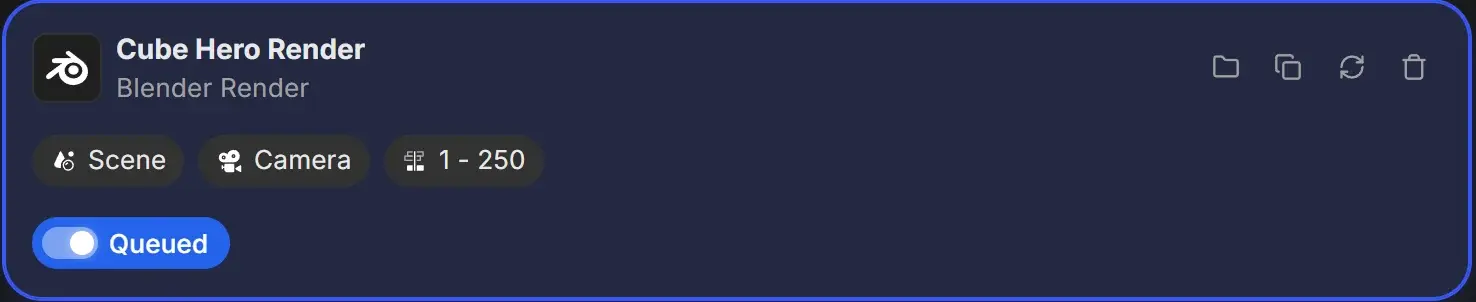
Right-click a job card.
Choose Export Queue Job… to save that job, or Export All Queue Jobs… to save every job in the queue in one file.
Pick a folder and name in the save window. The default name is the job name, or queue- followed by today's date for all jobs.
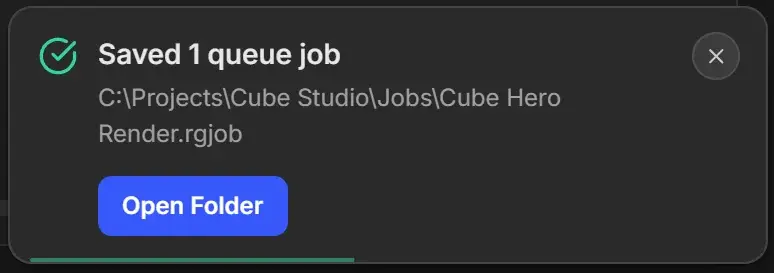
A message confirms the save, for example "Saved 1 queue job" with the file path. Click Open Folder to see the file.
What a job file contains
| Saved in the file | Not saved |
|---|---|
Path to the .blend or media file | The rendered frames, previews or the .blend itself |
| Scene, camera, view layer, frame range | Progress, status or render time |
| Render settings and overrides | Where Blender is installed on your computer |
| Output template | Your app settings |
| Auto Create Video settings | |
| Python scripts attached to the job |
Because the file does not contain the .blend, copy your project files to the other computer too.
Import a job file
Use any of these:
- Import > Queue Job(s)… in the queue toolbar.
- The Queue Job(s)… link on the empty queue, or right-click the empty queue.
- Drag the
.rgjobfile onto the RenderGod window.
If every file the jobs need is found and nothing needs your attention, the jobs are added straight away, a message says how many queue jobs were added, and the first new job is selected.
Review Import window
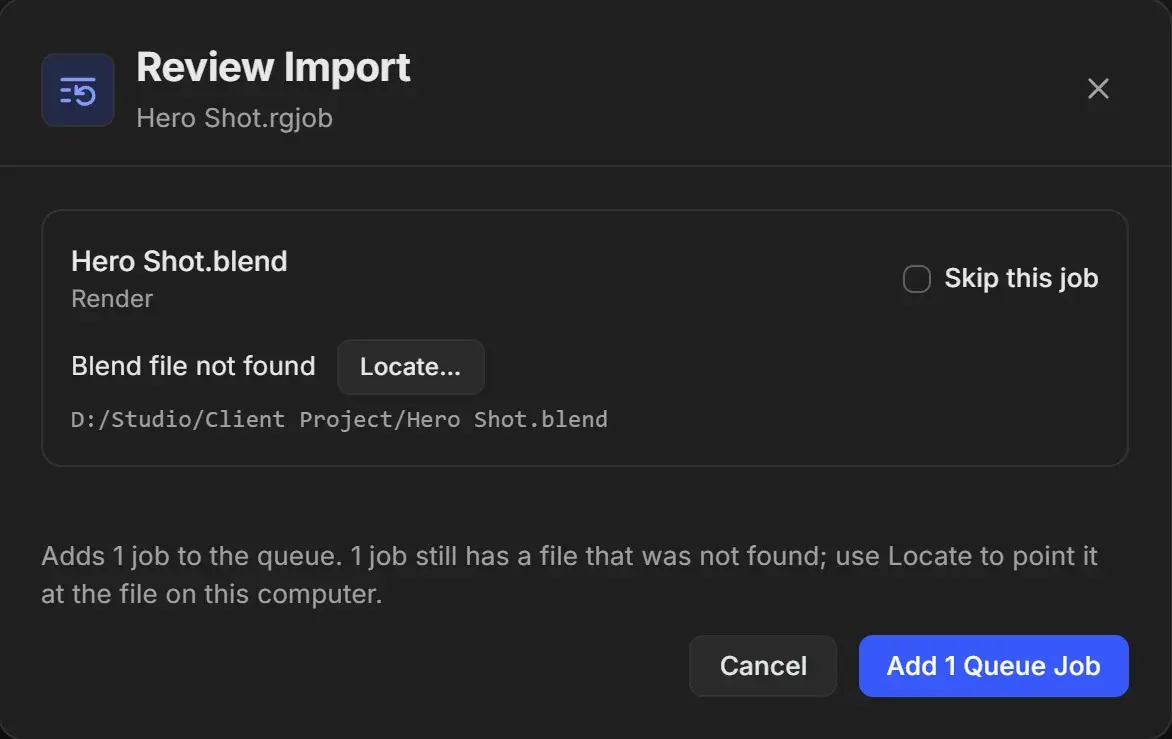
If a job needs a decision, the Review Import window opens first. Its title shows the job file name, and each job has its own row with the .blend name and job type.
| What you may see | What to do |
|---|---|
| Skip this job checkbox | Tick it to leave that job out. |
| Blend file not found, Import folder not found or Audio file not found | Click Locate… and pick the file on this computer. If other jobs used the same path, click Apply to all to fix them together. |
| "Needs Blender 4.5, which isn't installed" | Install that version or open Manage Blender versions. The job can still be added. |
| A setting with "was … now …" | A value was adjusted to fit this computer. Check it after import. |
| "Output preset … isn't on this computer; the default will be used" | The job's output template does not exist here, so the default is used. |
| Scripts with Enable this script | Scripts are off by default. Click View source to read one, and enable it only if you trust where the file came from. Scripts run inside Blender with your user permissions. |
The footer summarises what will happen, for example "Adds 1 job to the queue. 1 job still has a file that was not found; use Locate to point it at the file on this computer." The button counts the jobs, such as Add 1 Queue Job. Click it to import, or click Cancel.
Match Settings window
If a job names a scene, camera, view layer, world, compositor or output preset that the .blend on this computer does not have, Match Settings opens after the import. For each one, pick a replacement from the list, then click Apply. Keep defaults leaves RenderGod's default choice for those settings instead.
If a job file cannot be read
"Couldn't read that job file" appears with one of these reasons:
| Reason | Fix |
|---|---|
| The file is larger than 5 MB | Export fewer jobs per file |
| The file holds more than 200 jobs | Split the jobs into several files |
| The file contains no jobs | Export again from the original computer |
| Not a RenderGod queue job file | Make sure you picked a .rgjob exported from RenderGod |
| The file is a newer version | Update RenderGod on this computer. See Update RenderGod. |