Reload Settings After Changing the .blend File
Changed the .blend in Blender after importing? Reload the job so the RenderGod queue reads the latest scenes, cameras, frame range and settings.
RenderGod reads a .blend file once, when you import it. If you change and save the file in Blender afterwards, reload the job so RenderGod reads the latest scenes, cameras, view layers and render settings.
Reload a job
Use either of these on a Blender render job:
- Click the Reload button (circular arrows) on the job card.
- Right-click the card and choose Reload Data.
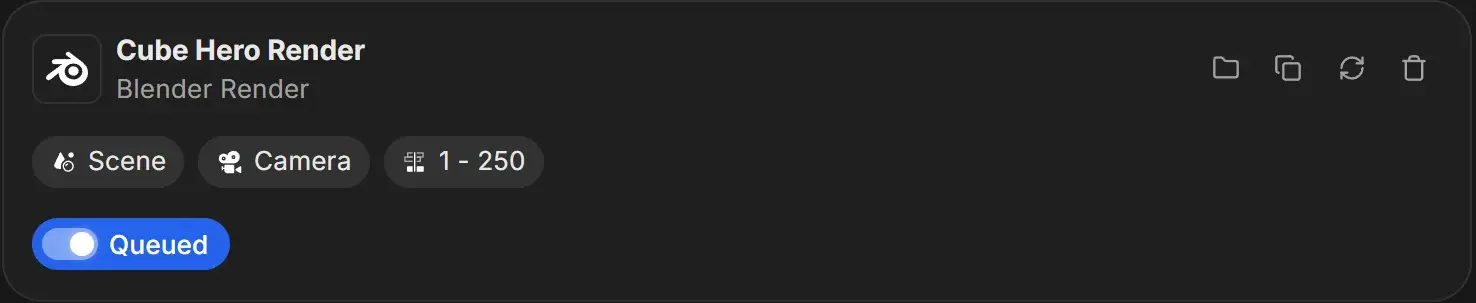
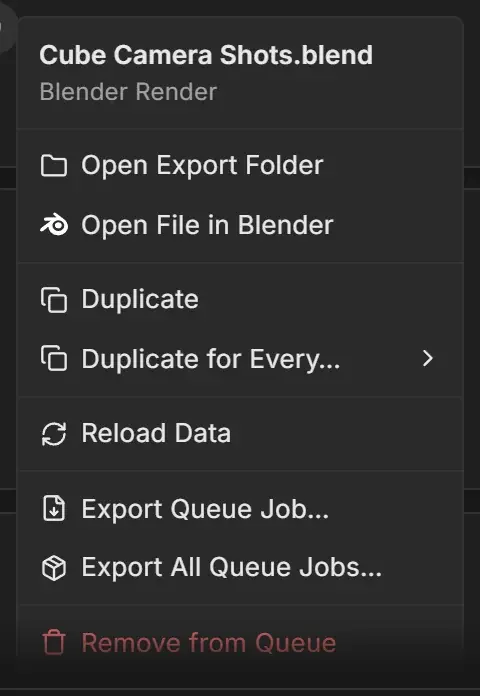
The card shows its loading state while RenderGod reads the file, then "Job data reloaded" confirms it.
Edit the file in Blender first
Right-click the card and choose Open File in Blender. The file opens in the Blender version the job uses. Make your changes, save with Ctrl + S, then reload the job in RenderGod.
When RenderGod tells you the file changed
If the .blend is saved after it was imported and the job is rendering, the status shows "Blender file changed - reload settings" in amber. Hover over it to read "The .blend was saved after this job was imported, so the cached settings may be out of date. Use Reload Data to read them again."
Good to know
- Reload is available for Blender render jobs only. It is greyed out while the job is loading.
- Sending the same file again from the Blender add-on adds a new job instead of reloading the existing one.