Job Statuses: Queued, Rendering, Paused, Done and Failed
What each RenderGod job status means, how it looks on the job card and what you can do next, from Queued and Rendering to Paused, Done, Failed and Skipped.
Every job in the render queue has a status, shown as a coloured label at the bottom left of its job card. This page explains each job status and what to do from there.
| Status | Colour | Renders when you press Start |
|---|---|---|
| Loading | spinner, no label | No |
| Queued | blue | Yes |
| Baking Physics... | purple | Running |
| Rendering | amber | Running |
| Paused at frame N | orange | Yes, from the paused frame |
| Done | green | No |
| Failed | red | No |
| Skipped | grey | No |
Loading
Right after import, RenderGod reads the file. The card shows grey placeholder bars and a spinner, and its buttons are disabled. The status changes to Queued when reading is done. Jobs still loading when RenderGod closes are removed the next time it opens; import them again.
Queued
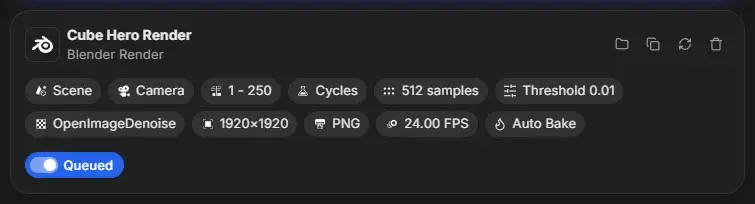
The job is waiting its turn. It renders when the queue reaches it. The switch inside the label is on; turn it off to skip the job.
Baking Physics
When Auto Bake Physics is on, the job bakes simulations before it renders. The purple label shows Baking Physics... or the simulation being baked, for example Baking Physics: Cloth, with a count of done and total bakes. Click Skip Baking to stop the bake and start rendering.
Rendering
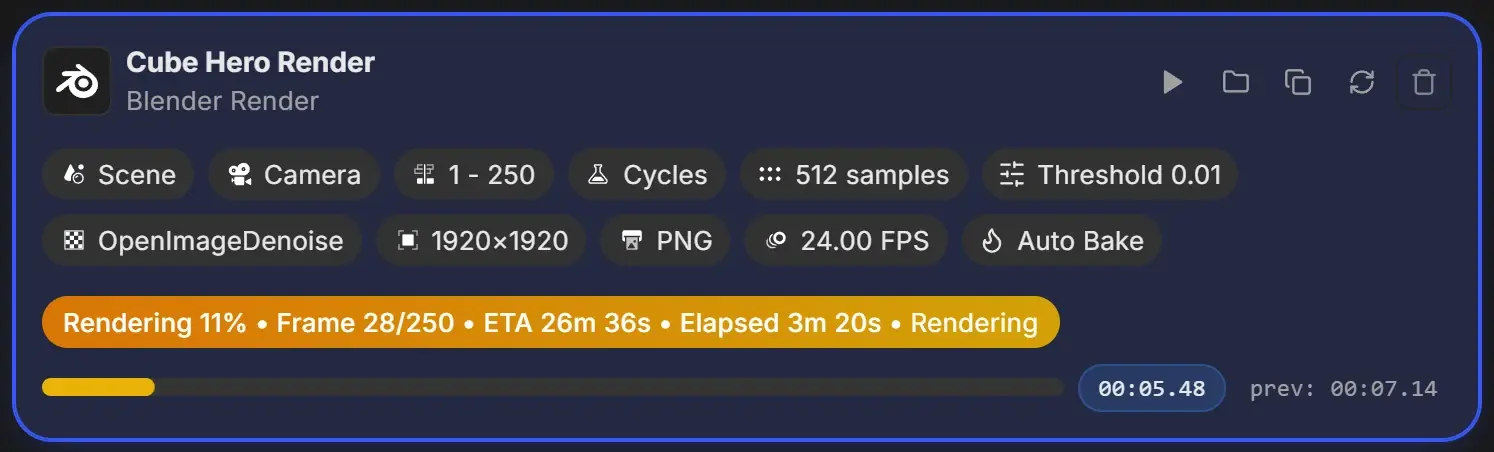
The job is rendering now. The label shows the percentage, current frame, time remaining, time elapsed and Blender's own status. Conversion jobs show text such as Creating video... 40% instead. See Progress and ETA.
Paused
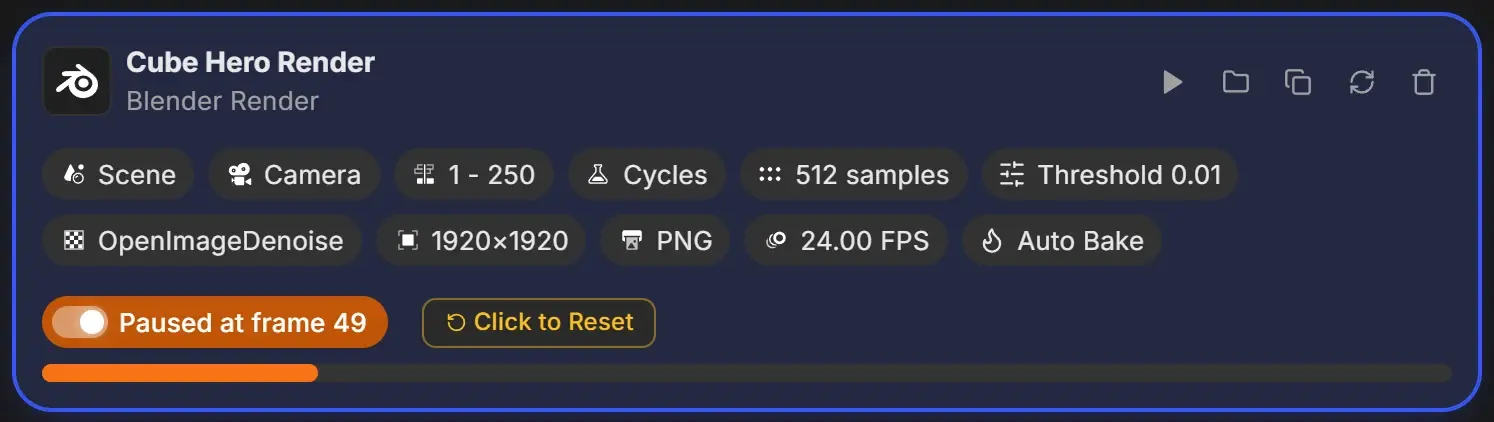
The queue was stopped while this job rendered, or RenderGod closed during the render. The job resumes from that frame the next time you press Start. Click Click to Reset to render it from the first frame instead. If you stop on the very first frame, the job returns to Queued instead of Paused. See Retry and reset.
Done
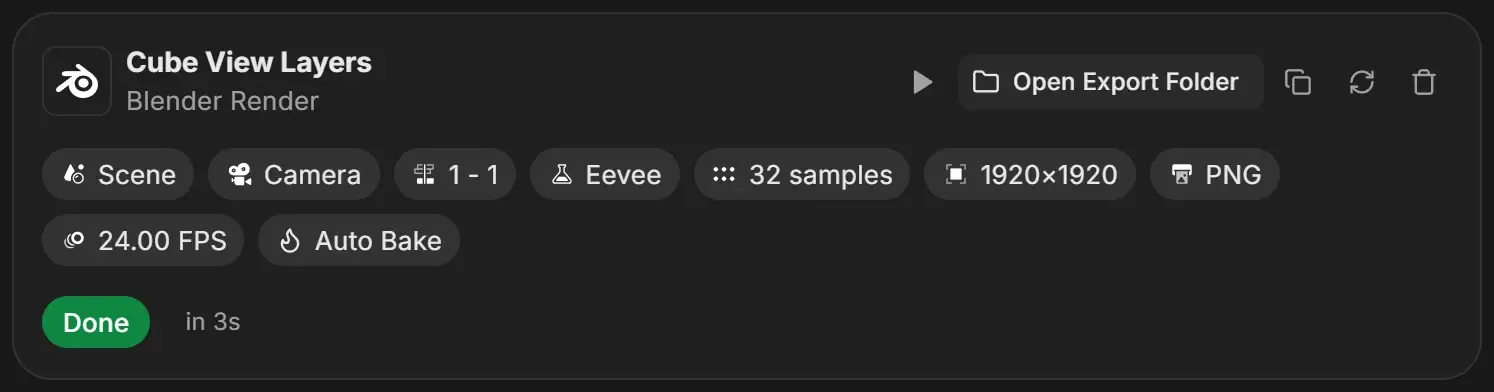
Every frame rendered. The text beside the label is the total render time, not counting pauses. Open Export Folder stays visible so you can go to the files. A short confetti burst plays when a job finishes.
Failed
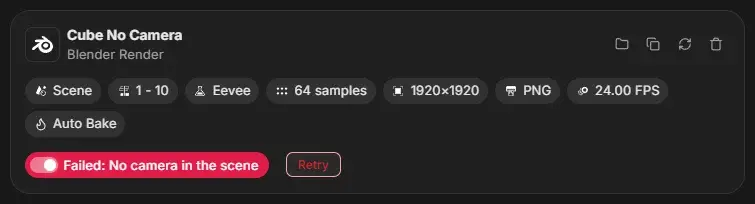
The job could not render. When RenderGod recognises the cause, it adds a short reason to the label, such as Failed: No camera in the scene. Otherwise a red box under the status shows the full message. The queue continues with the next job. Fix the cause, then click Retry. See Render error messages.
Skipped
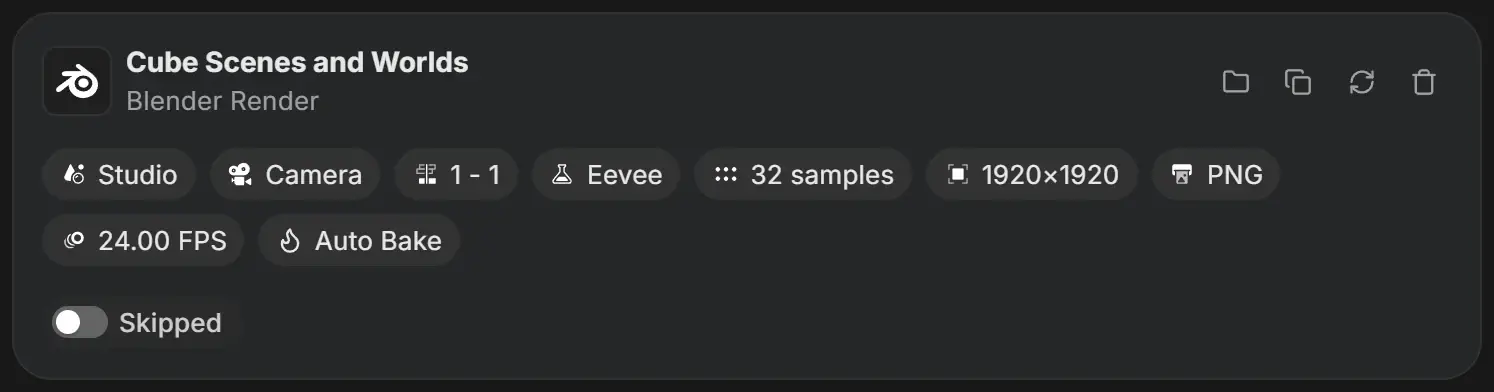
You turned the job's switch off. The queue passes over it, and the job keeps its settings. Turn the switch back on to queue it again.