Settings
Badge Display Settings for Job Cards
Choose which of the 16 badges appear on RenderGod job cards, such as scene, camera, engine, samples and encoding, or switch between Recommended, All and None.
Badge Display settings choose which details appear as badges on job cards in the queue and in History. They change what you see only, never how a job renders.
Open it from Settings > Badge Display.
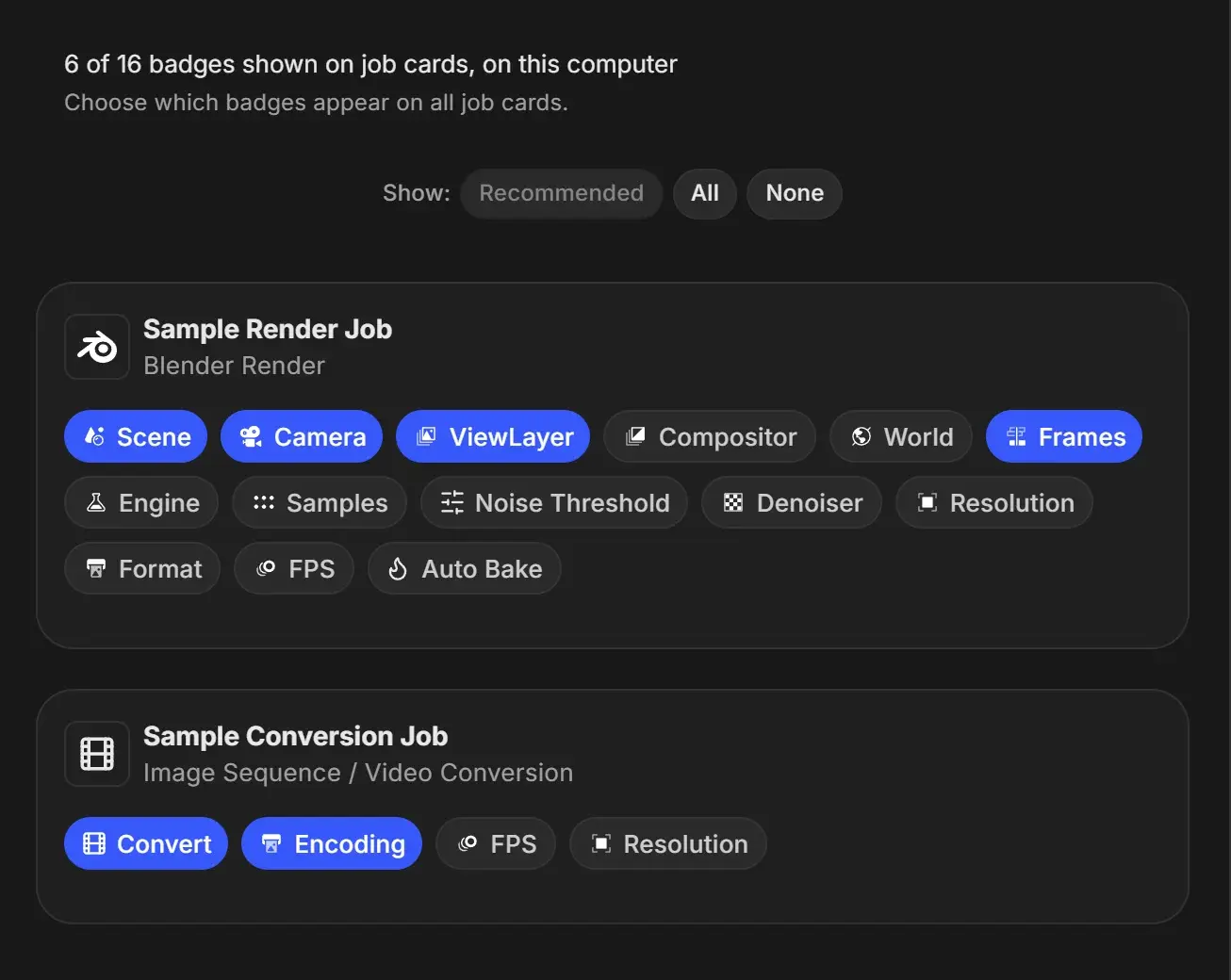
Choose badges
The heading counts the visible badges, for example "6 of 16 badges shown on job cards, on this computer".
- Click a badge on a sample card to show it (blue) or hide it (grey). The change applies to all job cards straight away.
- Use the Show: buttons to apply a set at once: Recommended, All or None. A button is greyed out when that set is already applied.
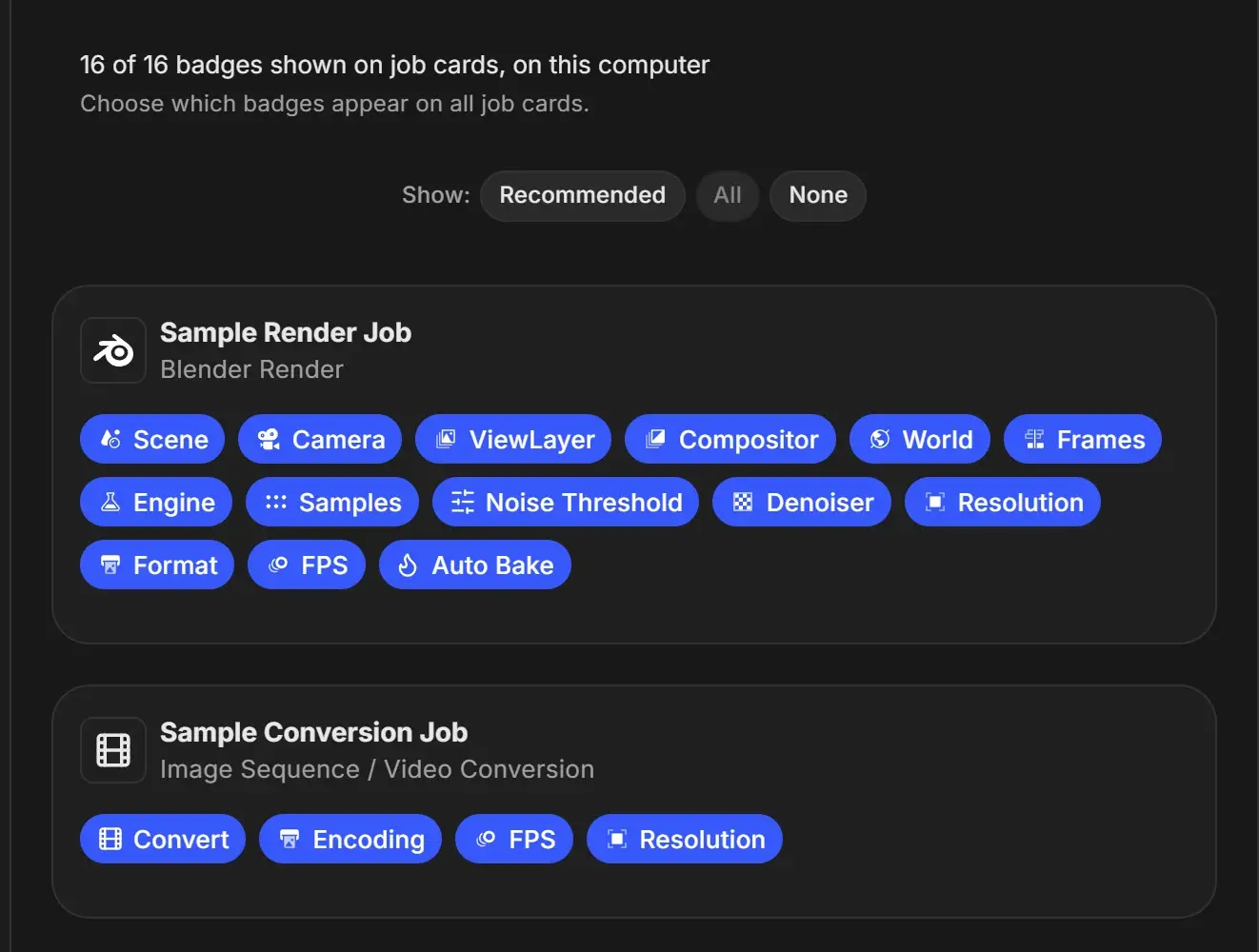
Available badges
| Card | Badges | Shown by default (Recommended) |
|---|---|---|
| Sample Render Job (Blender Render) | Scene, Camera, ViewLayer, Compositor, World, Frames, Engine, Samples, Noise Threshold, Denoiser, Resolution, Format, FPS, Auto Bake | Scene, Camera, ViewLayer, Frames |
| Sample Conversion Job (Image Sequence / Video Conversion) | Convert, Encoding, FPS, Resolution | Convert, Encoding |
FPS and Resolution appear on both cards but are one setting each: turning one on shows it on render and conversion jobs alike.